
Actions Feature for LTL Carriers
The Actions feature in Cabo allows you to quickly manage multiple LTL carriers at once within a customer’s account. This tool is useful when you need to activate, deactivate, or update carrier preferences in bulk, rather than making changes one by one.
Accessing Actions
1. Navigate to the account where you want to update carrier preferences.
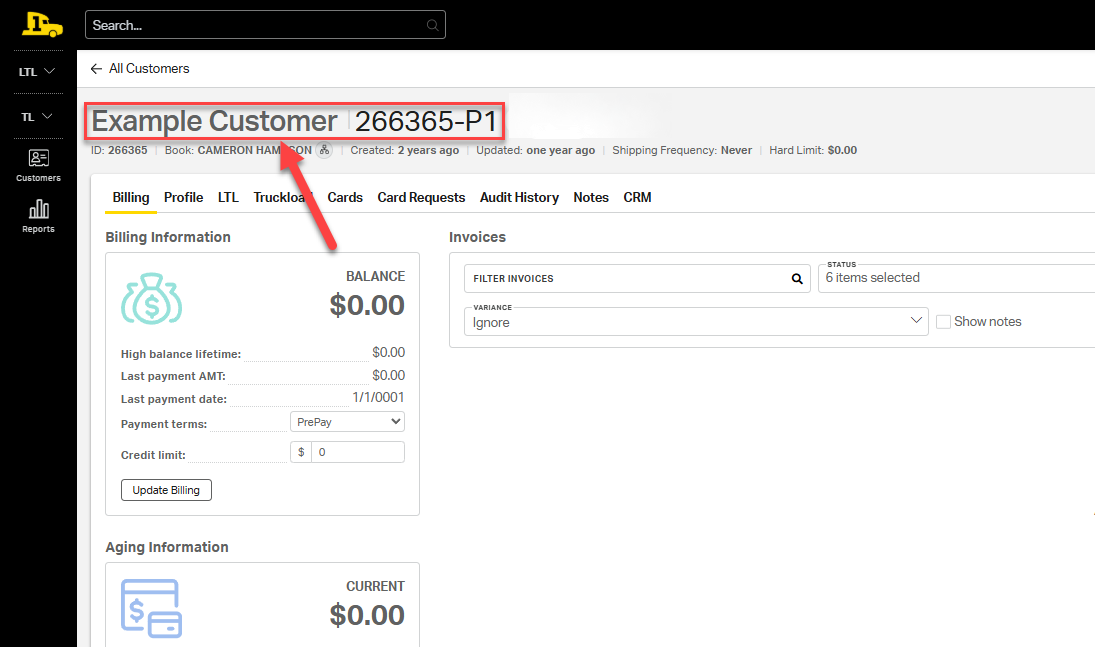
2. Open the LTL tab to view all LTL-related settings for the customer.
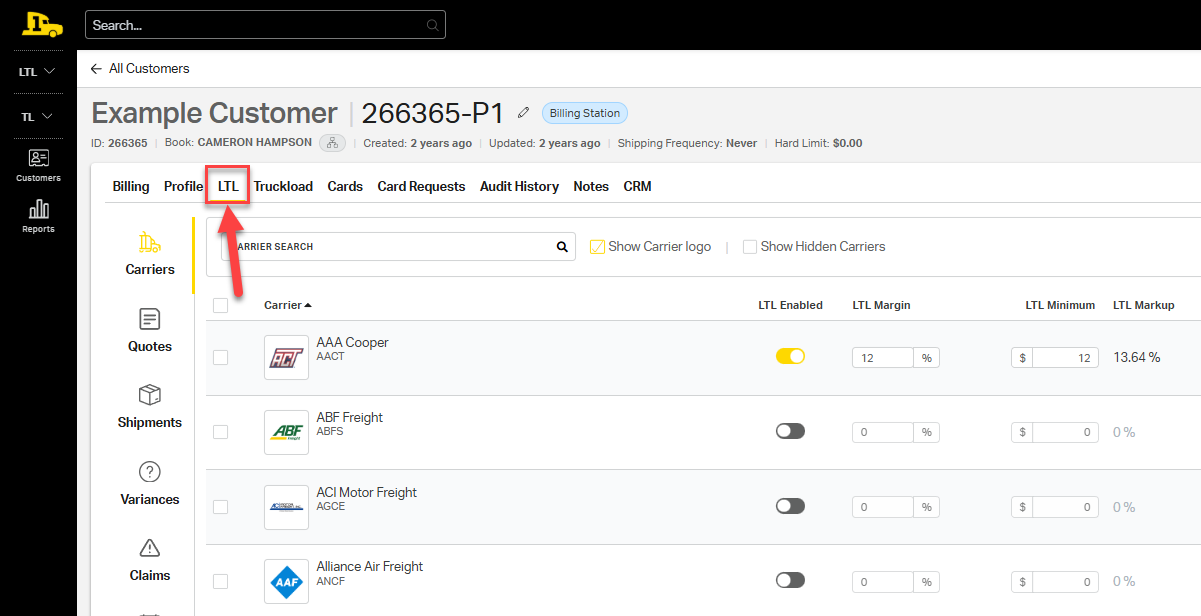
3. The LTL tab will automatically open to the Carriers section.
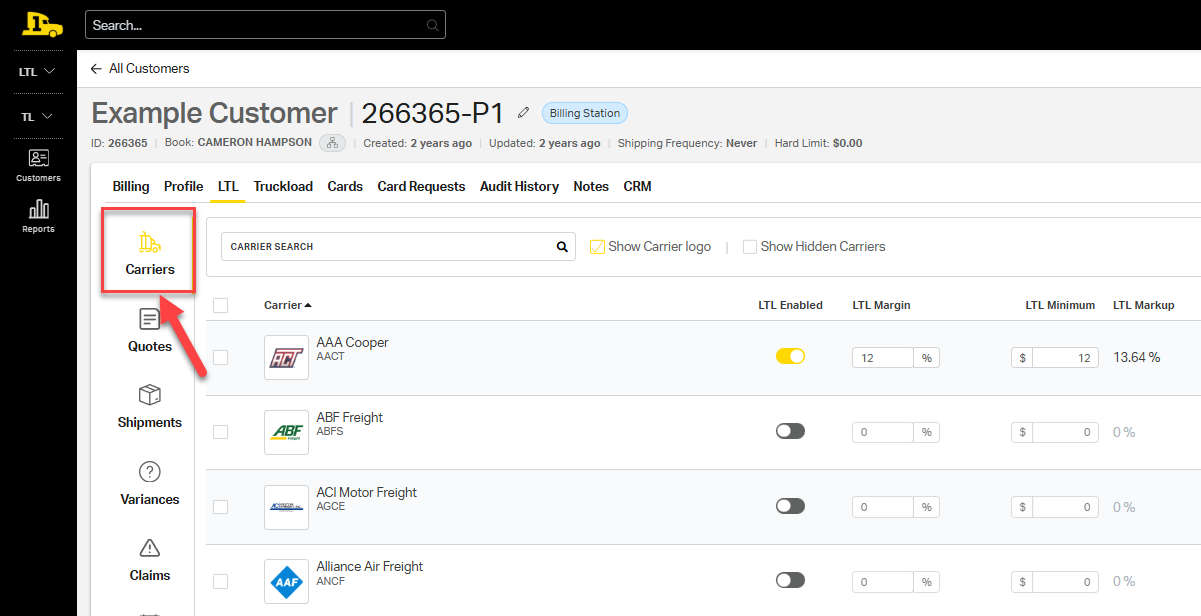
4. Select the checkbox in the top right of the carrier list to select all LTL carriers. You can unselect the box to the left of an individual carrier if you want them excluded from any changes.
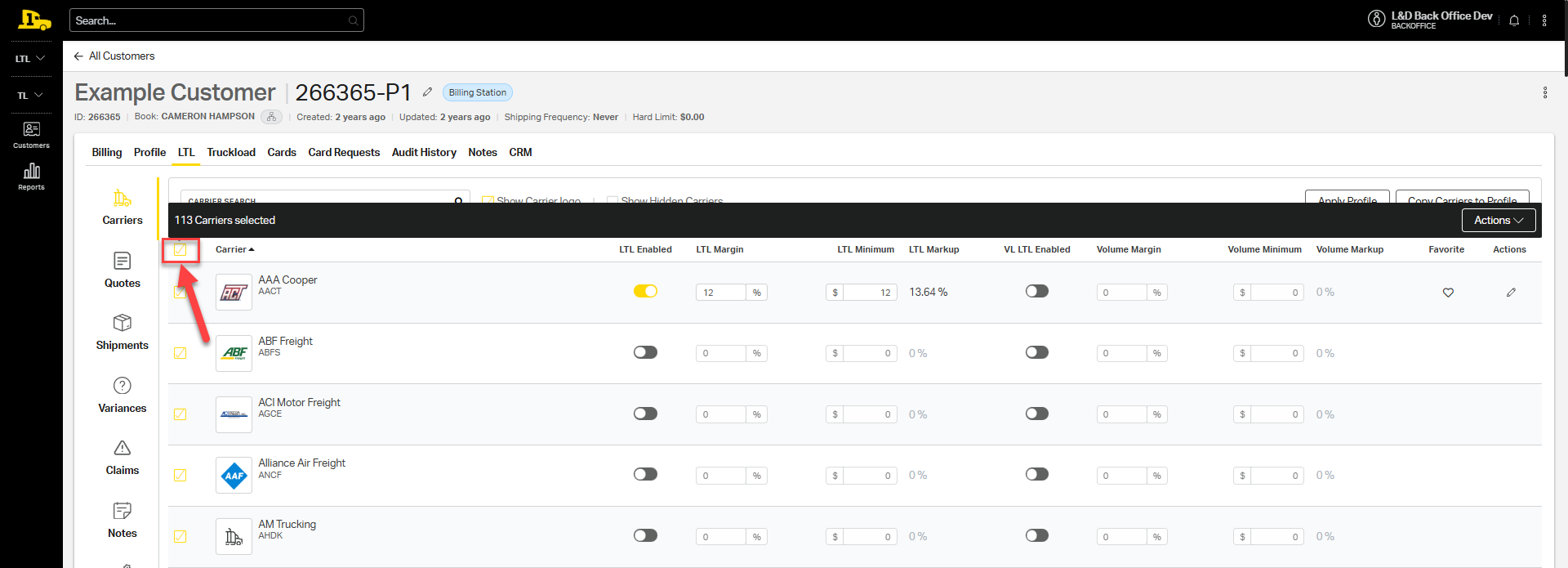
5. Once carriers are selected, a black bar will appear at the top of the list with an Actions button. Select it to view available actions.
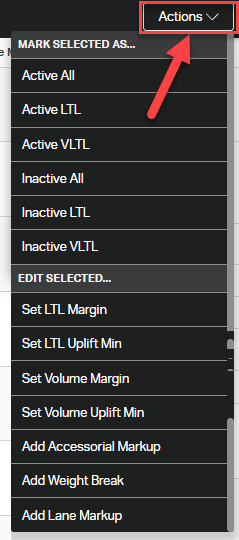
Available Actions
The Actions menu provides the following options:
Mark Selected As…
- Active All: Activates both LTL and volume LTL for the carriers selected, meaning the customer can run quotes with those carrier rates.
- ⚠️ When activated, LTL carrier margin is automatically set to 25% with a $25 minimum.
- Active LTL: Activates only LTL for the carriers selected.
- Active VLTL: Activates only Volume LTL for the carriers selected.
- Inactive All: Deactivates both LTL and volume LTL for the carriers selected, meaning no rates will pull for those carriers when running a quote.
- Inactive LTL: Deactivates only LTL for the carriers selected.
- Inactive VLTL: Deactivates only Volume LTL for the carriers selected.
Edit Selected…
- Set LTL Margin: Adjusts the default margin percentage for selected LTL carriers.
- Set LTL Uplift Min: Sets the minimum uplift amount for selected LTL carriers.
- Set Volume Margin: Adjusts the default margin percentage for selected Volume LTL carriers.
- Set Volume Uplift Min: Sets the minimum uplift amount for selected Volume LTL carriers.
- Add Accessorial Markup: Applies a markup to selected accessorial charges for the chosen carriers.
- Add Weight Break: Adds weight break pricing rules to selected carriers.
- Add Lane Markup: Applies markup to specific lanes for the selected carriers.
⚠️ Note: Only activate carriers that service the customer's shipping area. This ensures Cabo can quote shipments faster and avoids unnecessary lookups from irrelevant carrier websites.
Related Articles