
LTL Auto Adjust Minimum
The Lowest LTL Rate Auto Adjust Minimum is a margin enhancement tool that protects your profit when one carrier’s rate is significantly lower than others.
When enabled, Cabo automatically adjusts the lowest rate to fall within a set dollar amount of the second-lowest rate. This ensures competitive pricing while preserving margin.
Auto Adjust Minimum in Action
Example:
- Lowest returned rate: $200
- Second-lowest rate: $300
- Auto Adjust Minimum: $40.23
Cabo adjusts the lowest rate to $259.77 ($300 – $40.23 = $259.77).
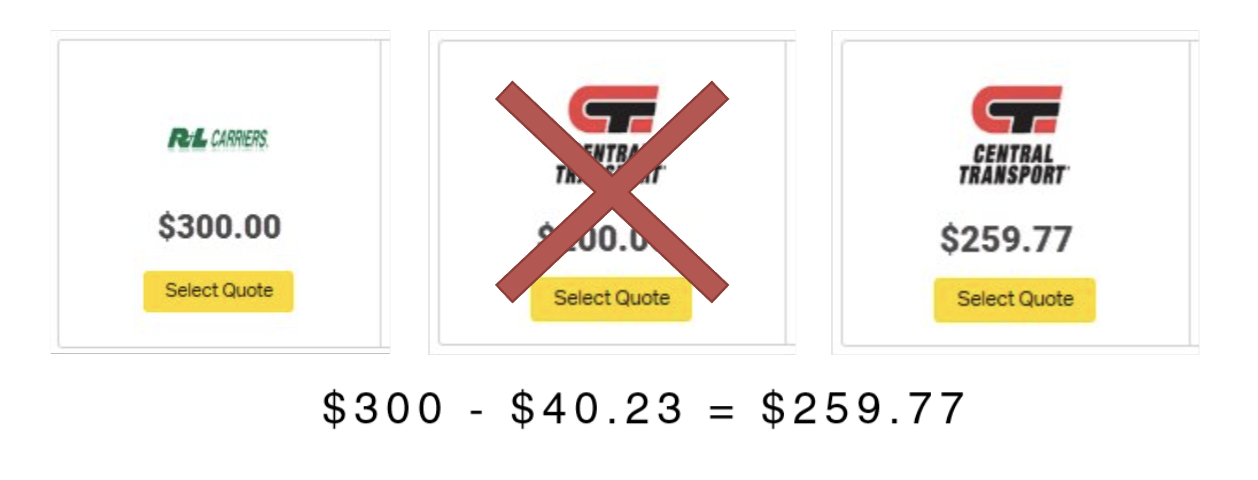
By narrowing the gap between rates, the LTL Auto Adjust Minimum ensures the lowest option remains competitive while protecting margin.
Disabling LTL Auto Adjust Minimum
The LTL Auto Adjust Minimum is defaulted to ON for new customers. To disable the feature:
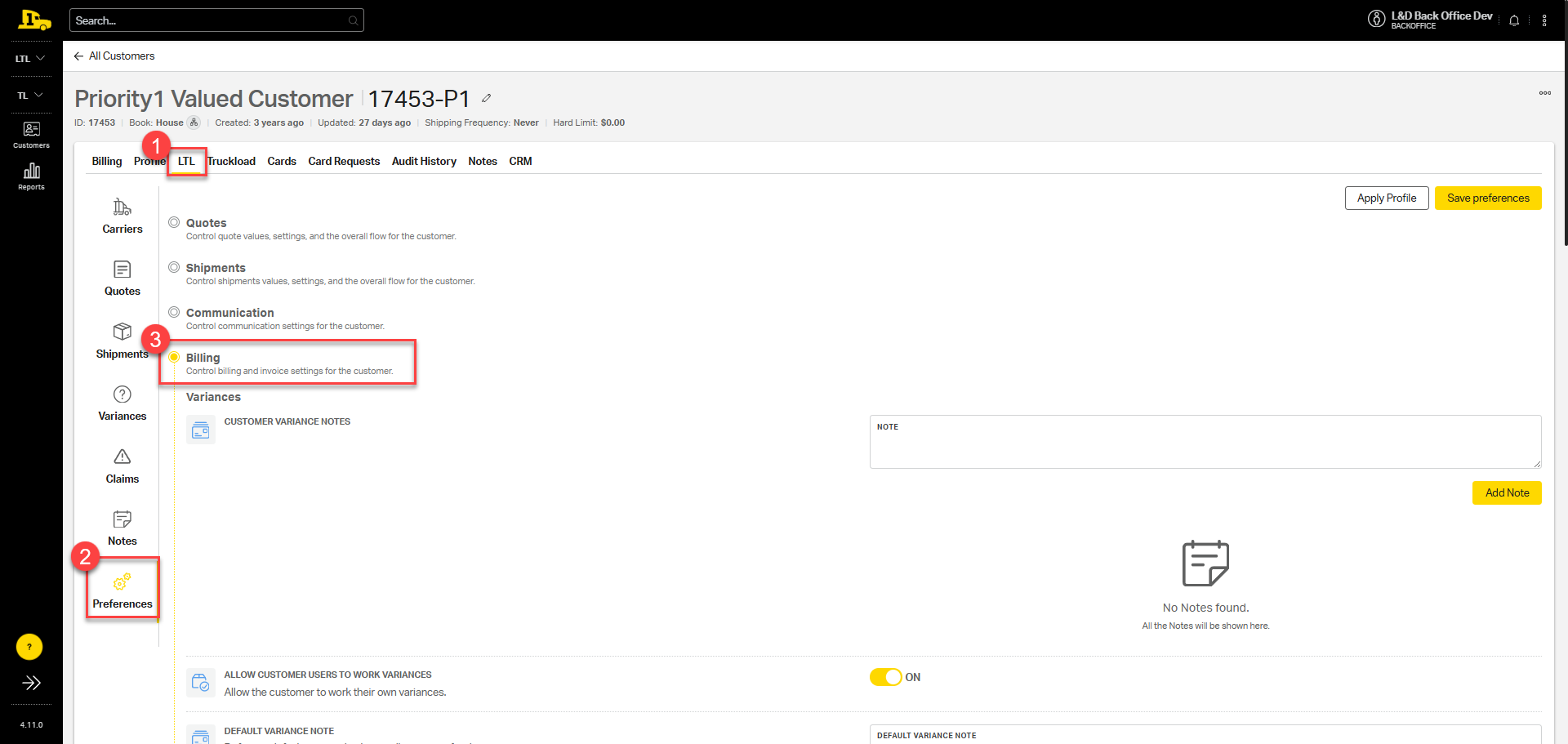
1. Navigate to the customer account, then select LTL > Preferences > Billing
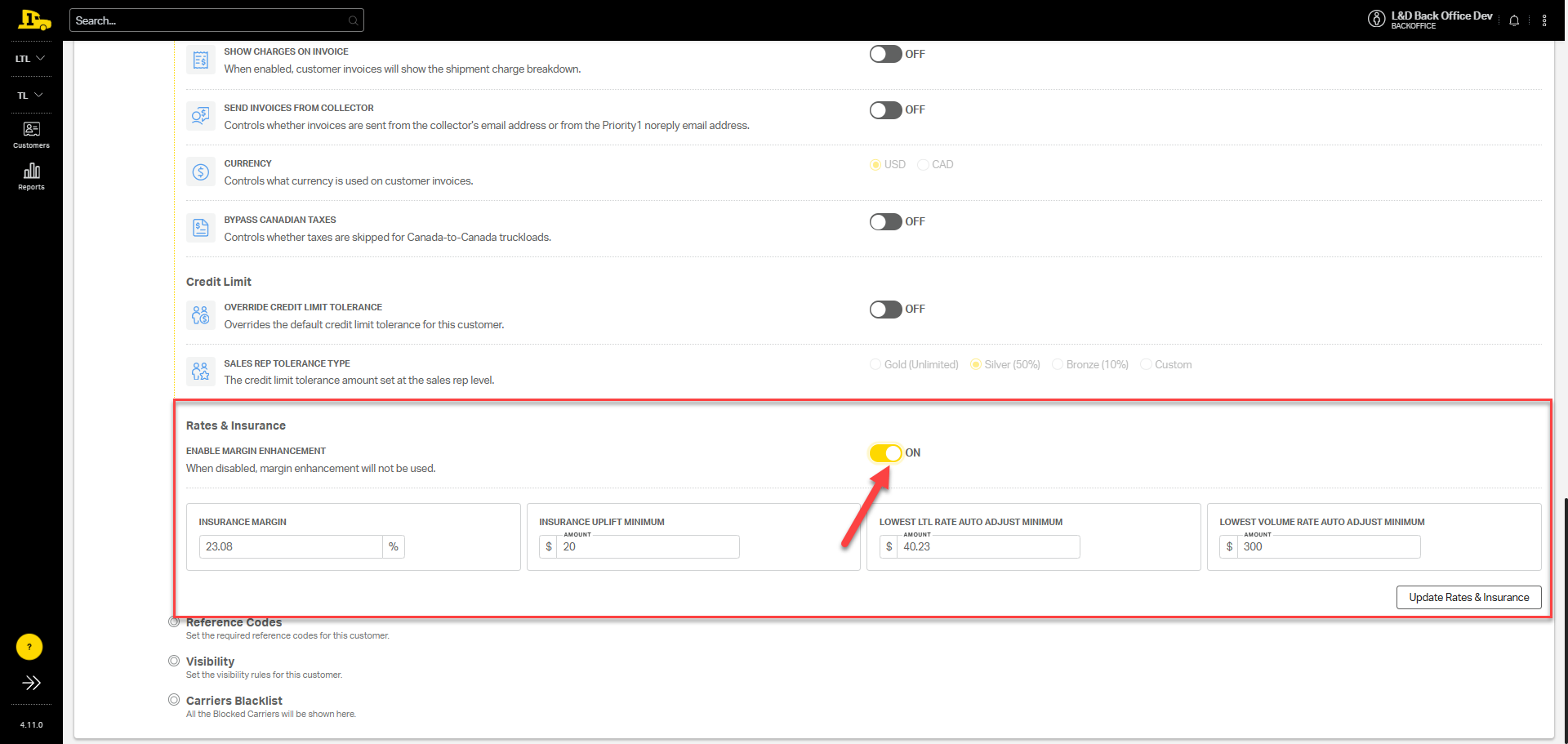
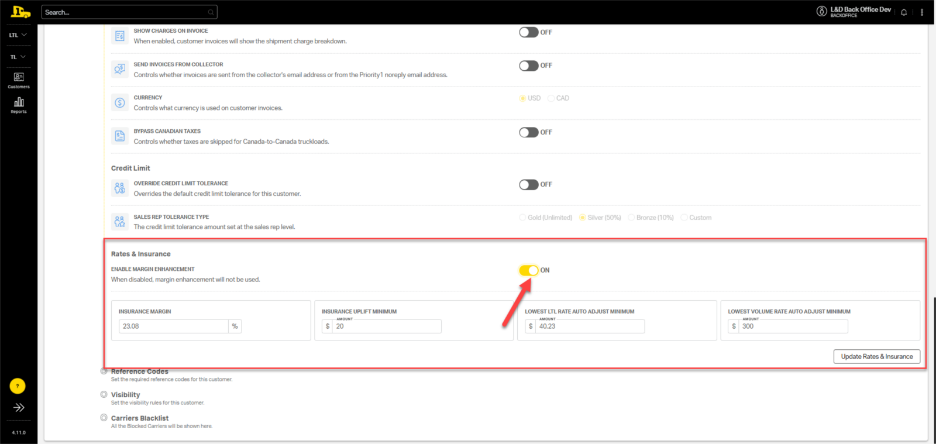
2. Under the Rates and Insurance section, toggle Enable Margin Enhancement to OFF.

Enabling the LTL Auto Adjust Minimum
In the event the LTL Auto Adjust Minimum has been disabled, complete the following steps to reinstate it.
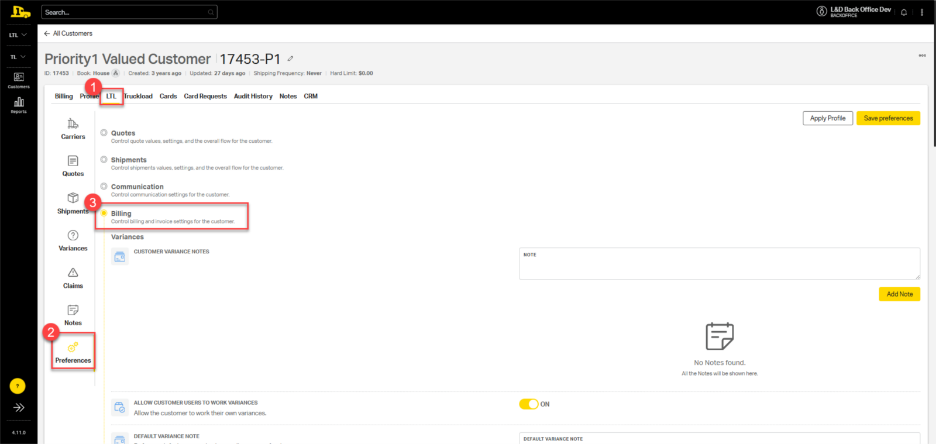
1. Navigate to the customer account, then select LTL > Preferences > Billing.
2. Under the Rates and Insurance section, toggle Enable Margin Enhancement to ON.
Adjusting the Auto Adjust Minimum
The Auto Adjust Minimum amount is an editable field that you can tailor to your preference. It determines how much difference is allowed between the two lowest rates, giving you control over how rates are displayed.
- Lowering the value narrows the difference, keeping the rates closer together.
- Raising the value widens the difference, which can result in more competitive rates being shown to the customer.
ℹ️ Cabo will automatically adjust the minimum value within ±$0.10 of the set amount.
Adjusting the Auto Adjust Minimum in Customer Preferences
Navigation: LTL > Preferences > Billing > Rates & Insurance
Enter your desired amount in the following fields:
- Lowest LTL Rate Auto Adjust Minimum
- Lowest Volume Rate Auto Adjust Minimum
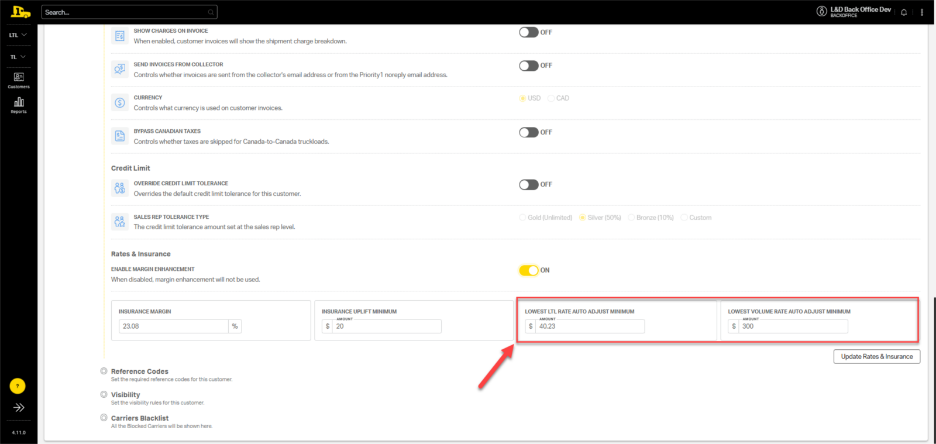
💡 Tip: If you want Auto Adjust to apply to standard LTL but not to volume quotes (or vice versa), enter a very high value (e.g., 9999) in the Lowest Volume Rate Auto Adjust Minimum field. Since carrier rates will never be that far apart, Cabo will not make any adjustments in that category.

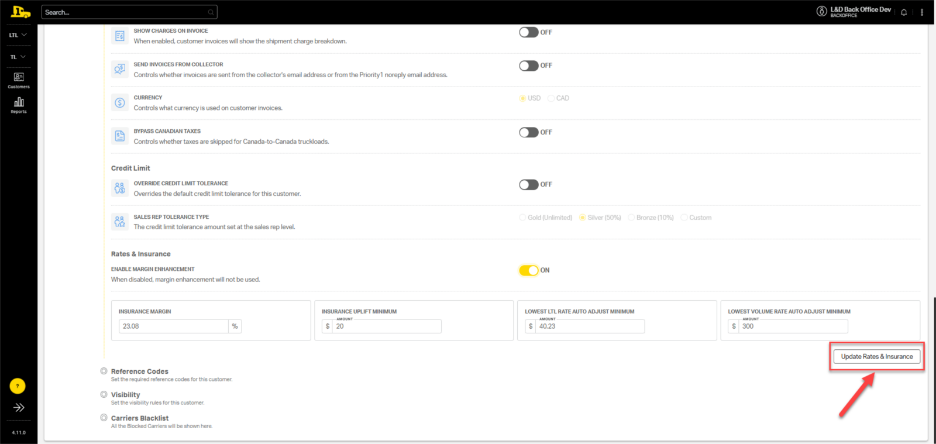
4. Select Update Rates & Insurance to save changes.
Adjusting the Auto Adjust Minimum for a Specific Carrier
To adjust the Auto Adjust Minimum for a specific carrier,
1. Navigate to the customer account, then select LTL > Carriers> Billing.
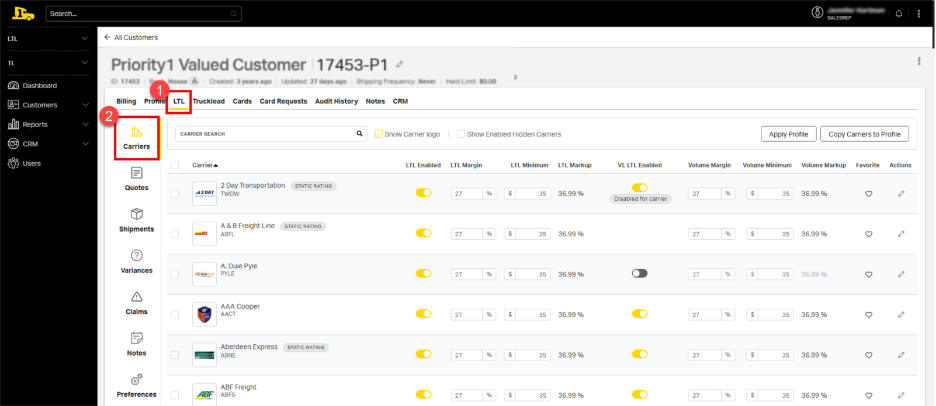
2. Select the Action icon (✏️) next to the carrier to be adjusted.
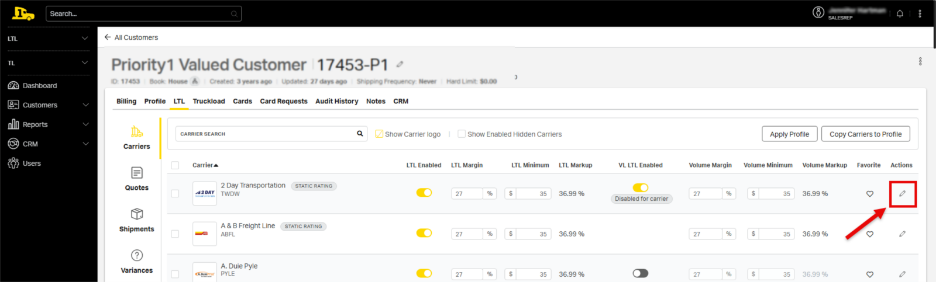
3. On the resulting carrier page, enter the desired amount in the following fields:
- Lowest LTL Rate Auto Adjust Minimum
- Lowest Volume Rate Auto Adjust Minimum
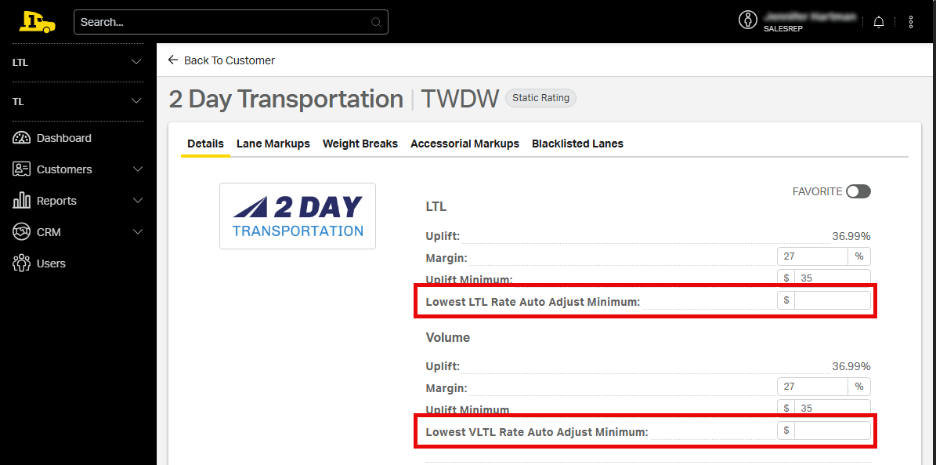
ℹ️ When the Lowest LTL Rate Auto Adjust Minimum and Lowest VLTL Rate Auto Adjust Minimum fields on the Carrier Profile are blank, the default setting on the customer profile will be applied.