
Managing LTL Carrier Preferences
LTL Carrier Preferences allow you to customize pricing and set rules for specific LTL carriers under a customer's account. You can adjust default margin and minimum, control lane and weight-based pricing, apply specific markups for accessorials, and even block specific lanes entirely.
These preferences live under the customer’s profile and apply only to that customer’s shipments for that specific carrier.
Navigating to LTL Carrier Preferences
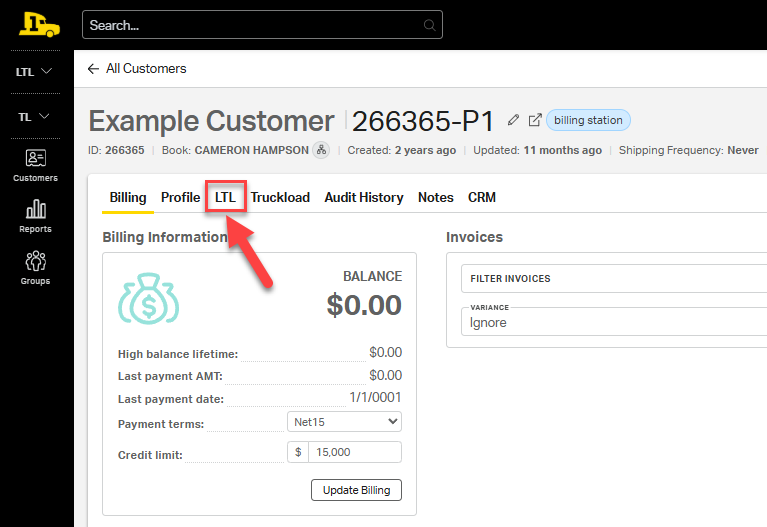
Navigate to the customer's account, then select LTL.
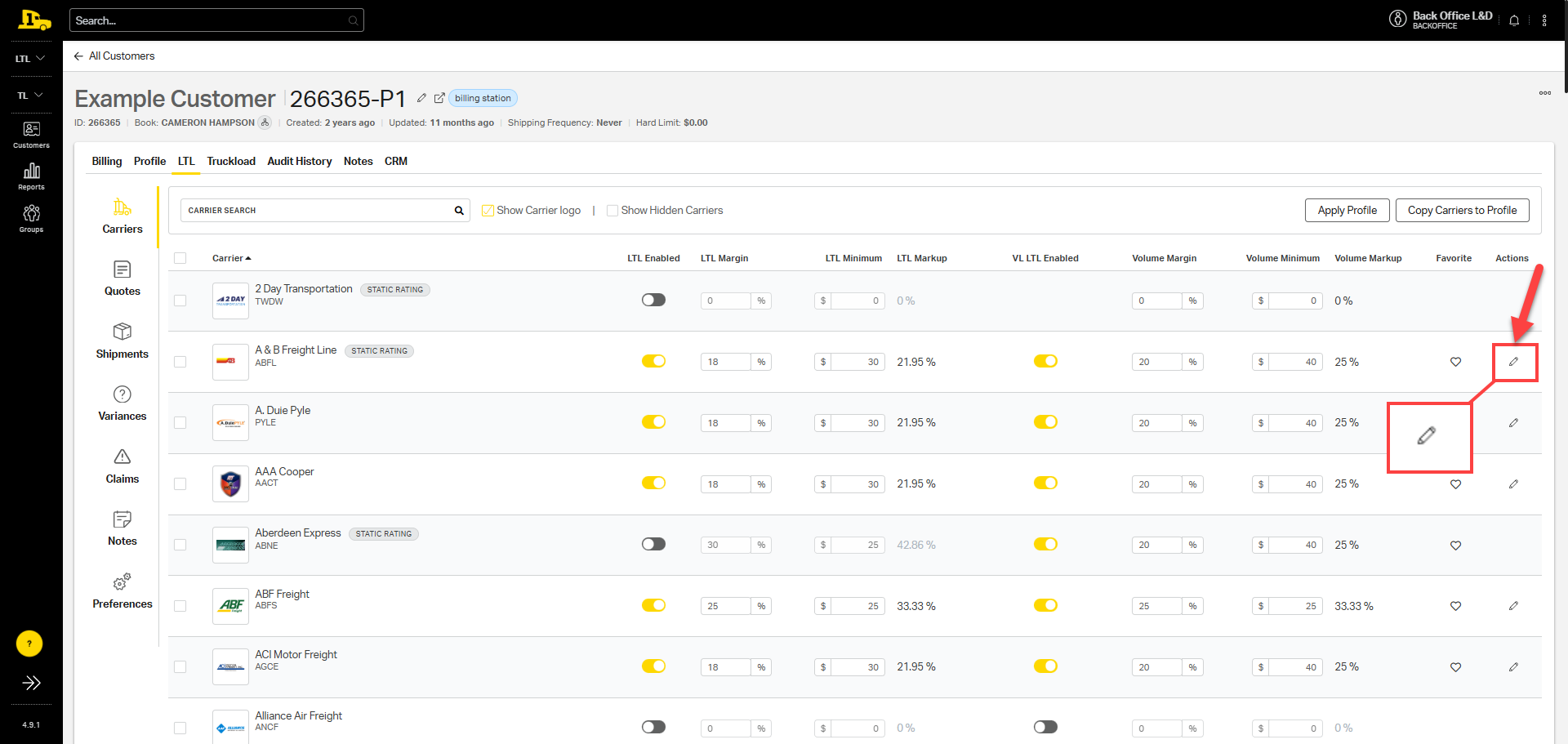
Under the Carrier section, locate the specific carrier that needs edits and select the edit pencil icon next to it.
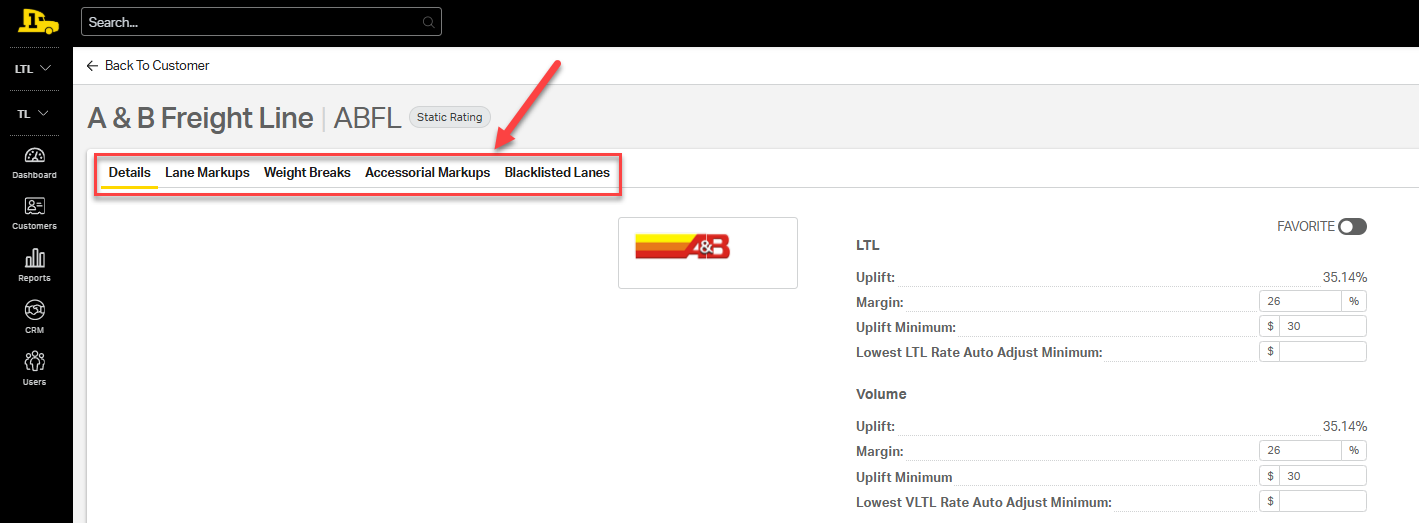
From here, select the tab that is relevant to the preference you want to update.
What You Can Adjust
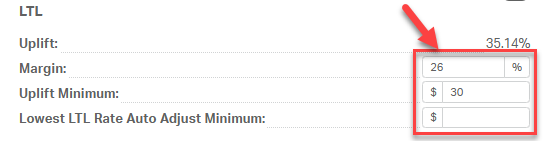
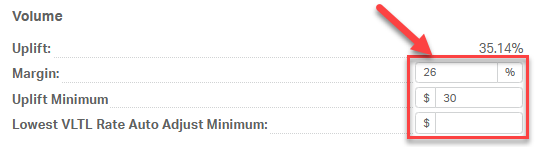
- Margin: Set the default percentage added to the carrier cost for that specific carrier.
- Minimum: Set a dollar amount to be added to the carrier cost at minimum.
- Lowest LTL Rate Auto Adjust Minimum: This setting defines the minimum rate threshold for the carrier under the Margin Enhancement Program (MEP). While the MEP minimum is typically set at the customer level in a separate preference, this option allows you to enforce a higher minimum rate for specific carriers if you don’t want rates to go below a certain level.
- Volume Margin: Set margin specific to volume quotes.
- Volume Minimum: Set a volume-specific minimum dollar amount.
- Lowest VLTL Rate Auto Adjust Minimum: This setting defines the minimum rate threshold for a carrier under the Margin Enhancement Program (MEP). While the MEP minimum is usually set at the customer level in a separate preference, this option lets you enforce a higher minimum rate for specific carriers if you don’t want rates to go below a certain level.
- Lane Markups: Adjust margin on a per-lane basis without affecting lanes.
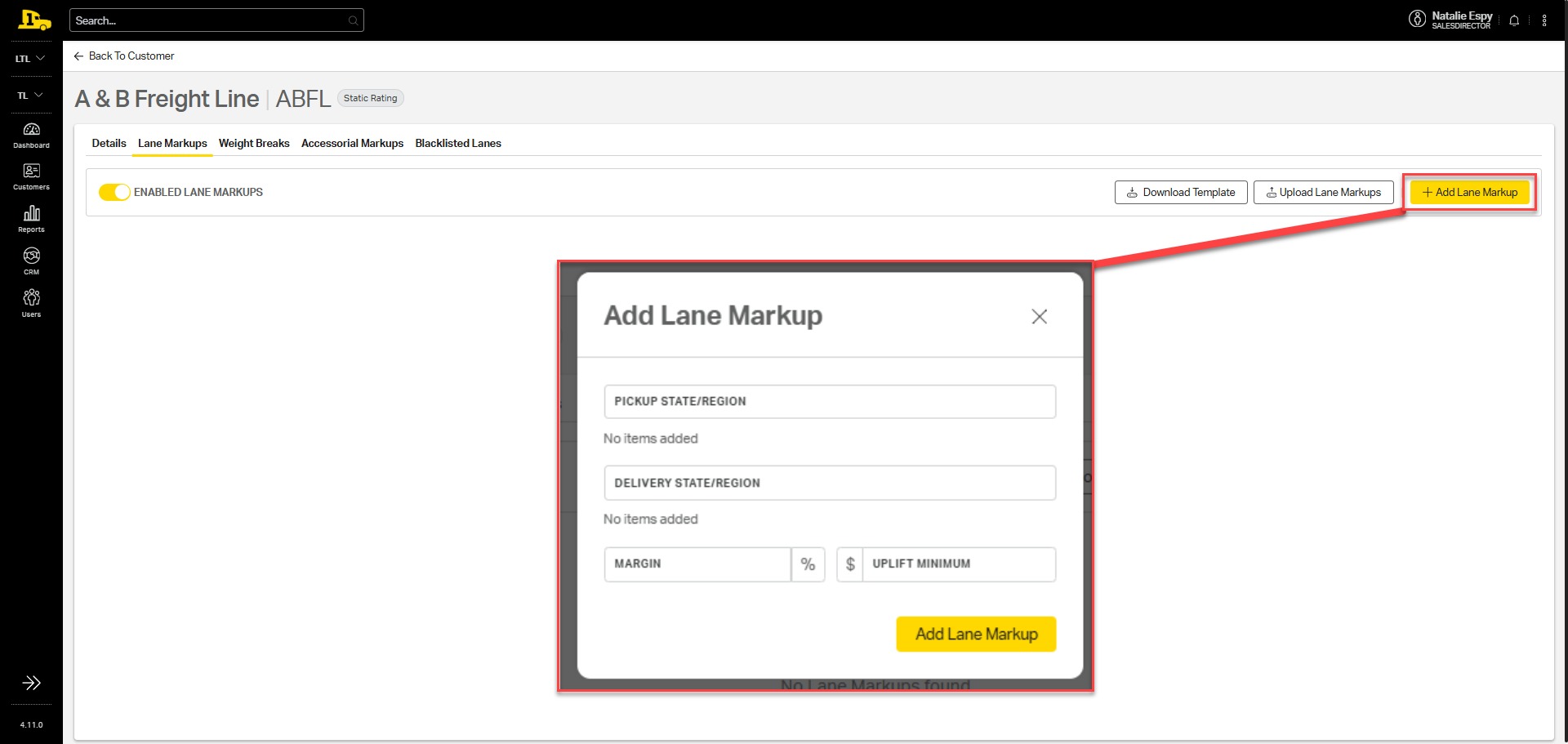
⚠️ Note: Think of “markup” as a modification, not necessarily an increase. It’s like marking up a document: you’re simply making edits to tailor pricing for a specific need.
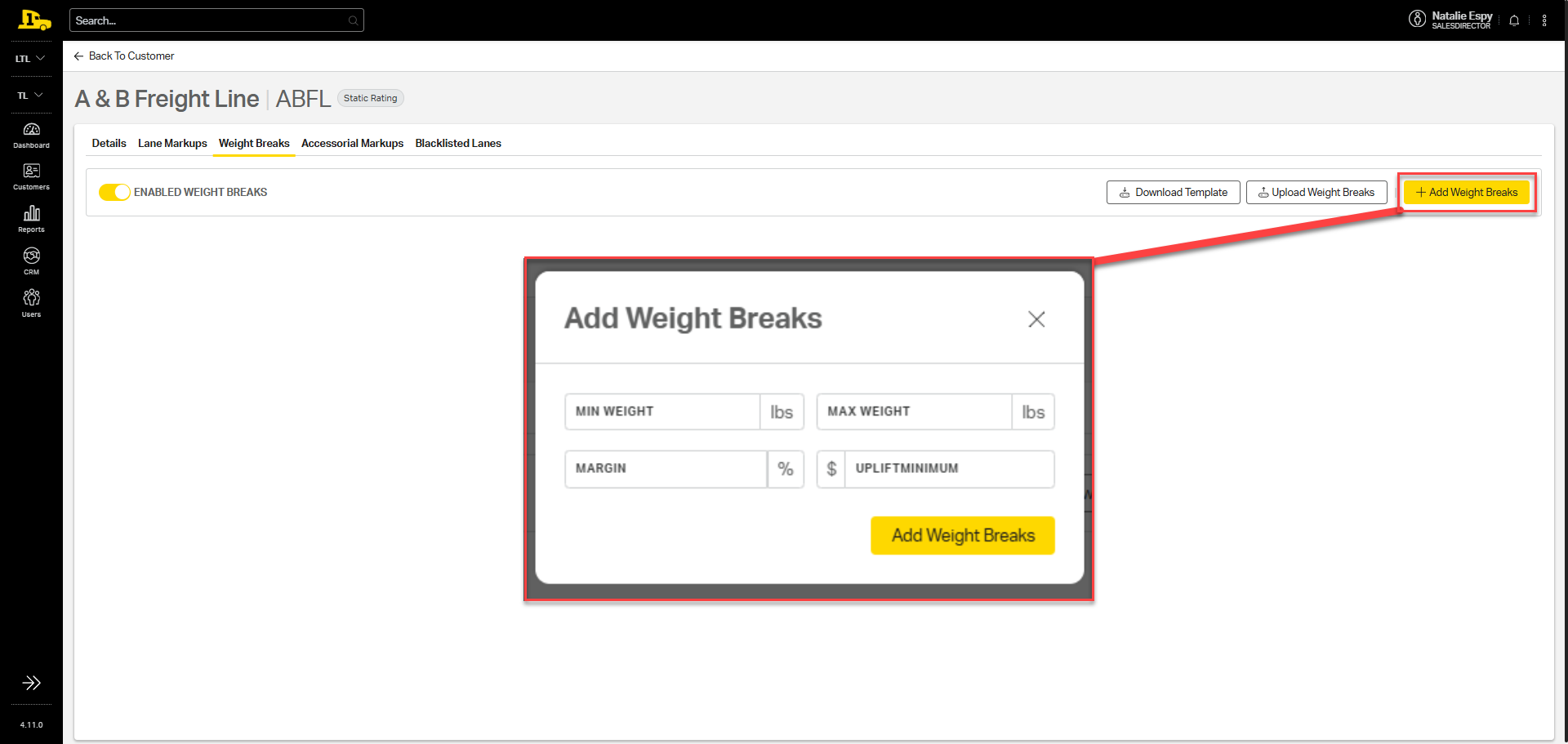
- Weight Breaks: Set different margin/minimums based on shipment weight.
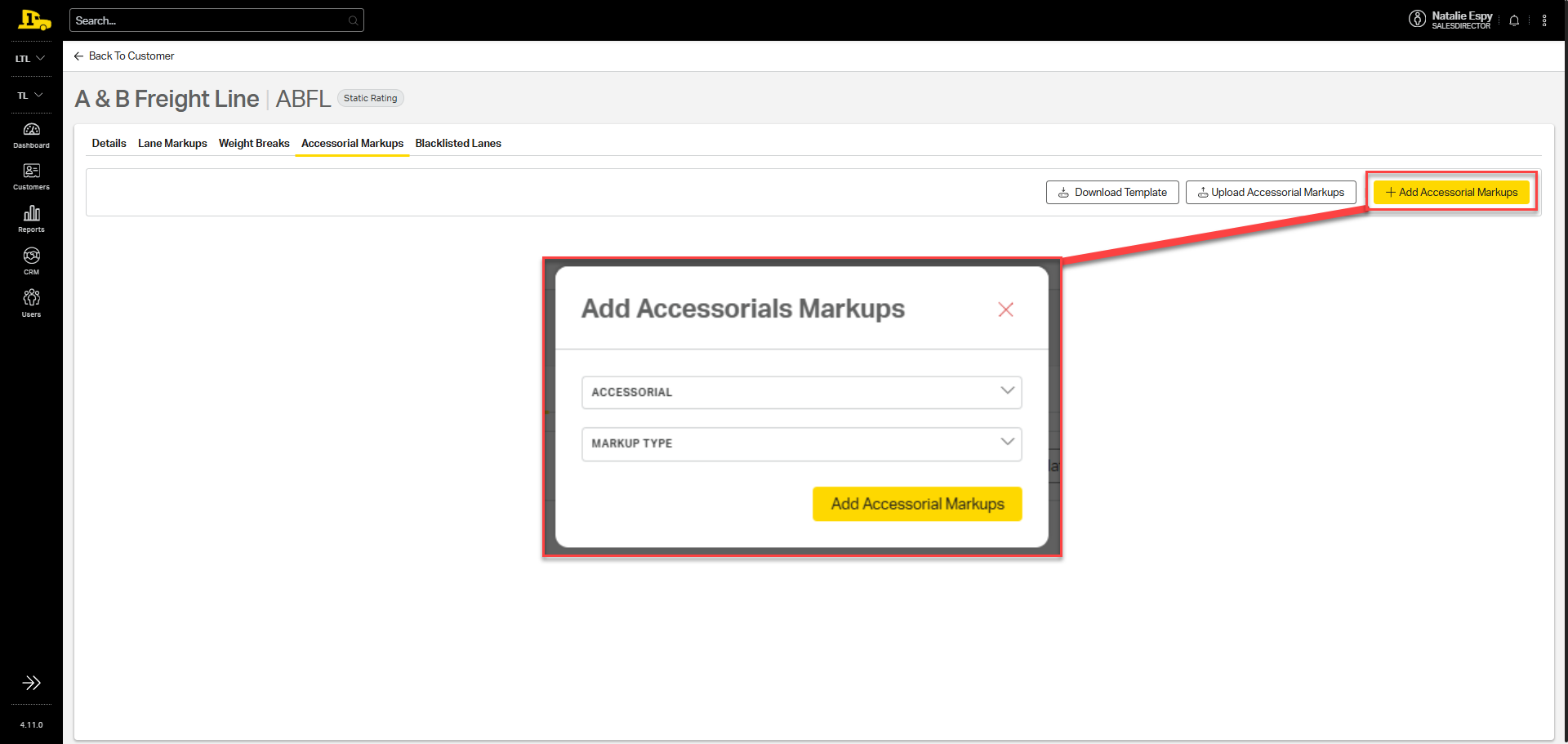
- Accessorial Markups: Apply additional charges for specific services (e.g., $20 flat rate for liftgate). Markup types include a percentage, flat rate, or static flat rate.
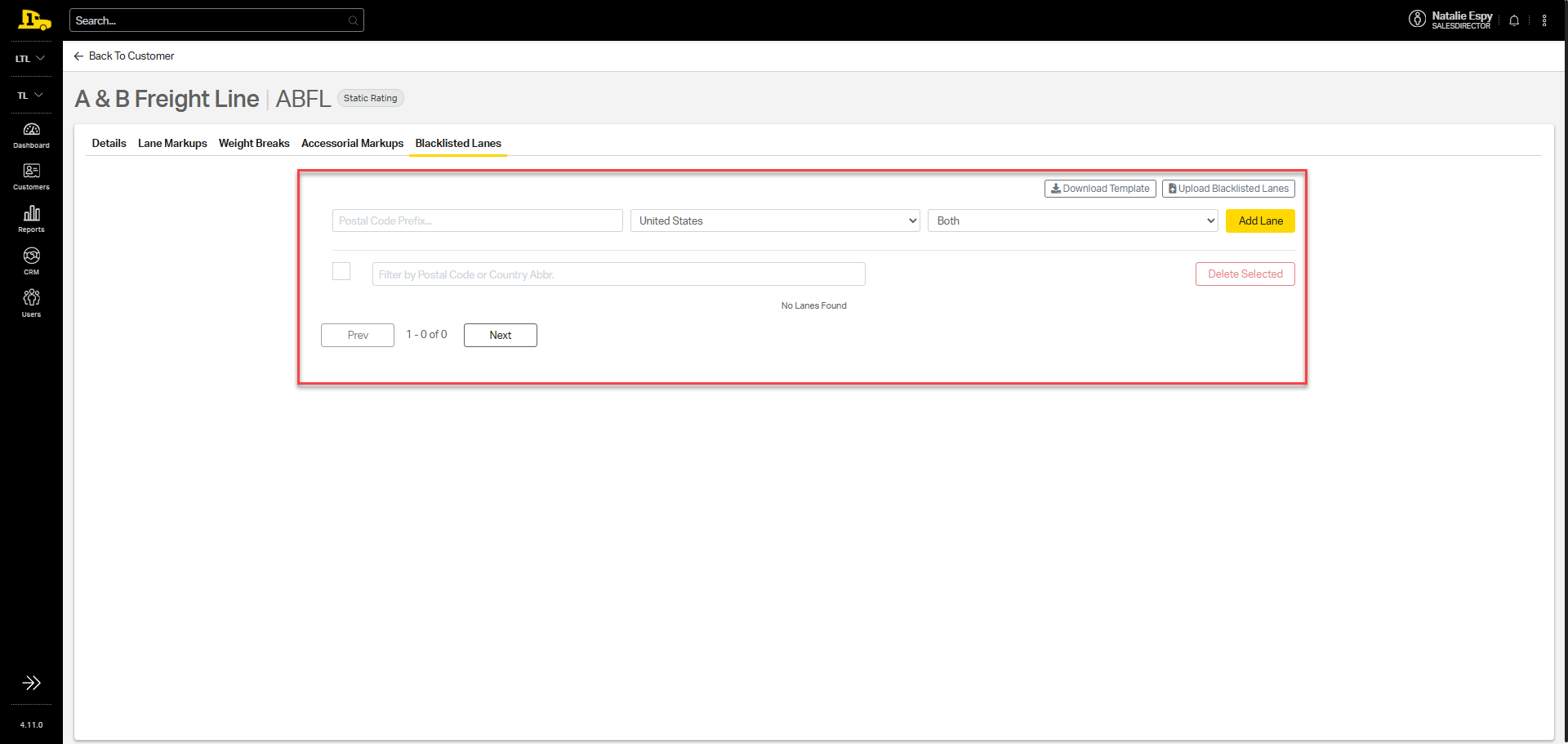
- Blacklisted Lanes: Block quoting for lanes the carrier can’t service.
Bulk Upload Preferences
If you need to make multiple markups or edits for LTL carrier preferences at once, you can use Cabo’s bulk upload feature, which is available under every preference tab:
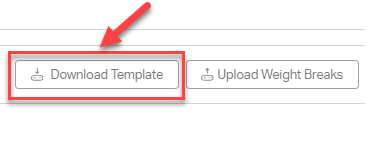
1. Download: Select Download Template to get the spreadsheet required for bulk updates.
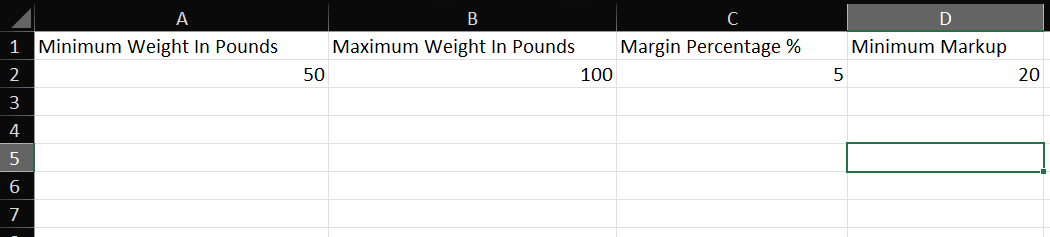
2. Fill Out Template: Enter or update your carrier preferences in the spreadsheet.
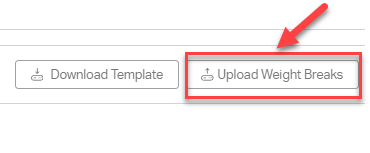
3. Upload: Once complete, click the Upload button to import your updates into Cabo.
Why It Matters
Using Carrier Preferences:
✅ Gives you fine-tuned control over a customer's pricing
✅ Lets you stay competitive in specific lanes
✅ Makes it easier to manage exceptions without affecting overall pricing
✅ Improves quoting accuracy for complex shipments
✅ Helps prevent quotes on lanes that can't be serviced