
LTL Shipment Tracking
Cabo provides three primary tools for tracking LTL shipments that help users stay informed and reduce manual updates. Each option supports a different level of visibility, from quickly locating a single shipment to monitoring every open shipment for an account at once.
Tracking Options
1. Omni Search Bar: A universal search field available on any screen in Cabo. Users can instantly look up an LTL shipment by any associated reference number to access details without navigating through multiple pages.
2. Per-Shipment Tracking: A notification system that delivers live shipment updates and reminders to designated contacts. Under a single shipment, users can:
- Set up tracking updates to automatically send when shipment statuses change (e.g., tendered, dispatched, in transit). These notifications ensure all stakeholders stay informed without manual follow-up.
- Set up manual tracking reminders (sent via text or email) to prompt users to review a shipment's status at a specified date and time. These reminders are especially helpful for critical or irregular shipments, such as those delayed, lost, or under a claim or variance, ensuring teams stay proactive and on track.
3. Daily Shipment Report: A scheduled Excel report containing tracking details for all open shipments, including key information such as BOL/PRO numbers, origin and destination, and carrier data. This provides a complete daily overview of shipment activity in one place.
Utilizing Tracking Options
- The search bar makes finding shipment details quick and efficient, saving time and reducing unnecessary back-and-forth communication.
- Per-shipment tracking keeps users and their contacts automatically updated and provides an added layer of accountability through reminders.
- The daily shipment report gives users a single source of truth, making it easier to plan, monitor high-volume freight, and stay aligned across teams.
Option 1: Omni Search
Cabo's universal search bar, accessible from any screen in Cabo, allows users to look up LTL shipments easily and quickly, providing instant access to shipment details.
Using Omni Search
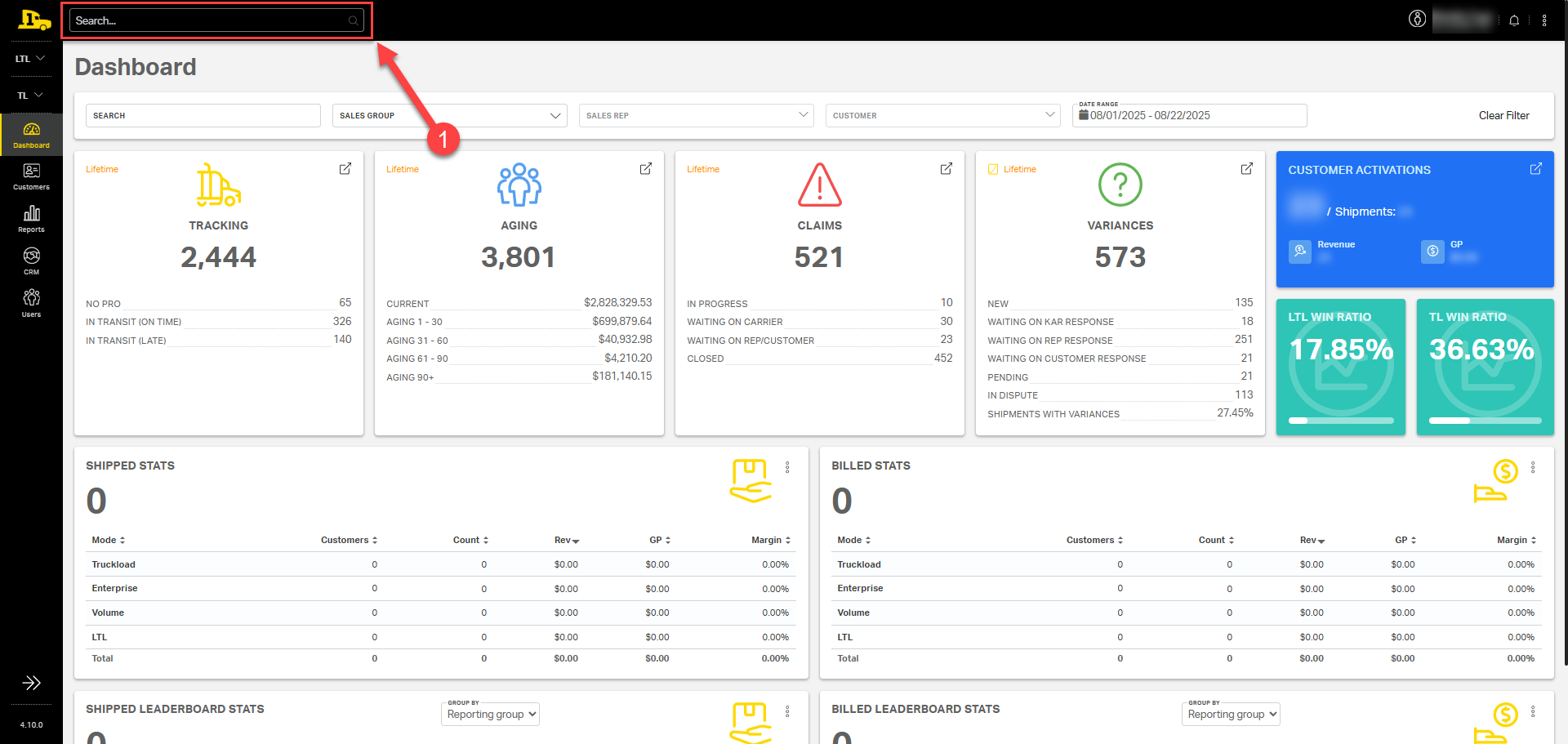
1. Enter one of the shipment's reference numbers (i.e., BOL, PRO, SO, etc.) into the search bar at the top and press Enter.
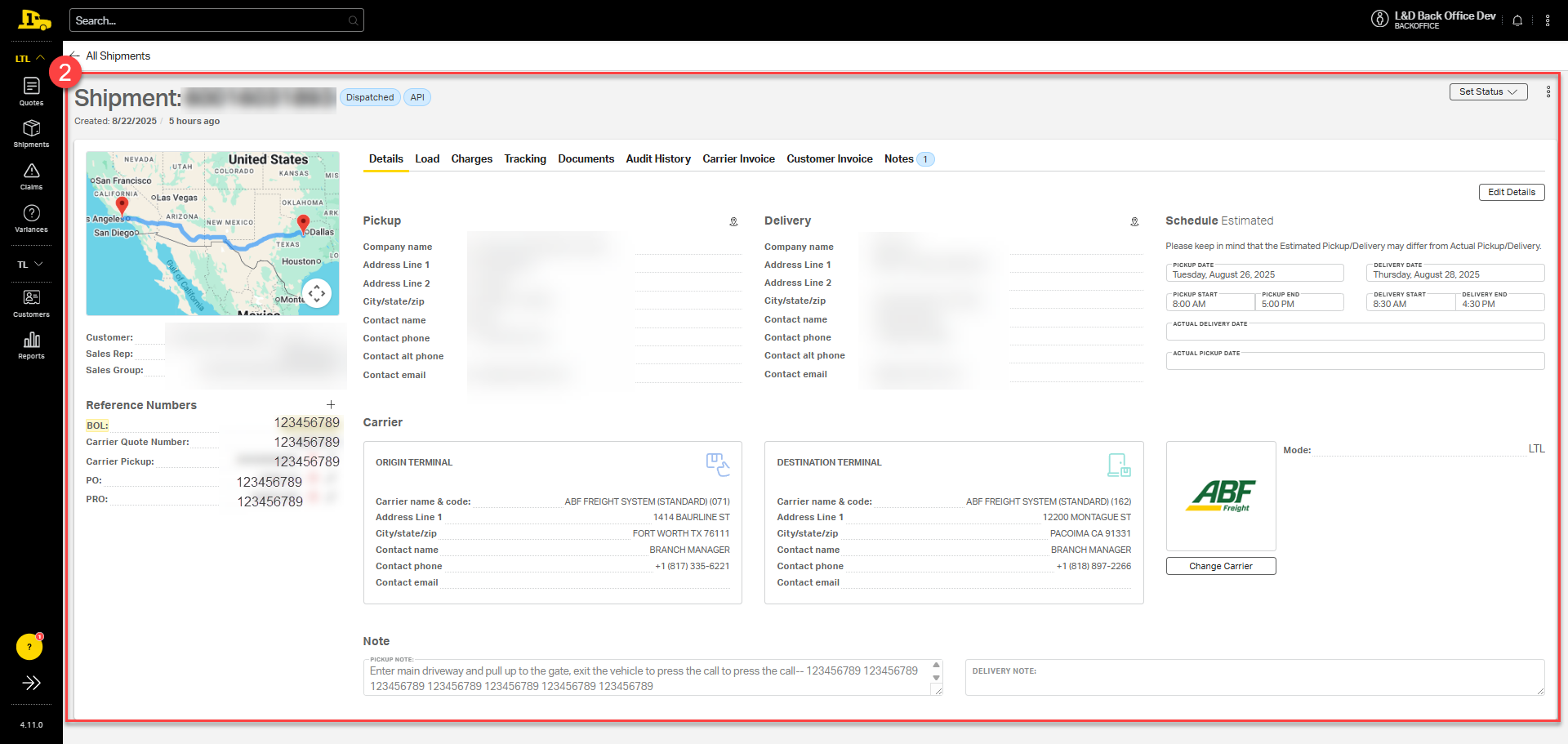
2. When a reference number matches a single shipment, Cabo automatically navigates to the specific shipment page.
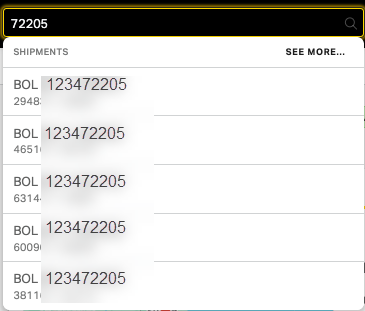
When a reference number matches multiple shipments, Cabo displays up to five options. Users can then select the appropriate shipment from the dropdown.
Option 2: Per Shipment Tracking
When Per Shipment Tracking is enabled, Cabo delivers live shipment updates directly to designated contacts such as customers, sales team members, or other stakeholders.
Setting Up Per Shipment Tracking Notifications
Per shipment tracking can be enabled during the booking process or directly from the Shipment page after a shipment has been quoted and booked.
During the Booking Process
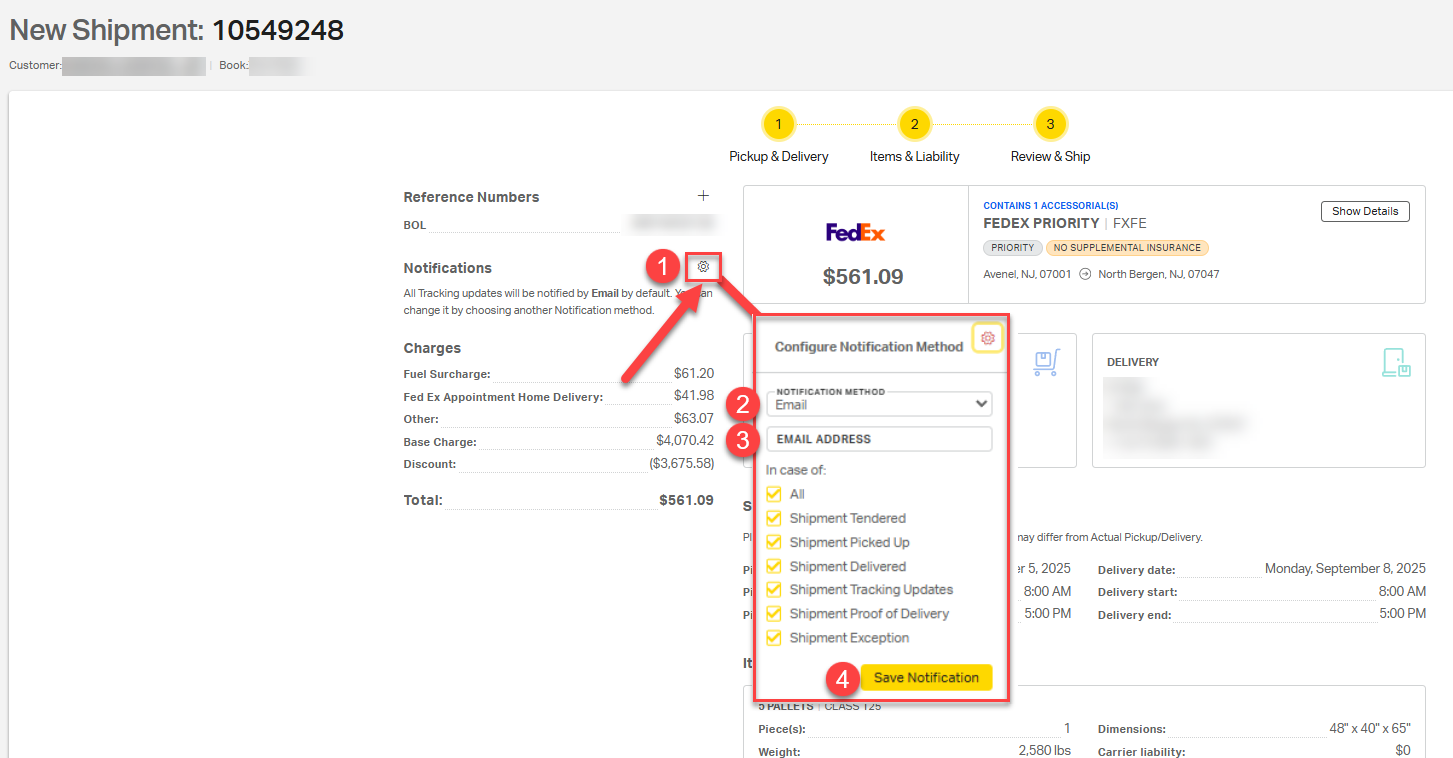
- From the Review & Ship page, select the gear next to Notifications.
- Pick a notification method (i.e., email or text message).
- Enter the appropriate contact information.
- Select Save Notification.
From the Shipment Page
- Once the shipment has been booked, navigate to the Shipment page. Under the Tracking tab, select the gear next to Notifications Method.
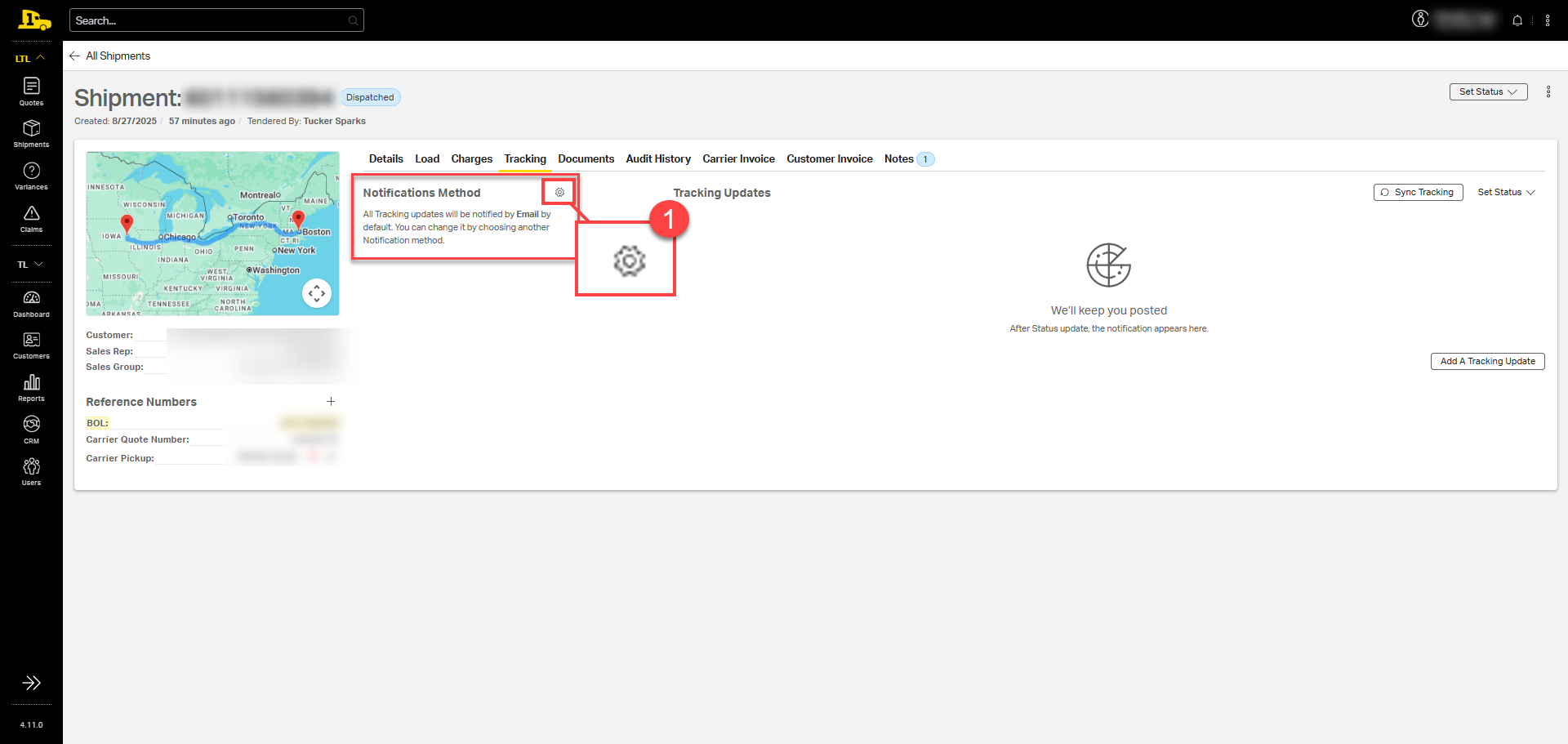
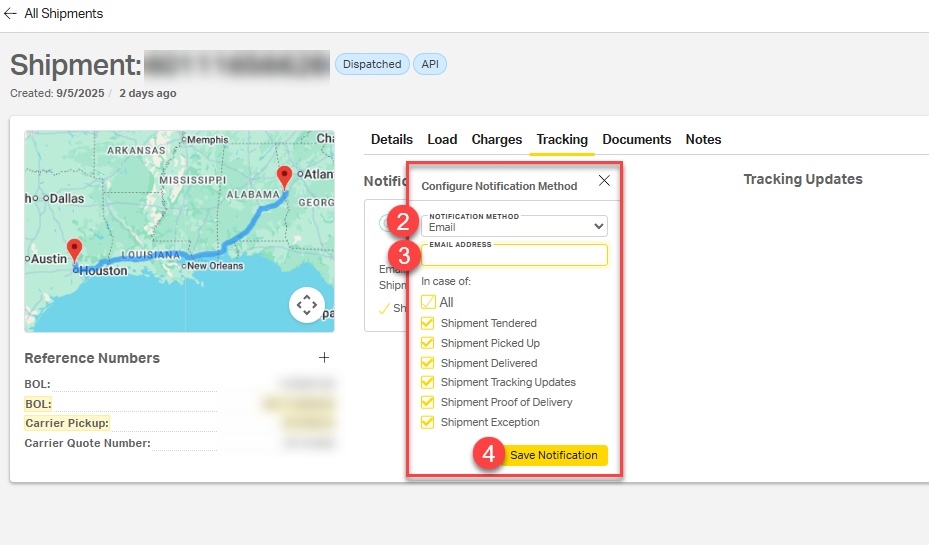
2. Pick a notification method (i.e., email or text message).
3. Enter the appropriate contact information.
4. Select Save Notification.
Setting Up Tracking Reminders
Add tracking reminders for any individual shipment in the Tracking Notification Setup section. These manual notifications prompt users to review the shipment's status at a specified date and time.
To create a Tracking Reminder:
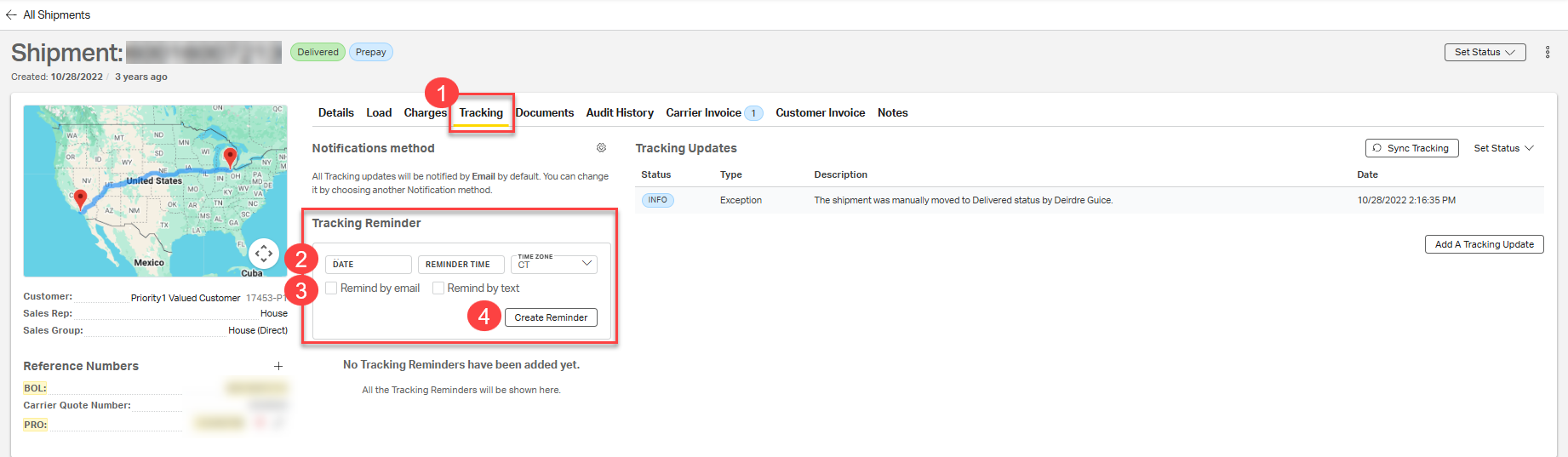
- On the Shipment page, open the Tracking tab, scroll to the Tracking Reminder section.
- Select a Date, Reminder Time and select the your Time Zone.
- Select to be reminded by email, text, or both.
- Click Create Reminder.
Your reminder will trigger at the selected time and method, prompting users to follow up on the shipment. This feature is especially helpful for monitoring critical, delayed, or claim-related shipments that require manual check-ins beyond standard tracking notifications.
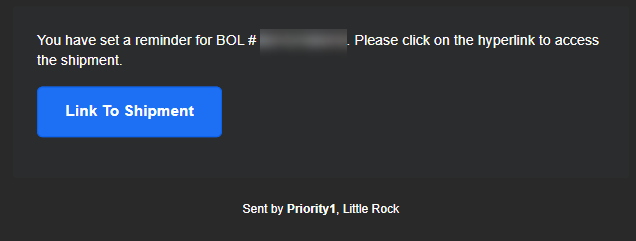
Example tracking reminder email from Cabo.
Option 3: Daily Shipment Report
Cabo can be configured to generate a Daily Shipment Report containing the latest tracking information for all open shipments, including key details like BOL and/or PRO numbers, shipment origin and destination, and carrier information. This report is delivered as an Excel file to the customer's associated email address(es).
Daily Shipment Report Example

Setting Up the Daily Shipment Report
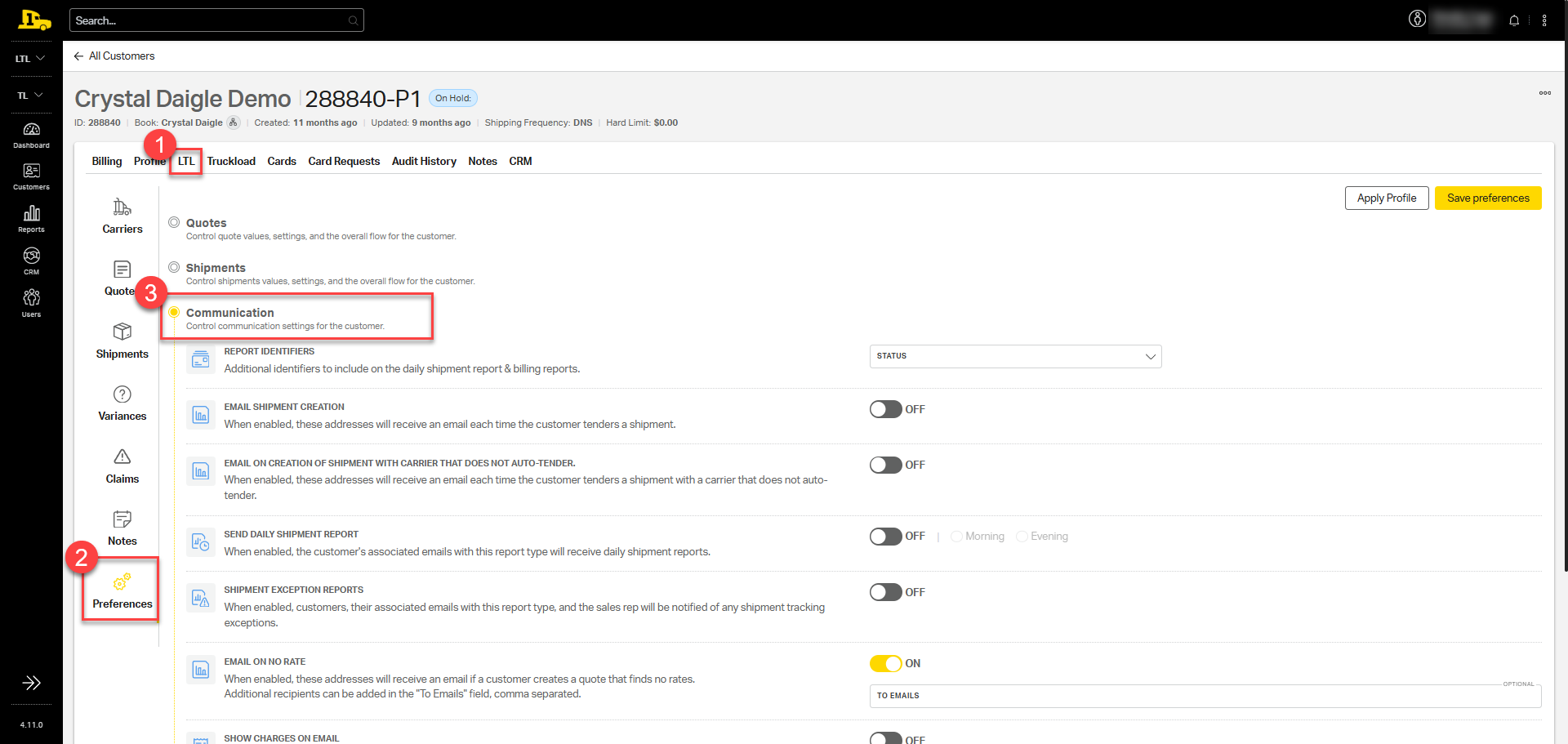
1. After navigating to the customer's account, select LTL>Preferences>Communication.
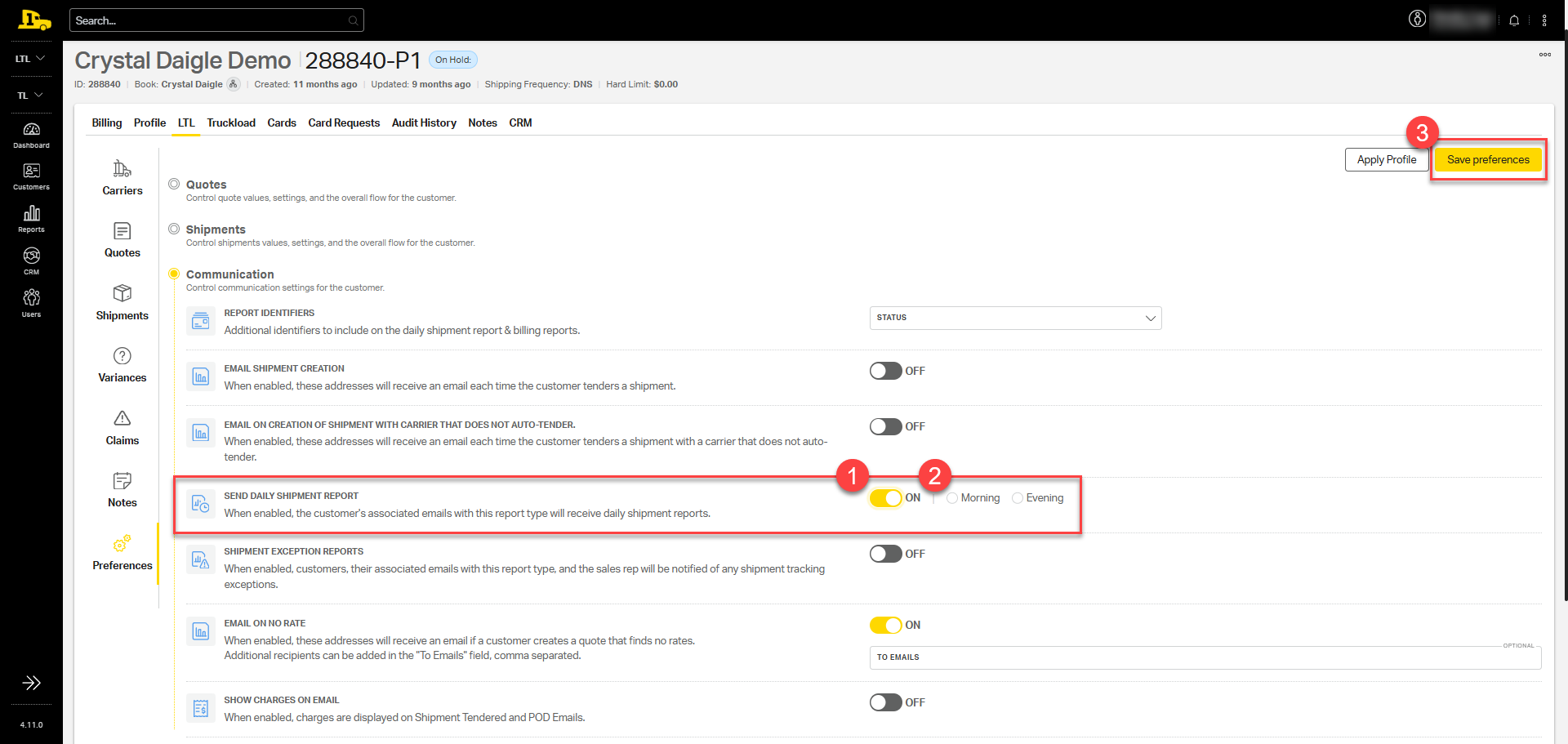
2. Scroll down to the Send Daily Shipment Report field and toggle this feature ON; then select Save Preferences.
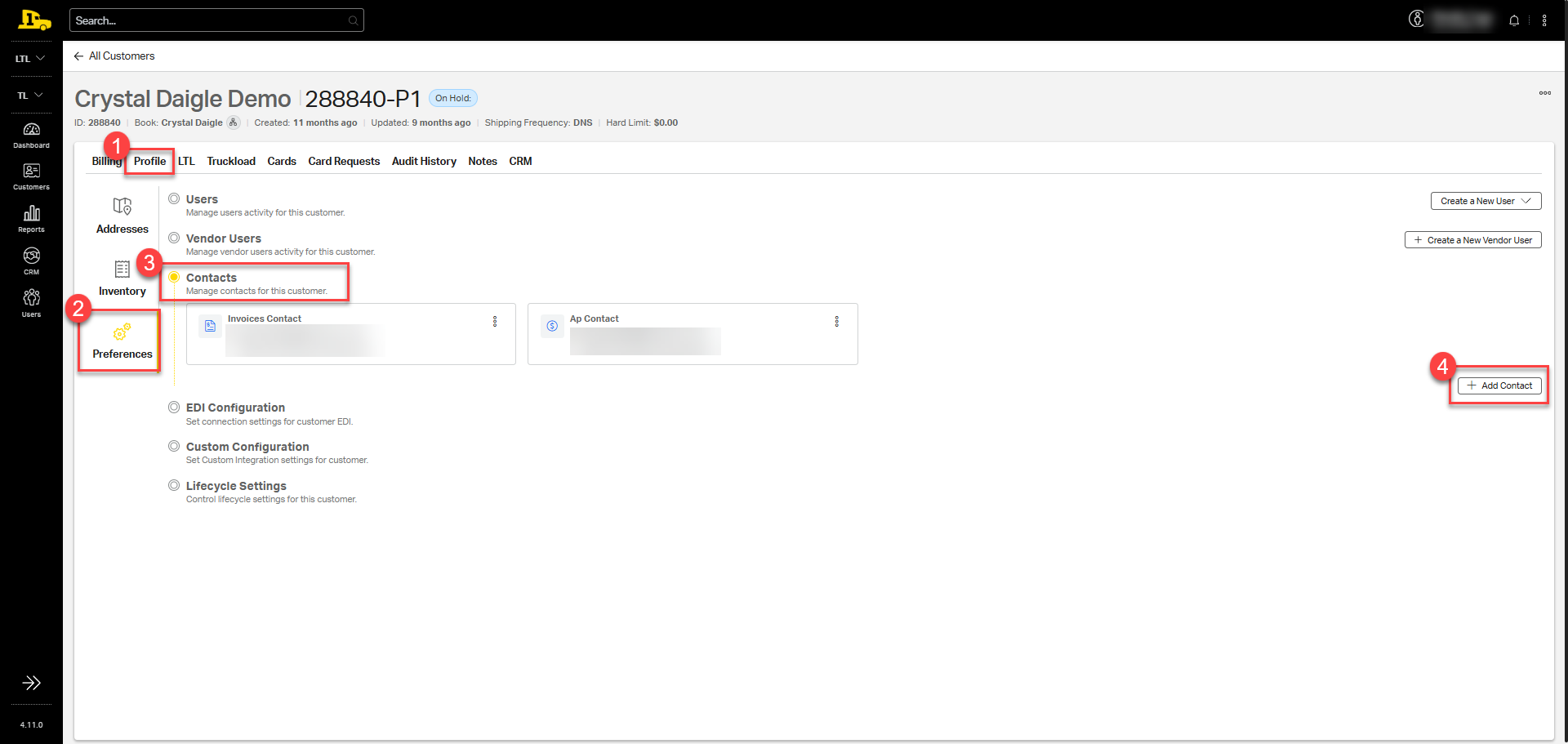
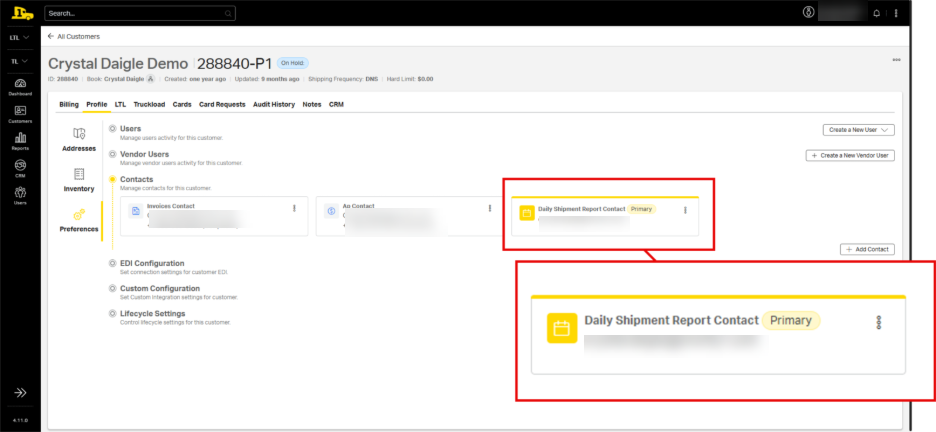
3. Set up a daily shipment report contact under Profile>Preferences>Contacts>Add Contact.
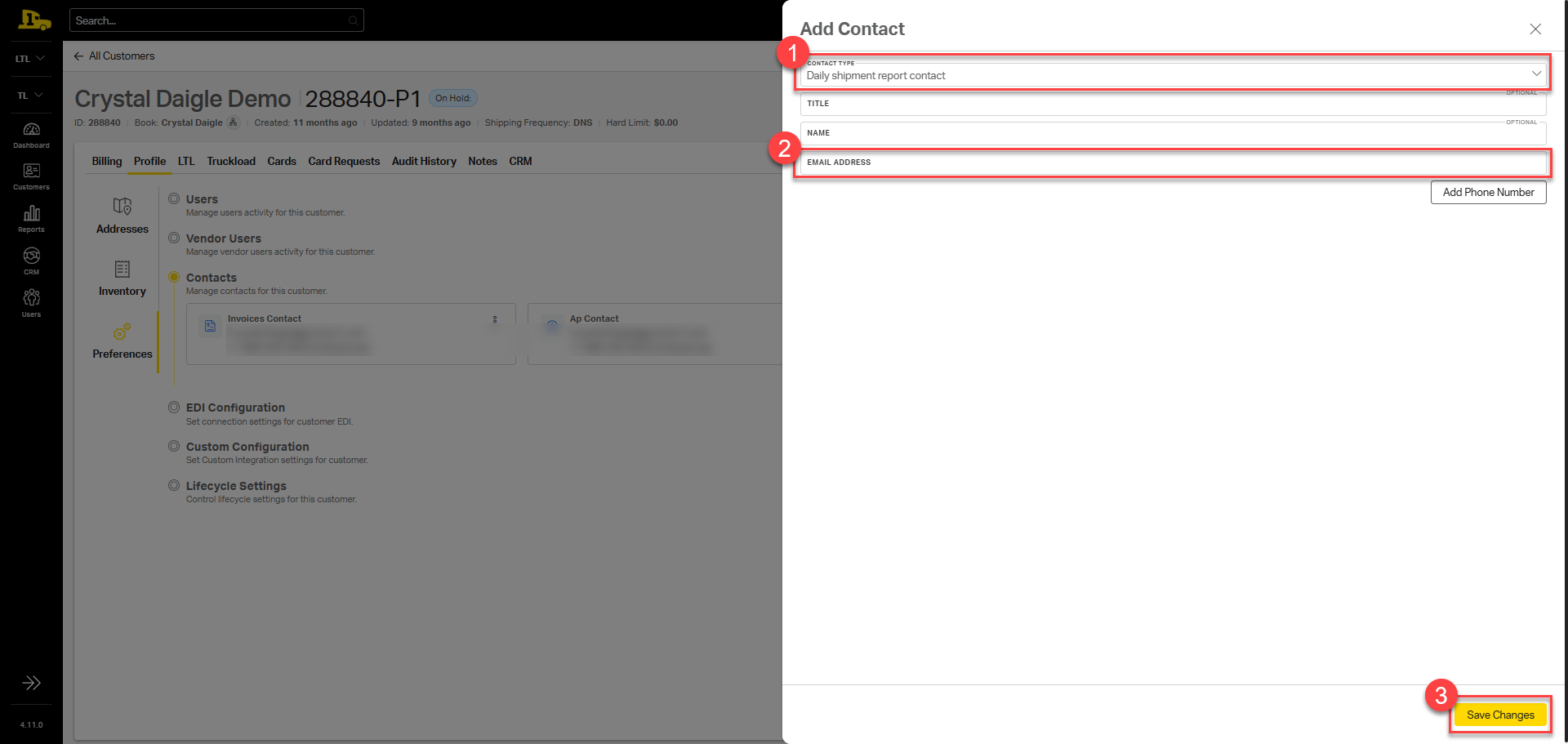
4. Select Daily shipment report contact from the Contact Type dropdown; enter the appropriate information, including email address; then select Save Changes.
New and existing contacts will be listed under Profile>Contacts.
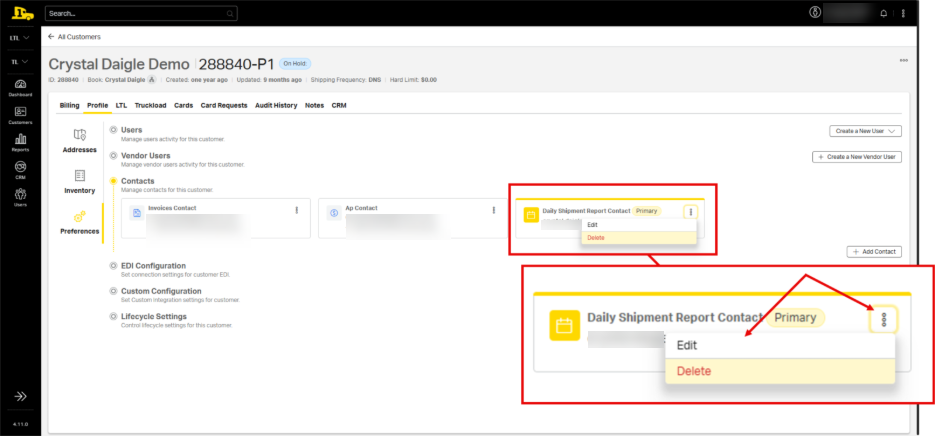
To edit or delete a contact, navigate back to the customer's profile preferences. Click the kabob in the top right corner of the contact card; then choose Edit or Delete.
⚠️ If a daily shipment report contact is not saved to the customer's account, Cabo will not generate a report.
Related Articles