LTL Daily Shipment Report
Using the LTL Shipment Report Feature
The daily shipment report enhances customer communication by providing tailored shipment updates based on individual preferences and needs.
Setting Up a Customer's Daily Shipment Report
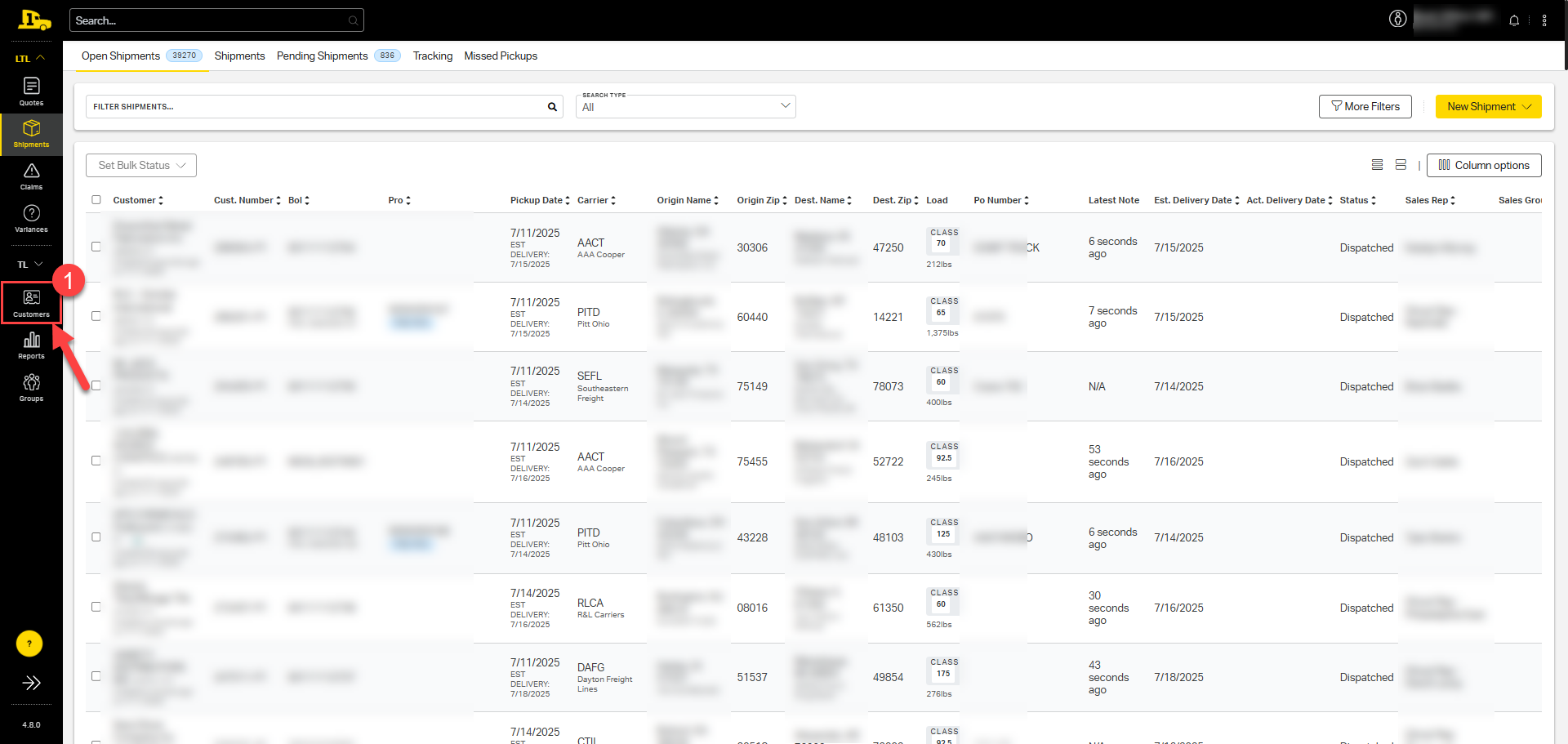
1. Select Customers on the left-hand side menu.
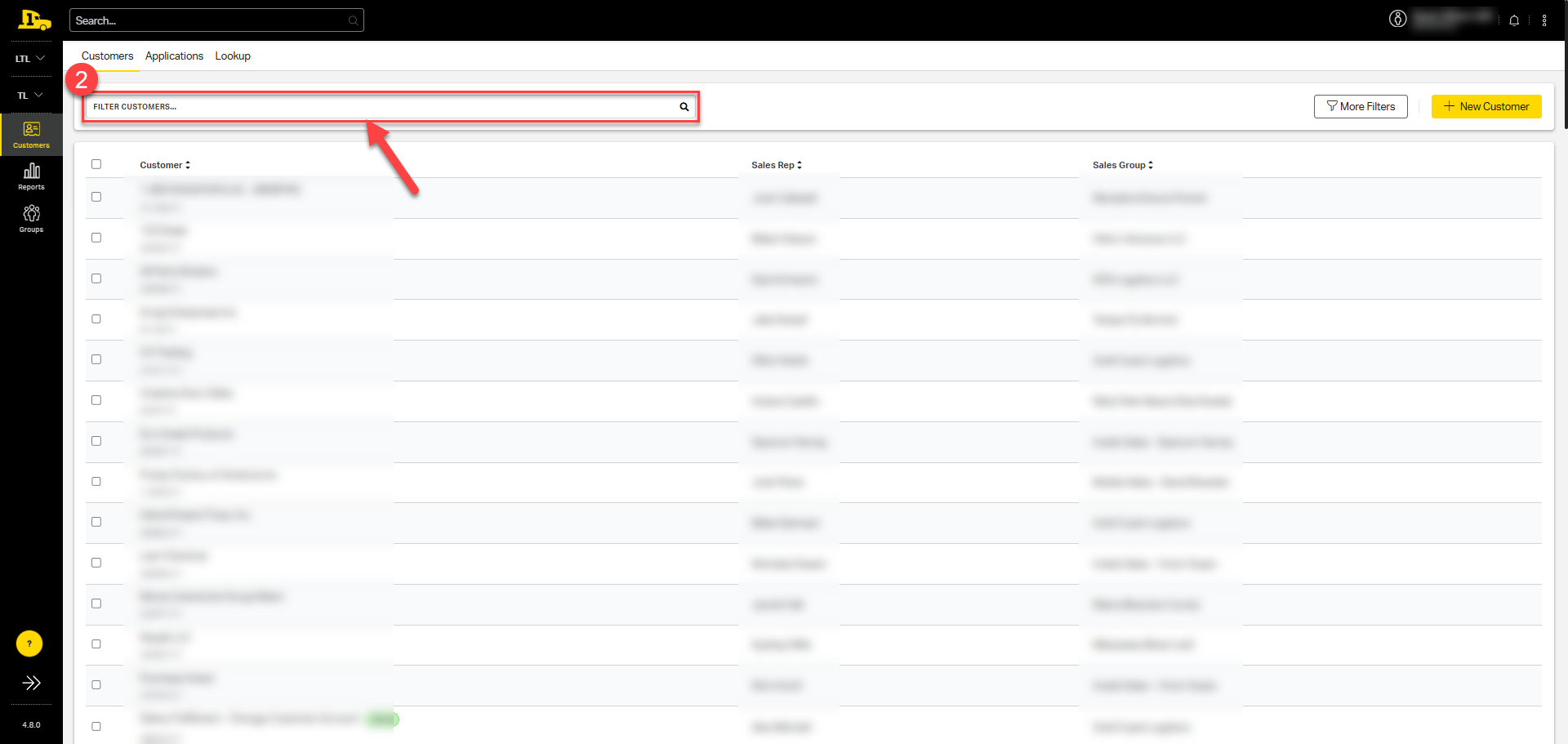
2. Search customer's account at the top and then click on their name.
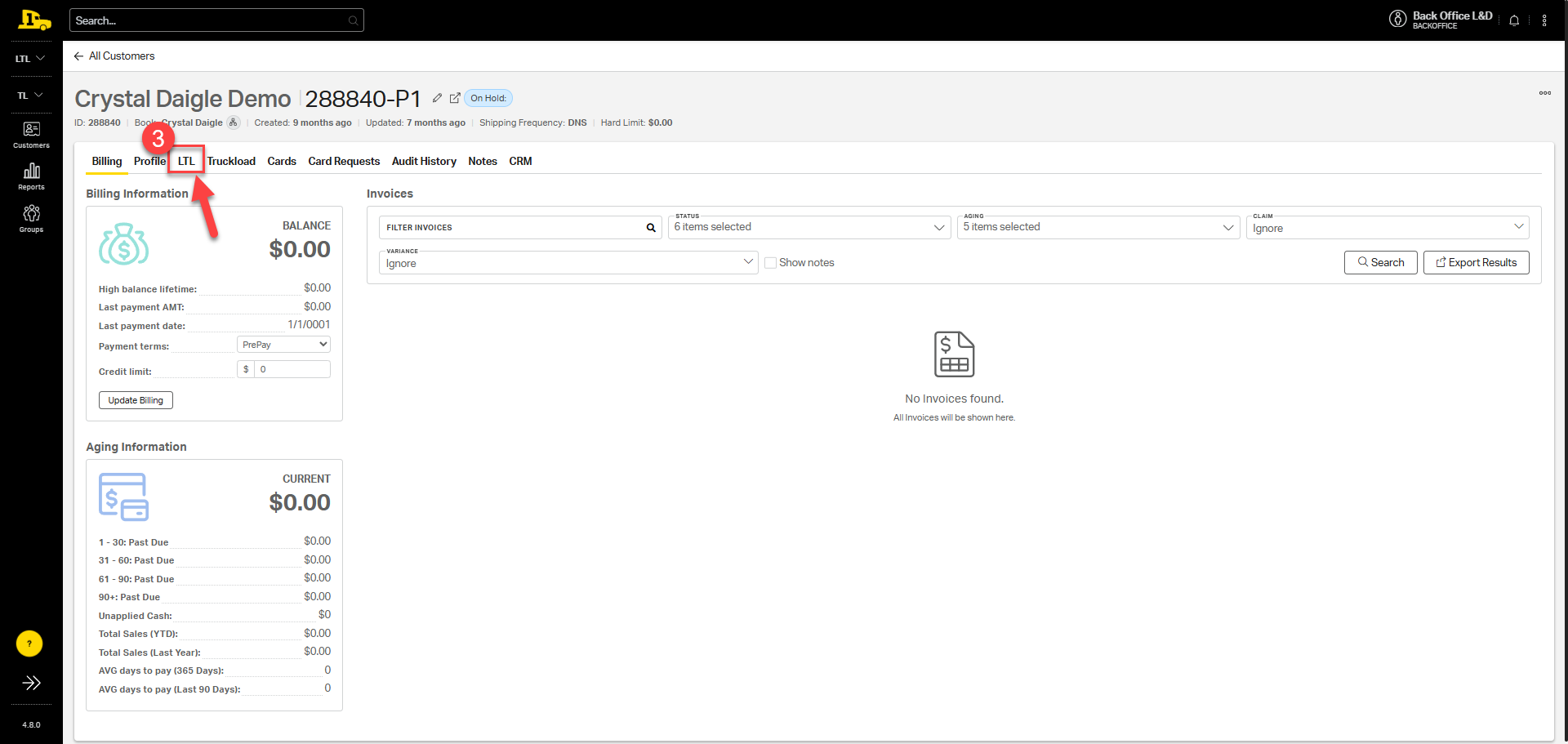
3. Select the LTL tab at the top.
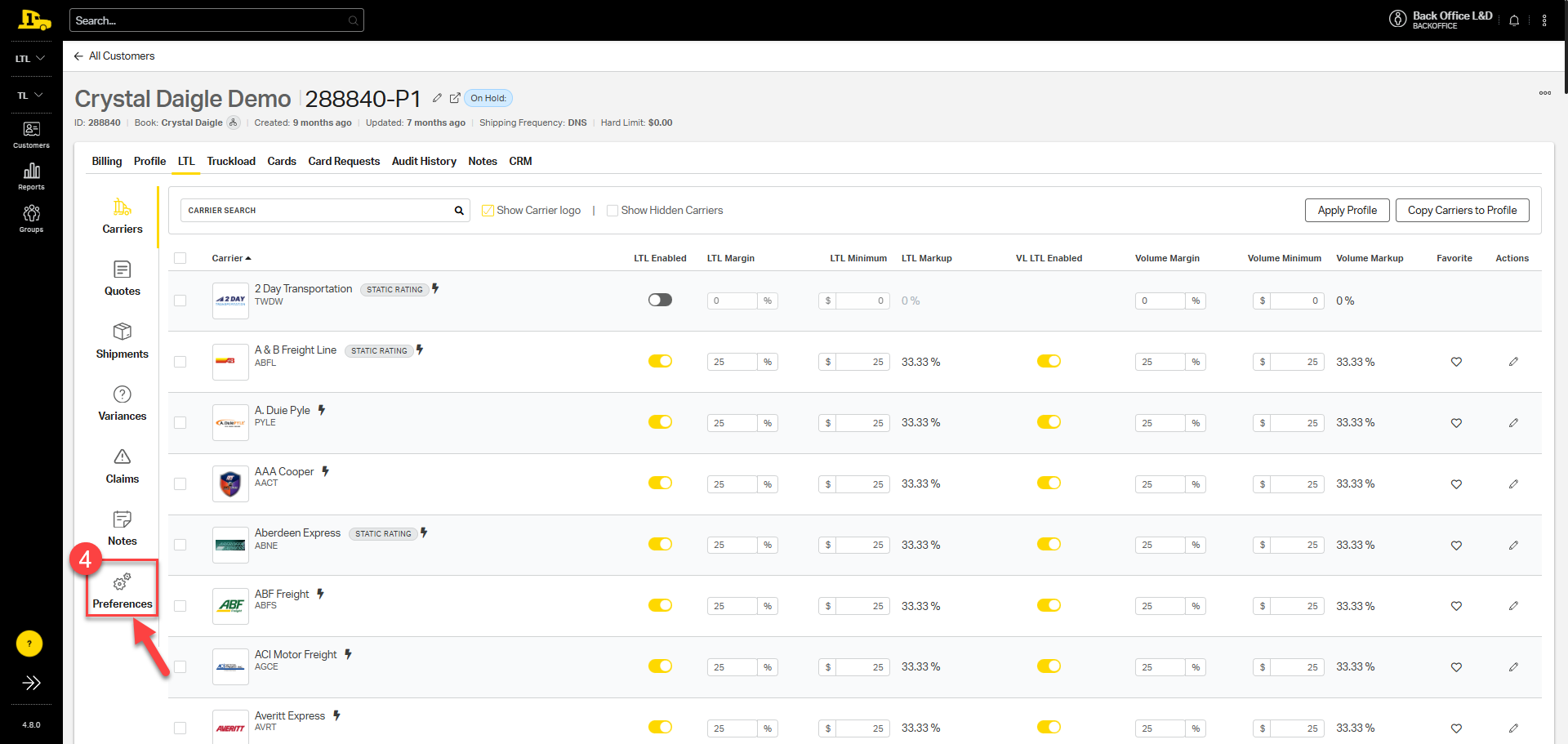
4. Select Preferences on the bottom left menu.
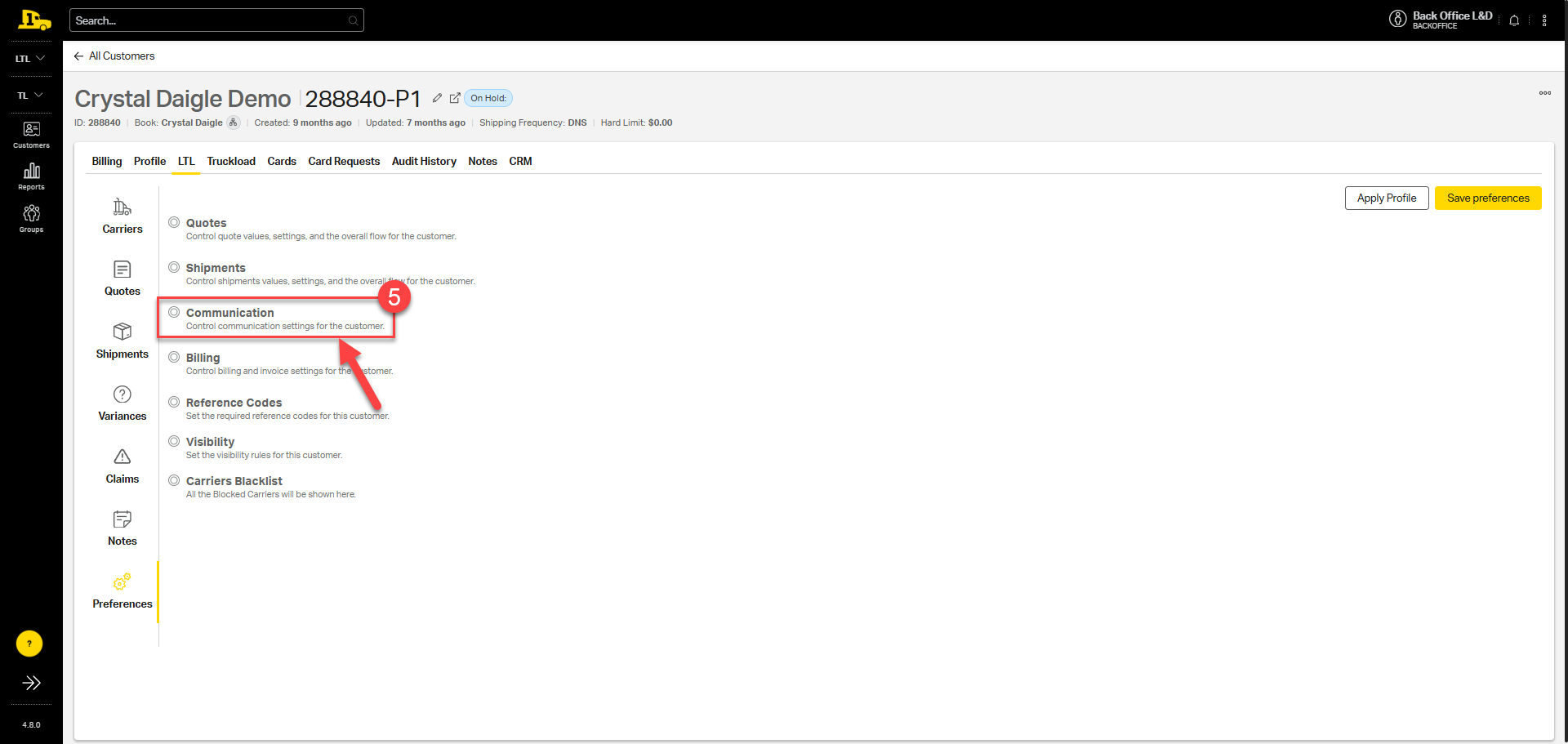
5. Press the Communication dropdown button.
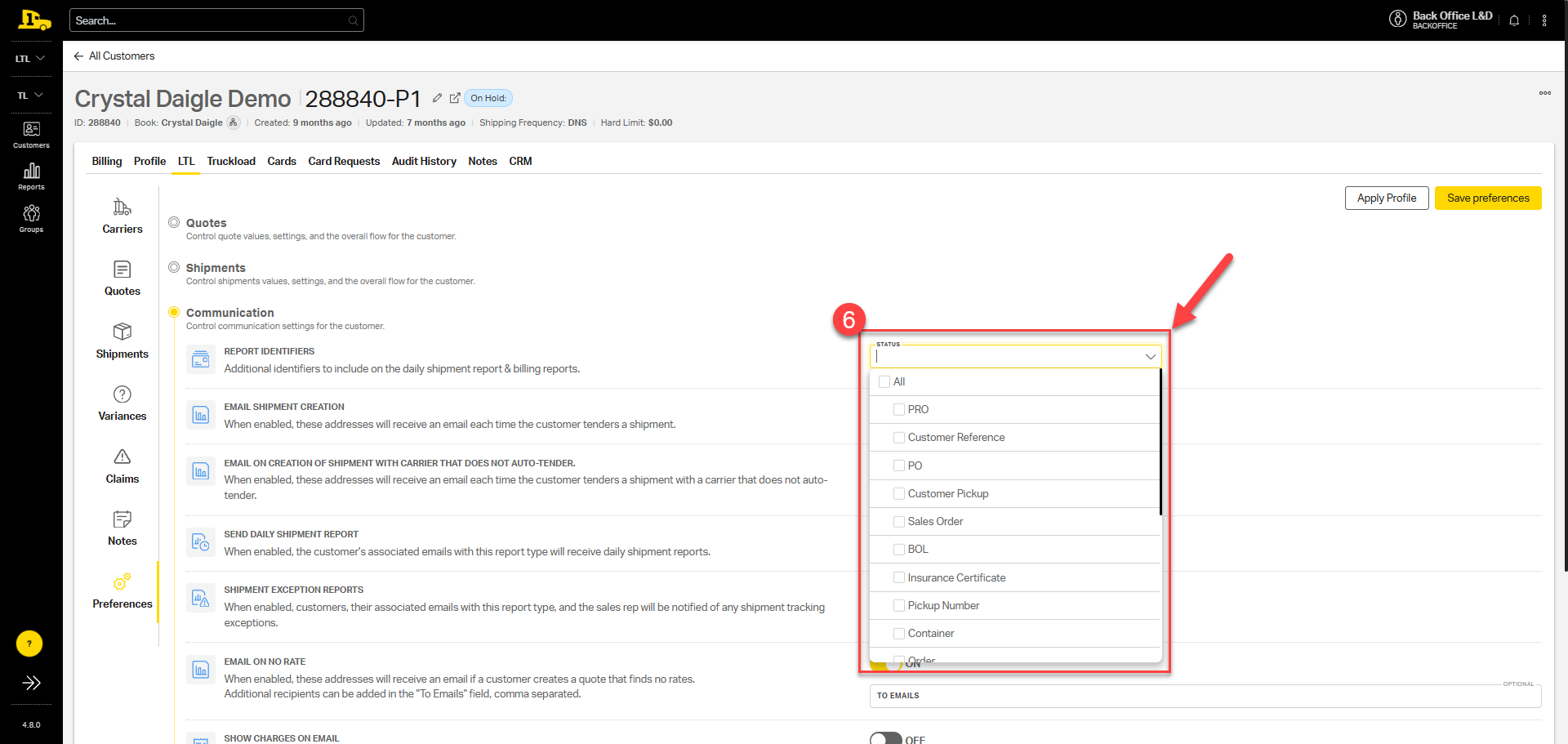
6. Select the status dropdown under Report Identifiers and select which identifiers you want listed on the customer report.
7. Toggle on Email Shipment Creation if you want customer to receive email report when a shipment is created.
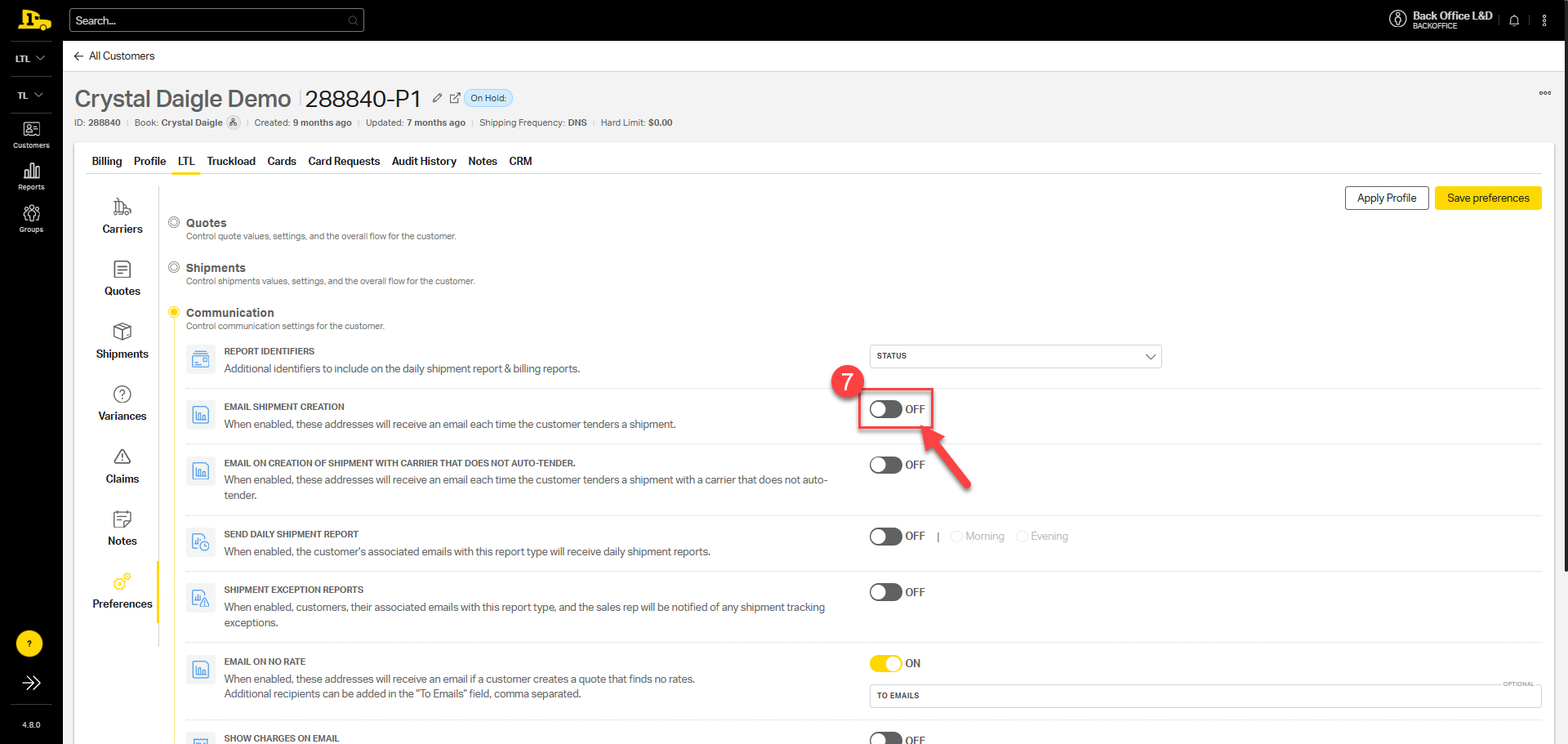
8. Toggle on Send Daily Shipment Report if you want customer to receive email report of daily shipments, then select time of day you want the customer to receive it.
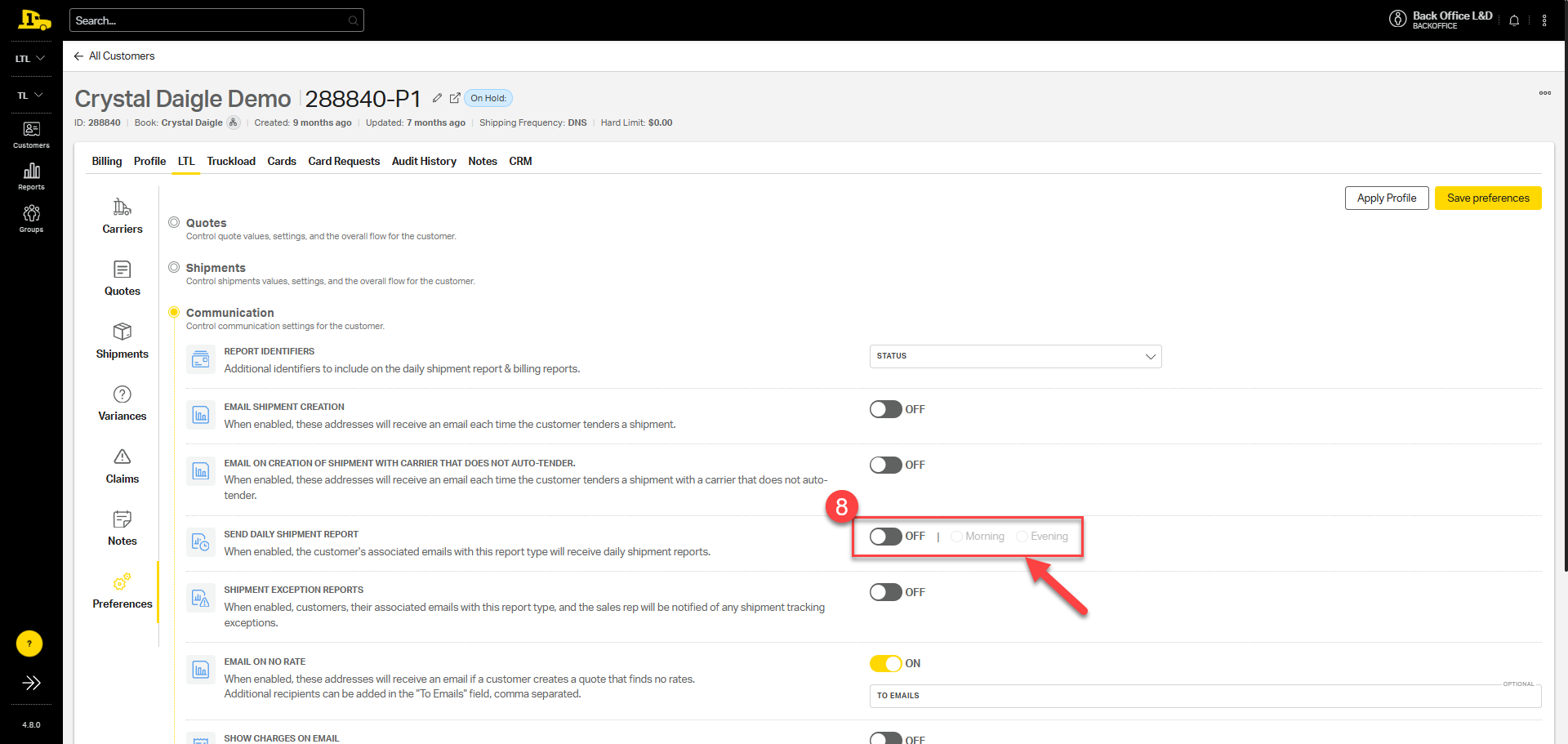
⚠️ Note: To ensure the Daily Shipment Report is sent, a Daily Shipment Report Contact must be set on the customer's account. Without this contact, the report will not be sent.
Selecting a Daily Shipment Report Contact
After turning on the daily shipment report, ensure there is at least one contact selected to recieve the report. To select or verify a daily shipment report contact:
- Open the customer's Profile.
- Select Preferences.
- Select Contacts.
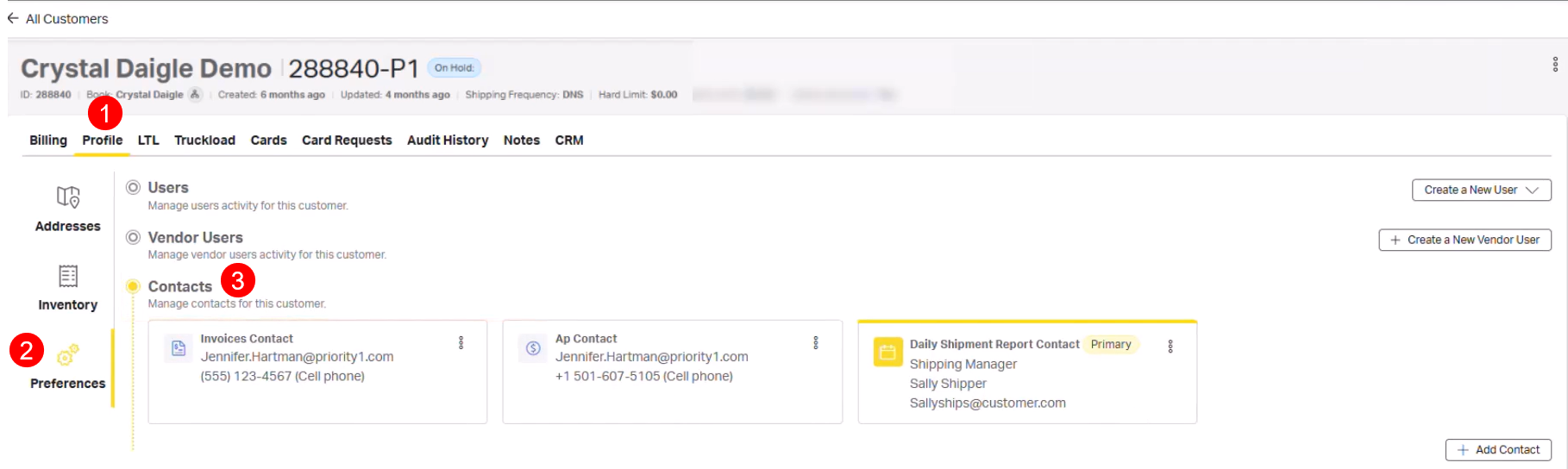
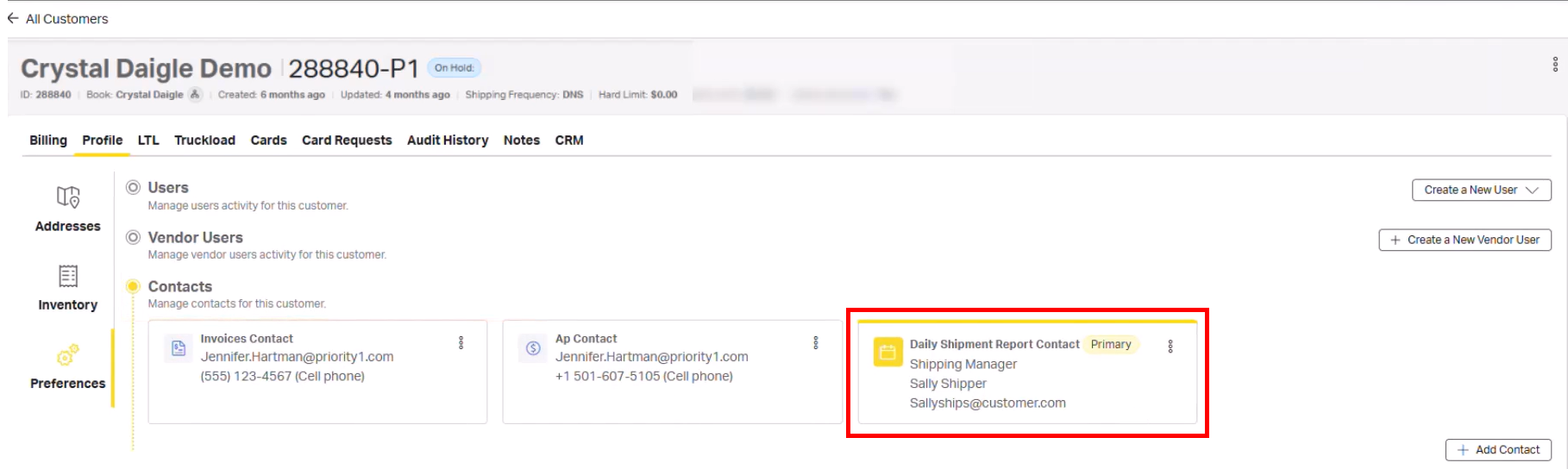
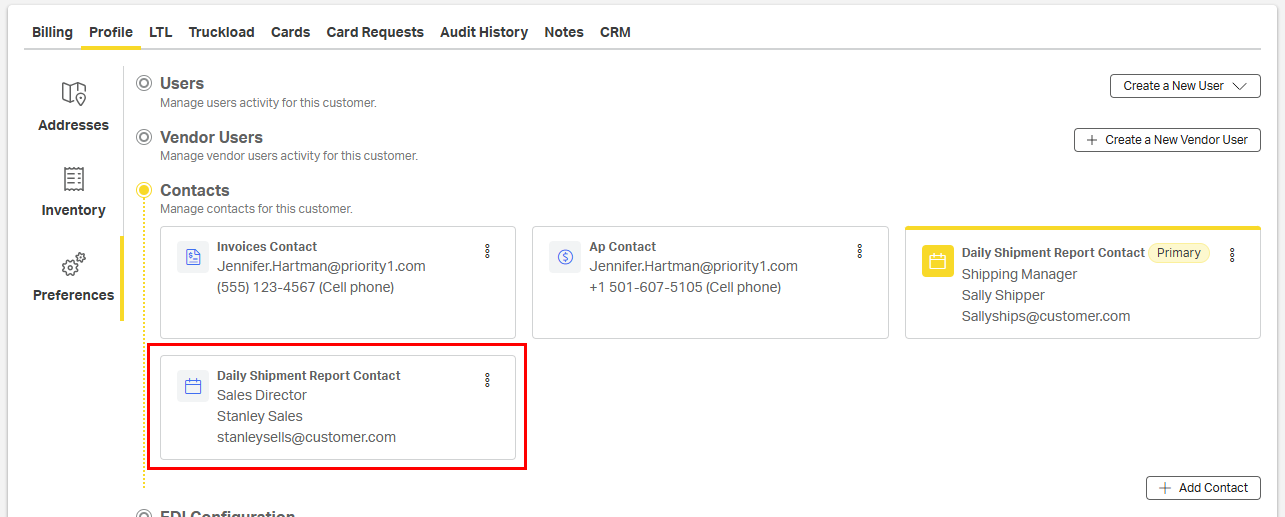
If a recipient for the daily shipment report is already set, there will be a Daily Shipment Report Contact listed under contacts.
Adding a New Daily Shipment Report Contact
- Select Add Contact.
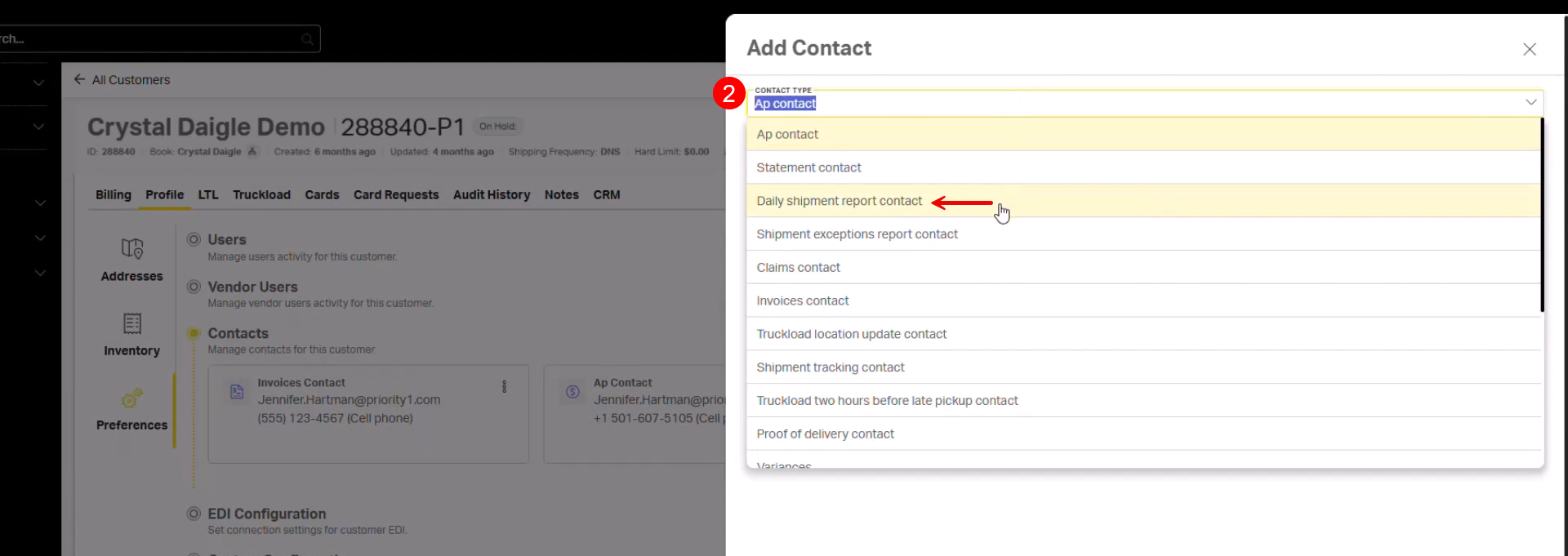
- Open the Contact Type dropdown and select Daily Shipment Report Contact.
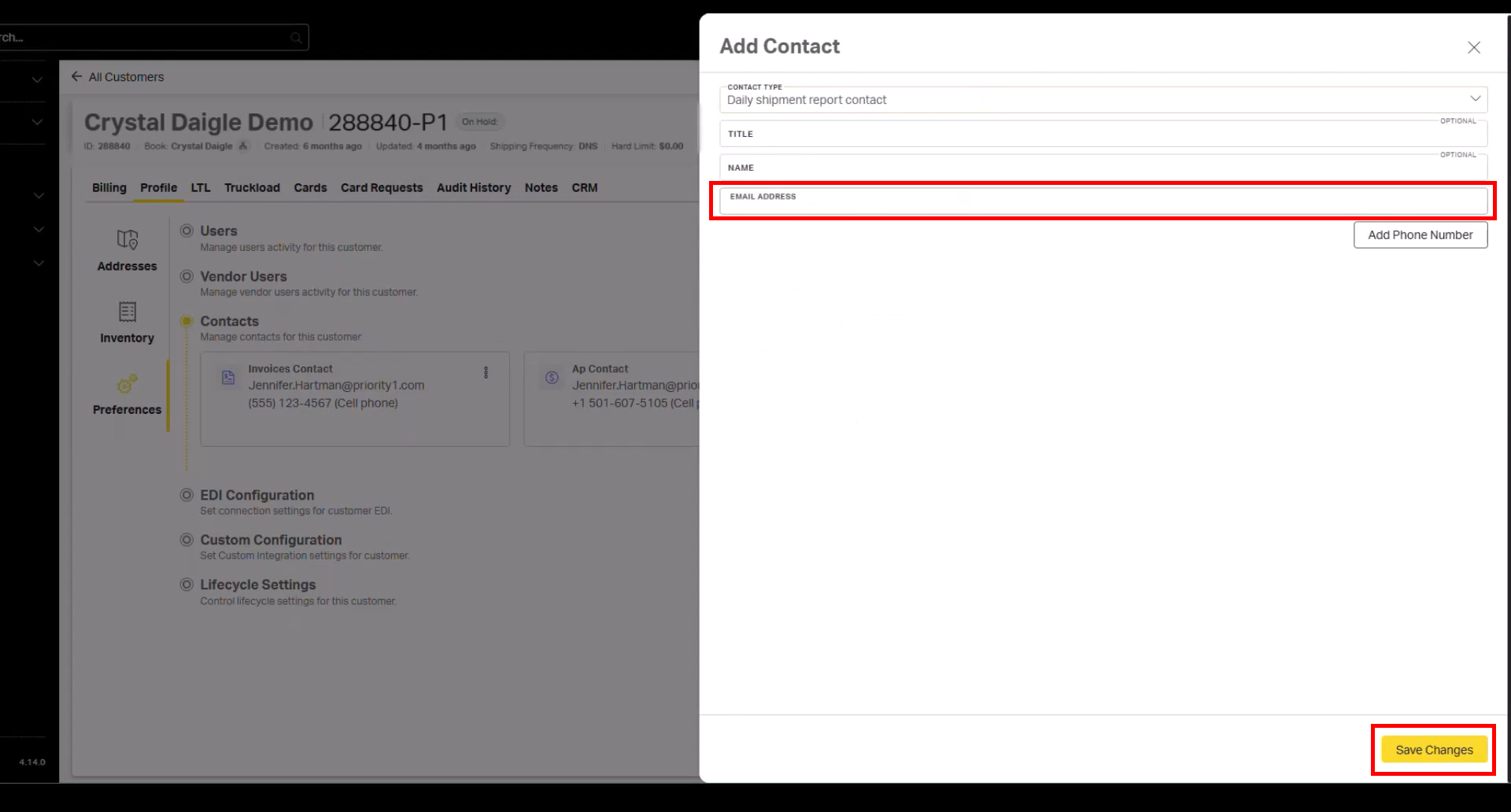
- Complete the remainder of the contact form, including email address, and select Save Changes.
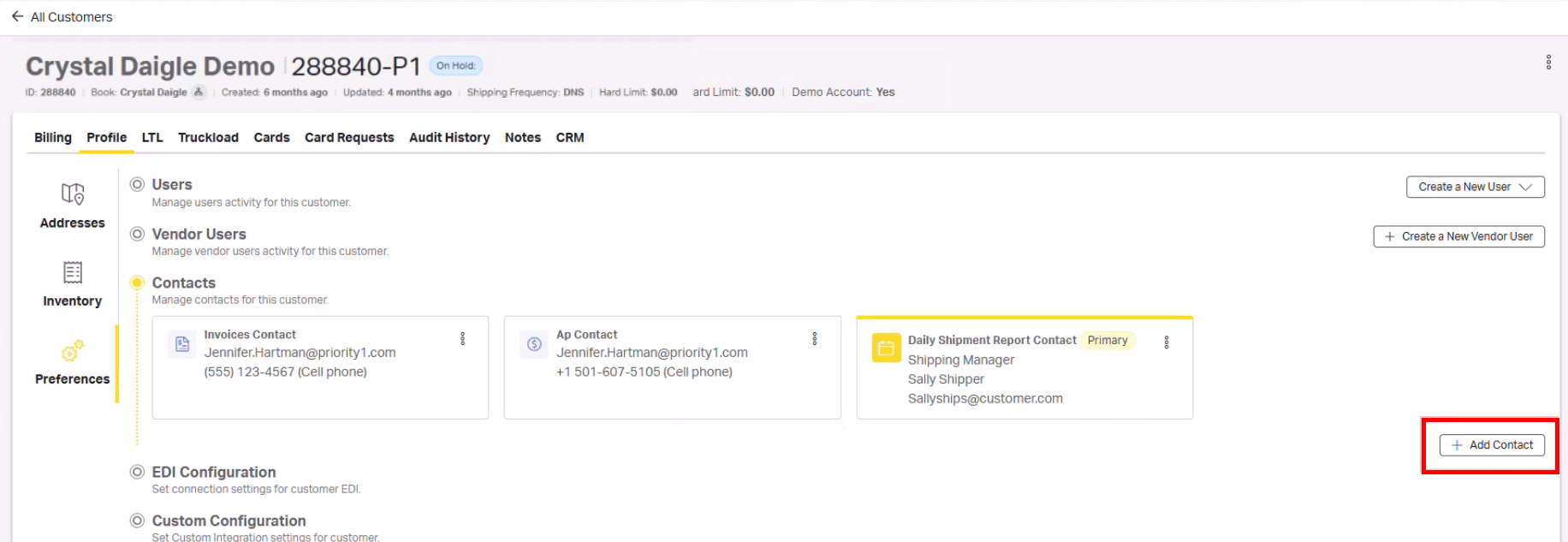
The new contact will now be shown with the other contacts for the account.
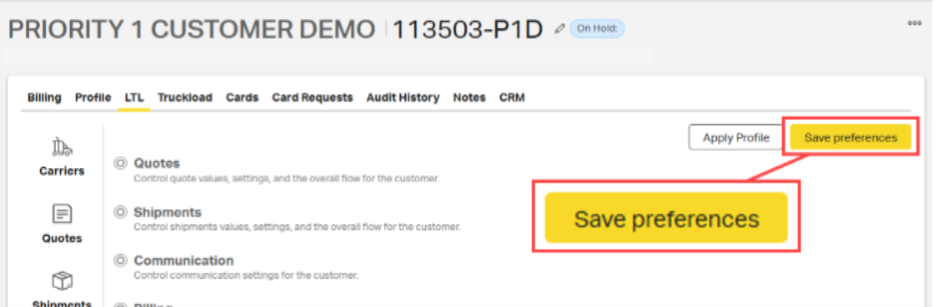
After making changes to customer preferences, always select Save Preferences before leaving the page.