
LTL Quote Details Page
Once a user submits a quote request, Cabo instantly retrieves and displays all available LTL rates from Priority1’s carrier network, enabling users to easily compare options and select the most suitable carrier.
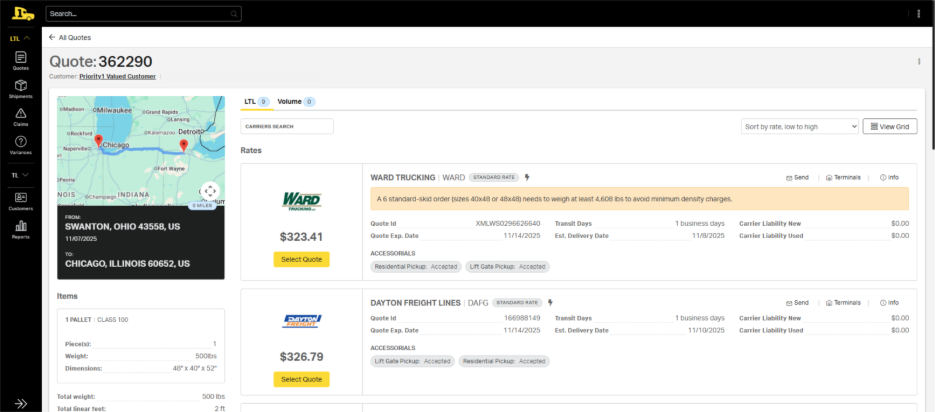
Quote Header
The quote summary bars offer a quick snapshot of essential quote details, including the quote ID, who the quote is for, who created it, and the associated book of business.
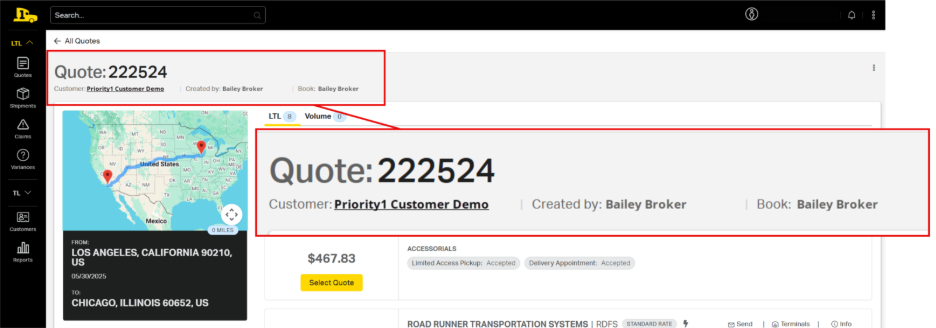
Shipment Summary
A shipment summary appears in the information panel on the left side of the screen, where users can quickly find key shipment details:
- Pickup and delivery locations
- Item details (e.g., class, weight, dimensions, etc.)
- Accessorials, if applicable
Use this panel to confirm shipment accuracy before selecting a rate. Select Edit Quote or Delete Quote to make changes or to cancel the quote.
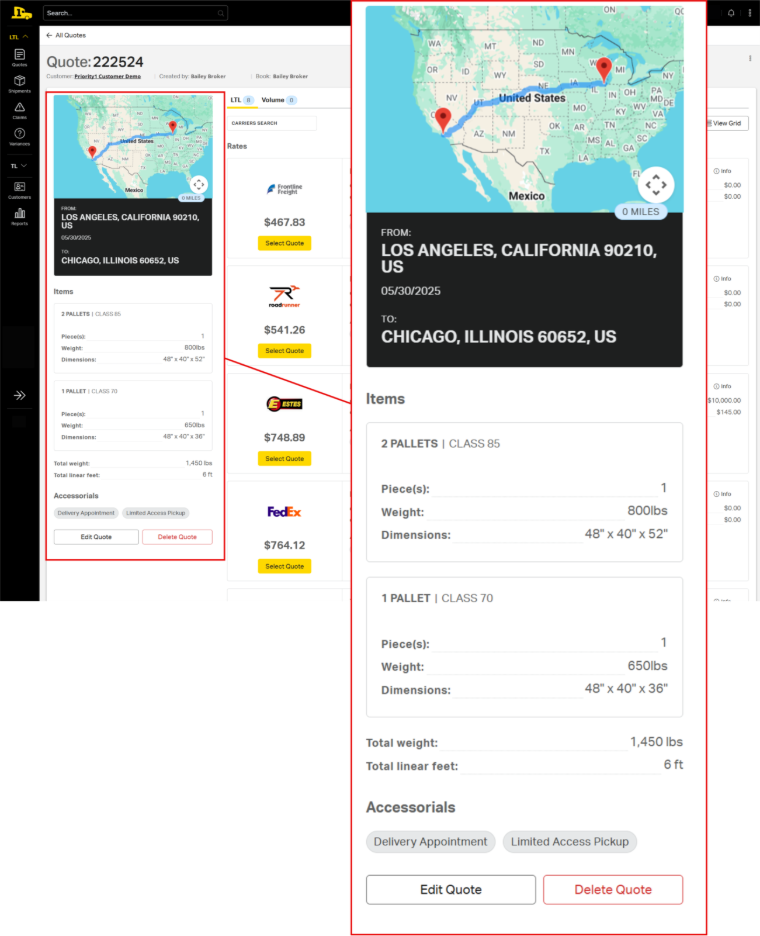
Viewing Rates
Cabo differentiates between standard LTL rates and volume rates. The submenu beneath the summary bar includes two tabs, one for standard LTL and one for Volume rates. In the example below, 12 standard rates have been returned and are listed in ascending order by cost. Users must click on the Volume tab to see any volume rates associated with a quote request. In this case, only one volume rate was returned.
Rates can also be filtered by using the search bar or sorted using the dropdown option.
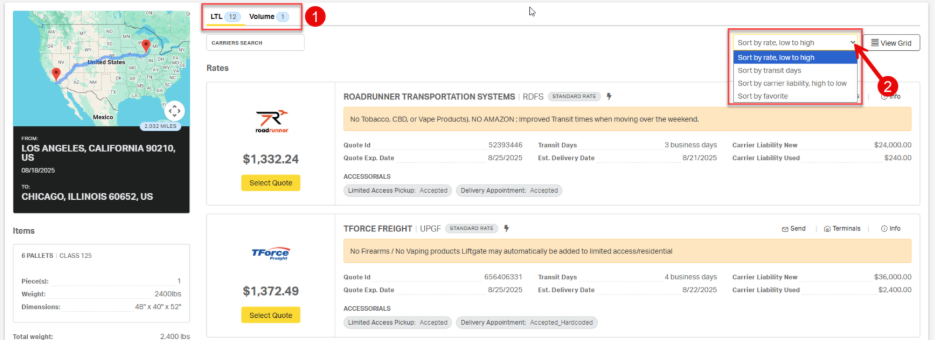
View Grid Comparison
The View Grid option allows users to quickly compare different rate elements at a glance, including all costs, customer cost, and carrier cost.
Rate Details
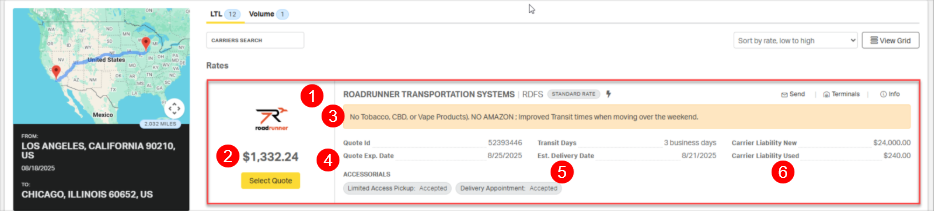
Specific rate details are captured in a blocks, and each rate block includes key quote details:
- Carrier name
- Customer rate
- Carrier alerts (e.g., restricted commodities, service limitations, etc.)
- Quote expiration date
- Transit days and estimated delivery date
- Carrier liability for new and used goods
Quick Access Tools
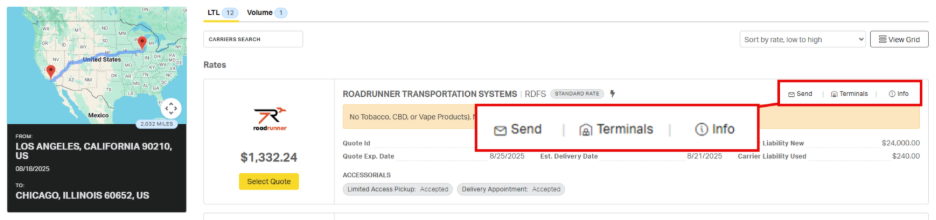
The action buttons located in the upper right corner of each rate card provide quick access to essential tools for managing and sharing freight quotes.
- Send: Use this option to quickly share one or more selected quotes with the customer via email.
- Terminals: Access terminal information for both the origin and destination locations, including addresses and contact details.
- Info: View a detailed cost breakdown, including base rate, accessorial charges, and margin.
Send
Selecting the Send option opens a popup that allows users to mail selected rates to the customer directly from Cabo, following the steps outlined below:
- Enter the email address of the desired recipient. Add multiple addresses by pressing the enter key after each address.
- Use the checkboxes to select specific rates to include in the customer email.
- Volume rates will be presented separately from standard LTL rate options.
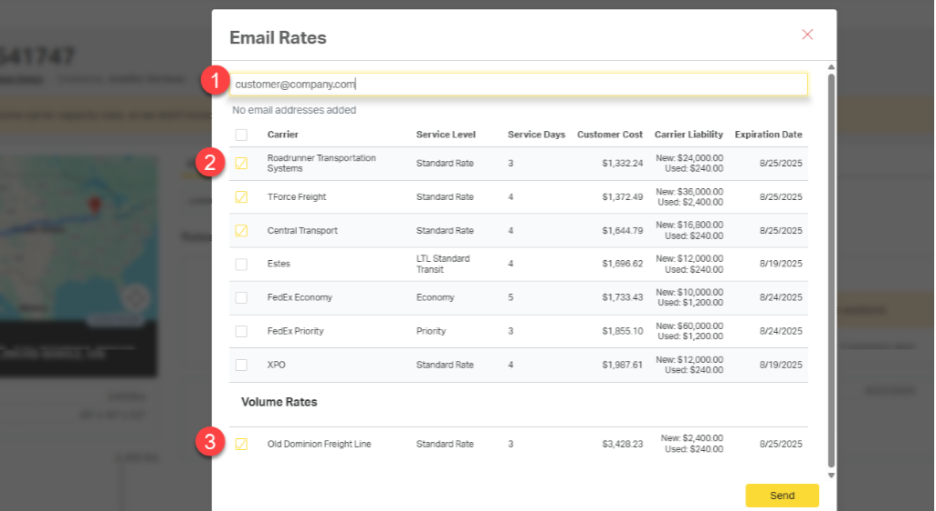
4. Click Send to email the selected rates. The email includes a formatted layout with a Book Shipment button that links directly to the full quote page in Cabo.
ℹ️ For more ways to send rates, use the three-dots menu above View Grid.
Terminals
Selecting the Terminals option opens a popup that displays details for the pickup and delivery terminals assigned to the shipment by the carrier. Details include full address and contact information for both the pickup and delivery terminals and he distance between the final terminal and the shipment recipient.
![Rates
ROADRUNNER TRANSPORTATION SYSTEMS | RDFS
STANDARD RATE
Send
[2] Terminals
@ Info
No Tobacco, CBD, or Vape Products). NO
PICKUP TERMINAL
roadrunner
Carrier name & code:
ROADRUNNER TRANSPORTATION SERVICES INC (CMM)
Quote Id
Address Line 1:
4501 EAST WASHINGTON BLVD
$24,000.00
$1,332.24
Quote Exp. Date
City/state/zip:
LOS ANGELES, CA 90040
$240.00
Contact phone:
+18006951699
Select Quote
ACCESSORIALS
Contact name:
Limited Access Pickup: Accepted
Deliver
DELIVERY TERMINAL
Carrier name & code:
Roadrunner Transportation Services Inc (CHM)
Address Line 1:
850 WINDHAM PARKWAY
-
City/state/zip:
BOLINGBROOK, IL 60440
Contact phone:
+16306792800
Contact name:
Distance between terminal and consignee: 23.86 miles
-
-](https://cdn-assets.productfruits.com/6abeed75-36b7-4f4b-9576-c43fefcfa201)
Info
Hover over Info for an itemized breakdown of Customer Cost and Carrier Cost.
![Rates
ROADRUNNER TRANSPORTATION SYSTEMS | RDFS
STANDARD RATE
Send
[a] Terminals
@ Info
No Tobacco, CBD, or Vape Products). NO AMAZON ; Improved Transit times when moving over the weekend.
Customer Cost
Carrier Cost
roadrunner
Quote Id
52393446
Transit Days
3 business days
$3,719.62
$1,332.24
Quote Exp. Date
8/25/2025
Est. Delivery Date
8/21/2025
Appointment Charge
$45.40
California Compliance Charge
$90.79
Select Quote
ACCESSORIALS
Limited Access Pickup
$68.09
Limited Access Pickup: Accepted
Delivery Appointment: Accepted
Discount - 81.20%
($3,020.33)
Linehaul Surcharge
$230.07
Fuel Surcharge - 28.40%
$198.60
Total
$1,332.24](https://cdn-assets.productfruits.com/806483b8-7322-416f-91b7-224c45f0cb2a)
![Rates
ROADRUNNER TRANSPORTATION SYSTEMS | RDFS STANDARD RATE
Send
[a] Terminals
@ Info
No Tobacco, CBD, or Vape Products). NO AMAZON ; Improved Transit times when moving over the weekend.
Customer Cost
Carrier Cost
roadrunner
52393446
Transit Days
$2,458.08
Quote Id
3 business days
$30.00
$1,332.24
Quote Exp. Date
8/25/2025
Est. Delivery Date
8/21/2025
Appointment Charge
California Compliance Charge
$60.00
ACCESSORIALS
Select Quote
Limited Access Pickup
$45.00
Limited Access Pickup: Accepted
Delivery Appointment: Accepted
Discount - 81.20%
($1,995.96)
Linehaul Surcharge
$152.04
Fuel Surcharge - 28.40%
$131.24
Tota
$880.40](https://cdn-assets.productfruits.com/e398ec35-0c87-431c-b7e3-e42a4341144a)
Sending Rate Information
Above the View Grid button, click the kebab menu for additional options, including three ways to send rate information:
- Send Rates – Email rates directly from Cabo to customers.
- Jump to Send in this article for more information.
- Copy Rate Details – Copy all rates and paste into an email.
- Download PDF – Download a formatted rate sheet that is easily attached to an email.
![Quote: 32541747
Send Rates
Copy Details
Volume
Add Margin
TON
LTL 12
1
Download As PDF
WA
MN
CARRIERS SEARCH
Send Rates
by rate, low t
TOR
Create New Quote
NY
NV
:United States
FIN OH - PA
: UT
Rates
MC
Copy Details
AZ : NM
: OK
AR T. TN
TX
PS: GA
LA
ROADRUNNER TRANSPORTATION
Send
[a] Terminals
@ Info
Add Margin
Mexico
No Tobacco, CBD, or Vape Products). N
2,032 MILES
roadrunner
FROM:
Download As PDF
LOS ANGELES, CALIFORNIA 90210,
Quote Id
Liability New
$24,000.00
US
$1,332.24
Quote Exp. Date
Liability Used
$240.00
08/18/2025
h
Create New Quote
TO:
Select Quote
ACCESSORIALS
CHICAGO, ILLINOIS 60652, US
Limited Access Pickup: Accepted
Deliv
Items
TFORCE FREIGHT | UPGF STANDARD RATE
Send
Terminals
® Info
6 PALLETS | CLASS 125
TForce
No Firearms / No Vaping products Liftgate may automatically be added to limited access/residential
Freight
1
Quote Id
656406331
Transit Days
4 business days
Carrier Liability New
$36,000.00
Piece(s):
2400lbs
$1,372.49
Quote Exp. Date
8/25/2025
Est. Delivery Date
8/22/2025
Weight:
Carrier Liability Used
$2,400.00
Dimensions:
48" × 40" x 52"
Select Quote
ACCESSORIALS
Limited Access Pickup: Accepted
Delivery Appointment: Accepted_Hardcoded
2.400 lbs](https://cdn-assets.productfruits.com/6680e341-e193-4d6d-b558-02422ad8cdb4)
Finalizing the Rate
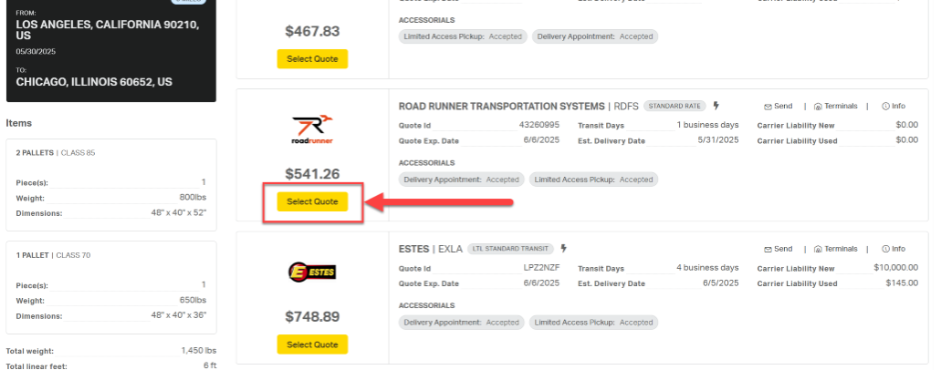
To initiate the booking process for a specific rate, click Select Quote.
Related Articles