Quoting an LTL Shipment
Learn how to accurately quote an LTL shipment in Cabo using the steps below.
Locating the Quote Request Form
You can access the Cabo quoting form in multiple ways:
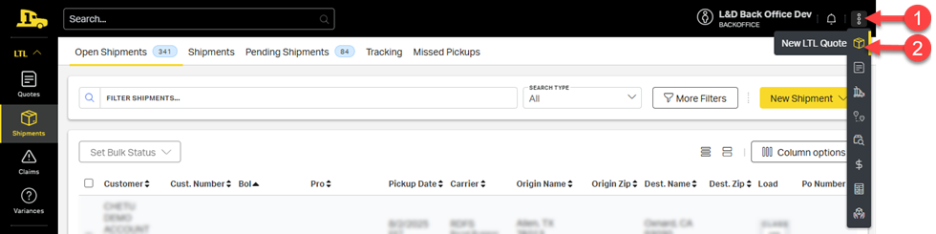
From the Quick Tasks Menu
- Click the kebab menu (⋮) in the top-right corner of any screen.
- Select the New LTL Quote package icon.
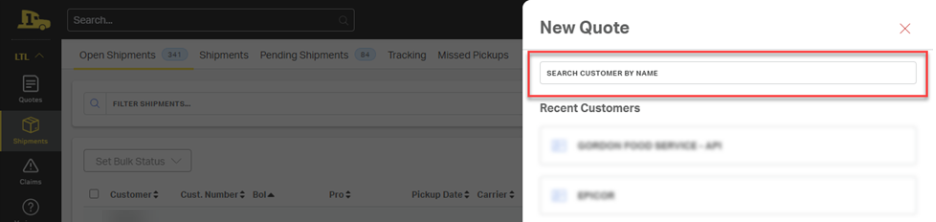
In the side panel, search for and select the customer.
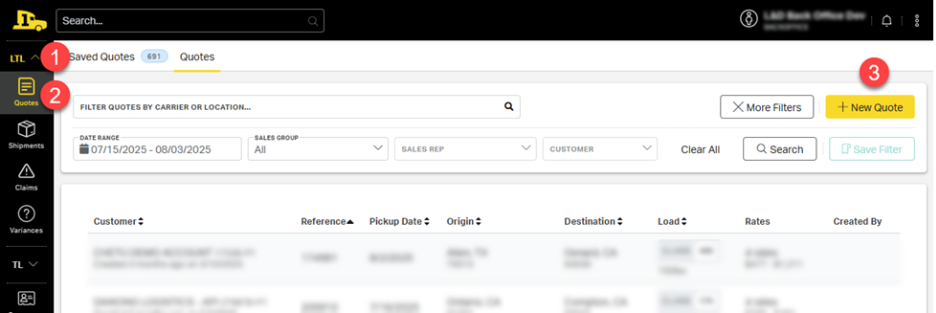
From the LTL Menu
- Click LTL in the left navigation menu.
- Select Quotes in the submenu.
- Click New Quote in the top-right corner of the Quote Dashboard.
In the side panel, search for and select the customer.
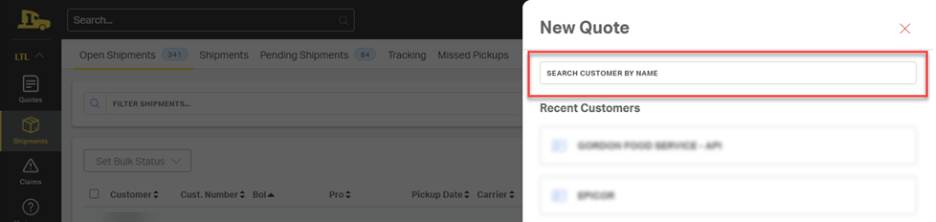
From the Customer Account Page
- On the Customer Account Page, click the meatball menu (⋯) in the top-right corner.
- Select New Quote from the dropdown menu.
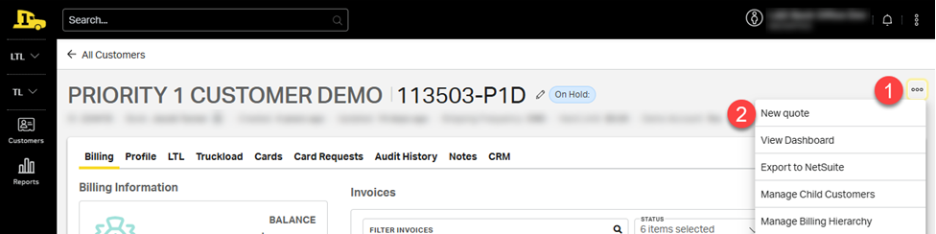
Completing the Quote Request Form
Pickup and Destination
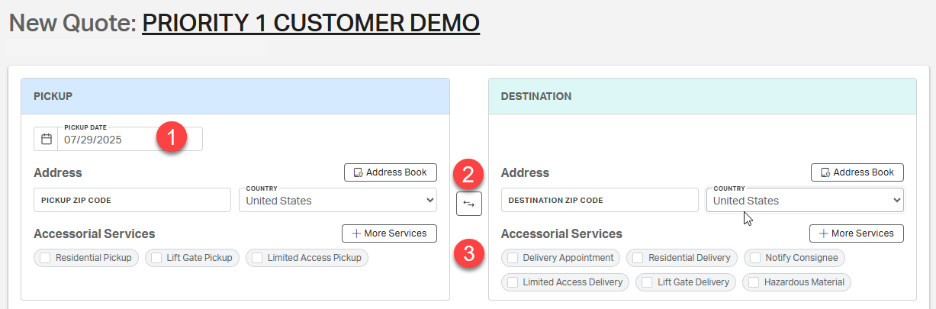
- Confirm the pickup date.
- Enter ZIP codes and confirm the country for both pickup and destination.
- Select all required accessorials.
If the accessorial you need is not listed, click More Services for additional options.
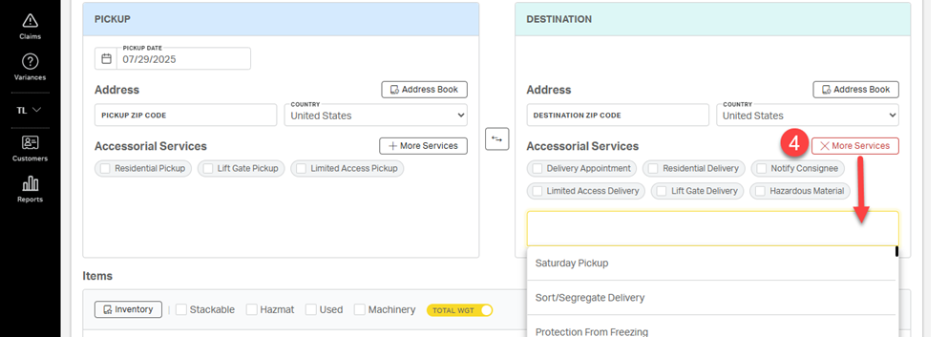
💡Tip: Save frequently used addresses in your Address Book to speed up quoting and reduce errors. Learn more with this article.
Item Information: Units, Weight & Dimensions
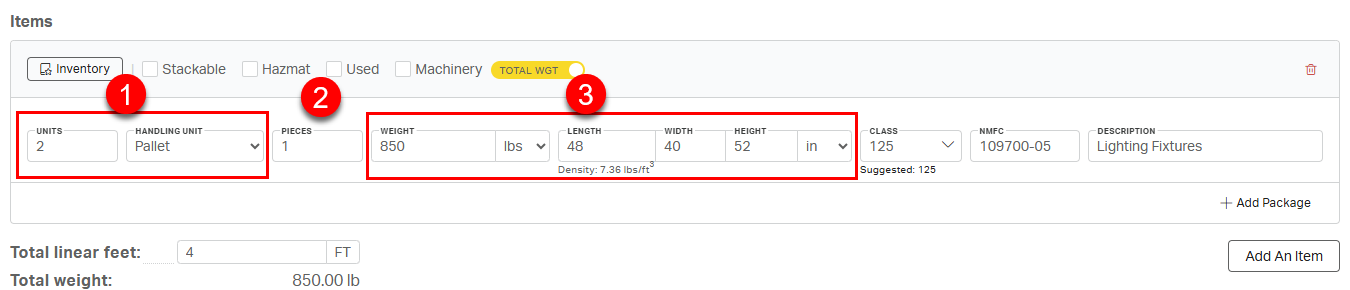
- Enter the number and type of Handling Units (e.g., pallet, crate, drum).
- Optionally, enter the number of pieces included (e.g., 10 pieces on 1 pallet).
- Enter the weight and dimensions (L × W × H).
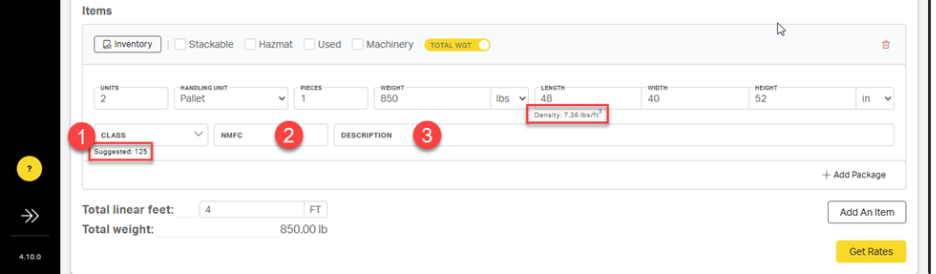
Cabo's built-in density calculator will provide the density and a suggested class based on the entered weight and dimensions.
Item Information: NMFC & Class
- Select the shipment class.
Cabo's suggested class will be based on density-based commodities with 13 subclasses. - Enter the correct NMFC code.
- Provide an accurate commodity description.
ℹ️Note: Use TOTAL WGT for combined weight or WGT per ITEM for a single handling unit. When using WGT per ITEM with multiple handling units, Cabo will multiply the single unit weight by the number of units to find the total.
Item Information: Adding an Item or Package
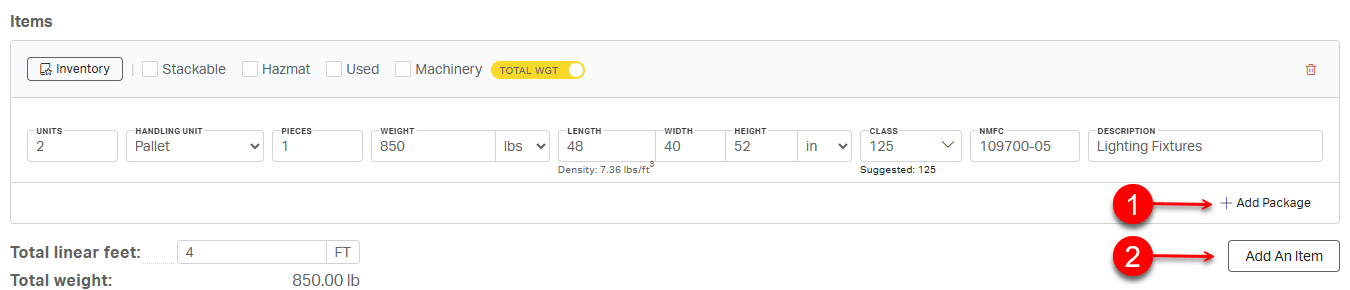
When shipments contain different types of commodities or handling units, or when the shipment needs to be itemized (e.g., for a hazmat shipment), use Add An Item or Add Package to expand the form accordingly.

- Use Add Package (1) to add itemized details about the handling units that are already listed.
- Use Add An Item (2) to add additional handling units of differing commodities, class, weight, or dimensions.
Add Package
The contents of certain shipments must be itemized within each handling unit, a requirement that is especially critical when transporting hazardous materials.
1. Select Add Package
2. A new row with package-specific fields will populate on the form.
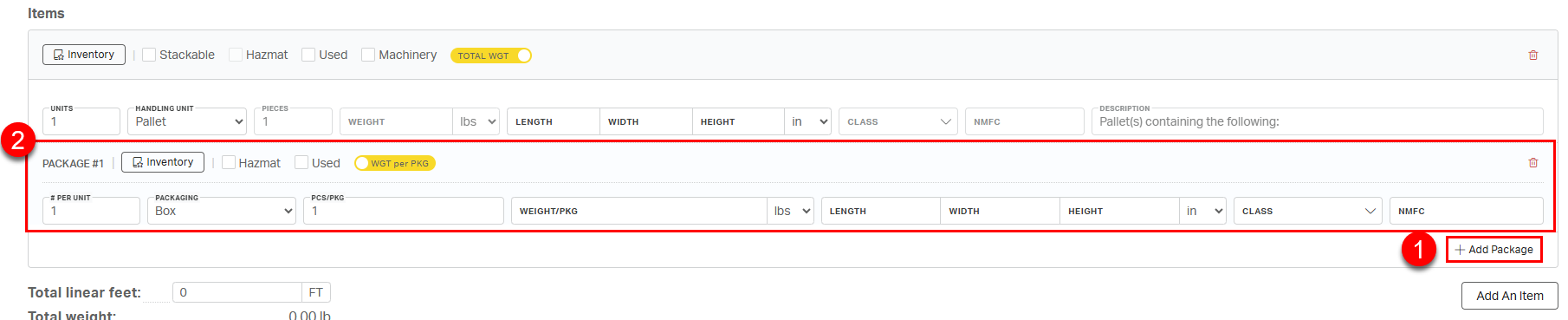
ℹ️ Remember: Information added to the Add Package row is used to describe the Unit(s) in the row above.
Add An Item
While users can combine units with the same weight, dimensions, and commodity on one line, units that vary in dimension or commodity must be listed separately.
1. Select Add An Item.
2. A new row with the same item entry fields will populate on the form.
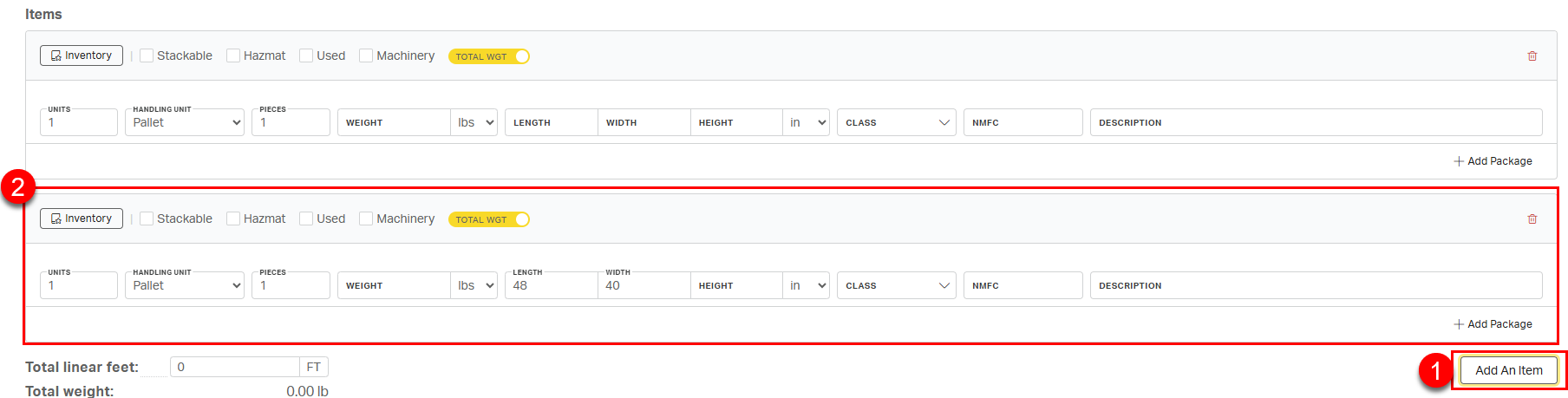
ℹ️ Remember: Information added to the Add An Item row is used to add additional handling units of a different type, dimension, or commodity to the shipment.
Item Information: Using the Inventory
To save time and avoid errors, item information can be added to the quote by using the customer's saved inventory.
From the Items section on the LTL quote form:
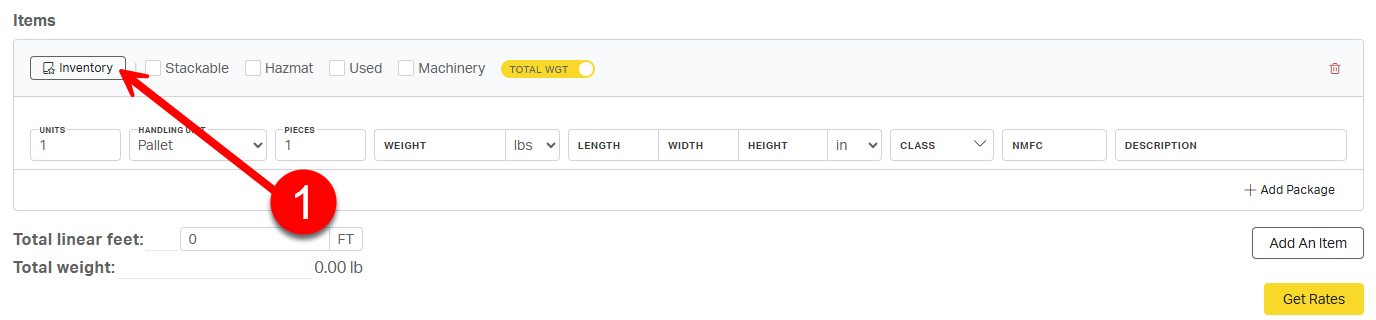
1. Select Inventory
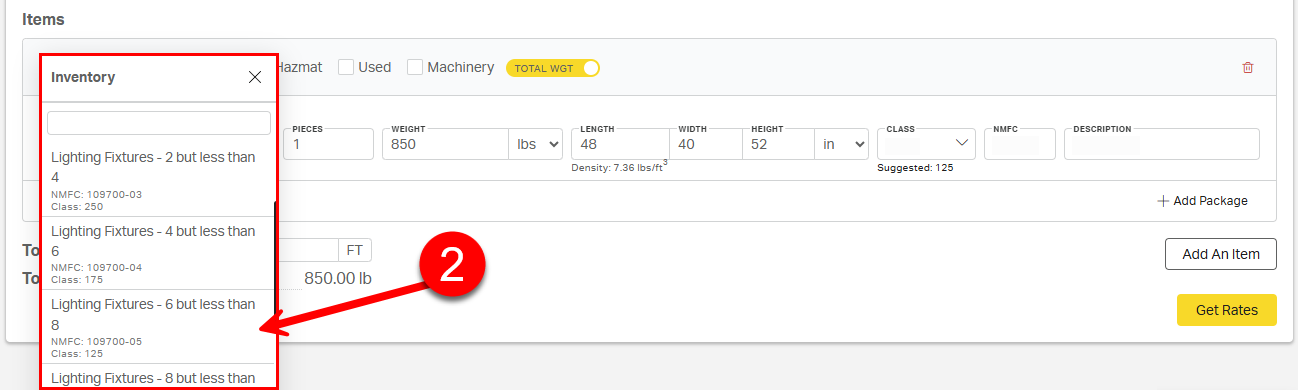
2. Choose an item from the customer’s saved list.
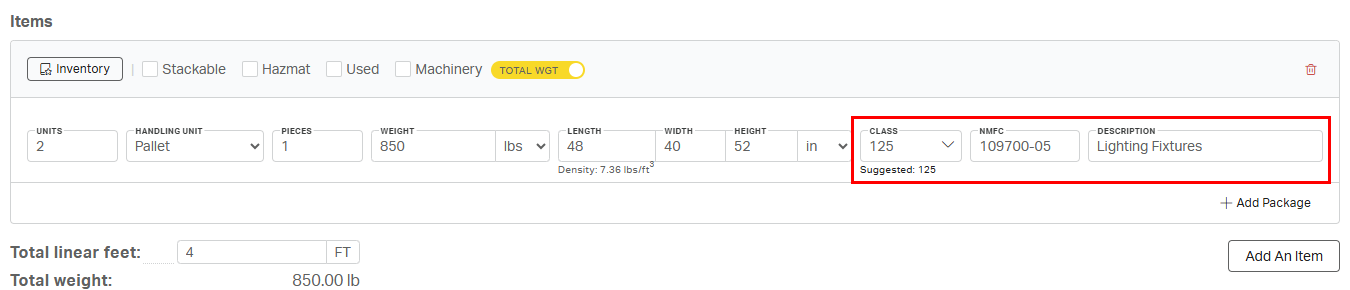
Any saved details for the selected item, including NMFC code, class, and description, will be populated into the form.
💡Learn more about setting up and using a customer inventory with this article.
LTL Quoting Checklist
- Are both ZIP codes correct?
- Did you select all required accessorials?
- Are weight and dimensions accurate (not estimated)?
- Is the Total WGT / WGT per ITEM toggle set correctly for each line?
- Did you confirm the correct freight class and NMFC code?
- Should any items be listed separately?
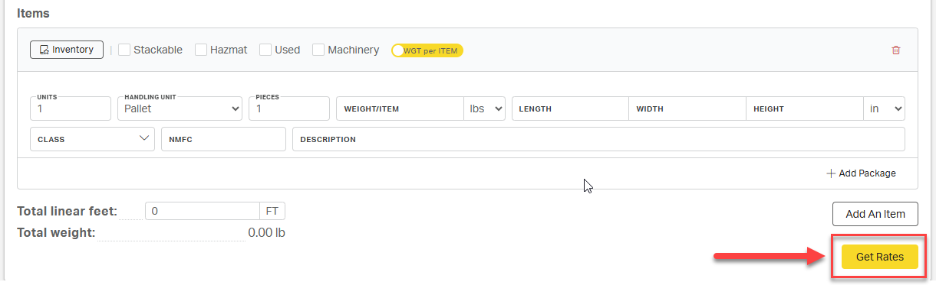
After confirming all details, click Get Rates in the bottom right corner to submit your quote and view available carrier rates.
Accessing Previously Run Quotes
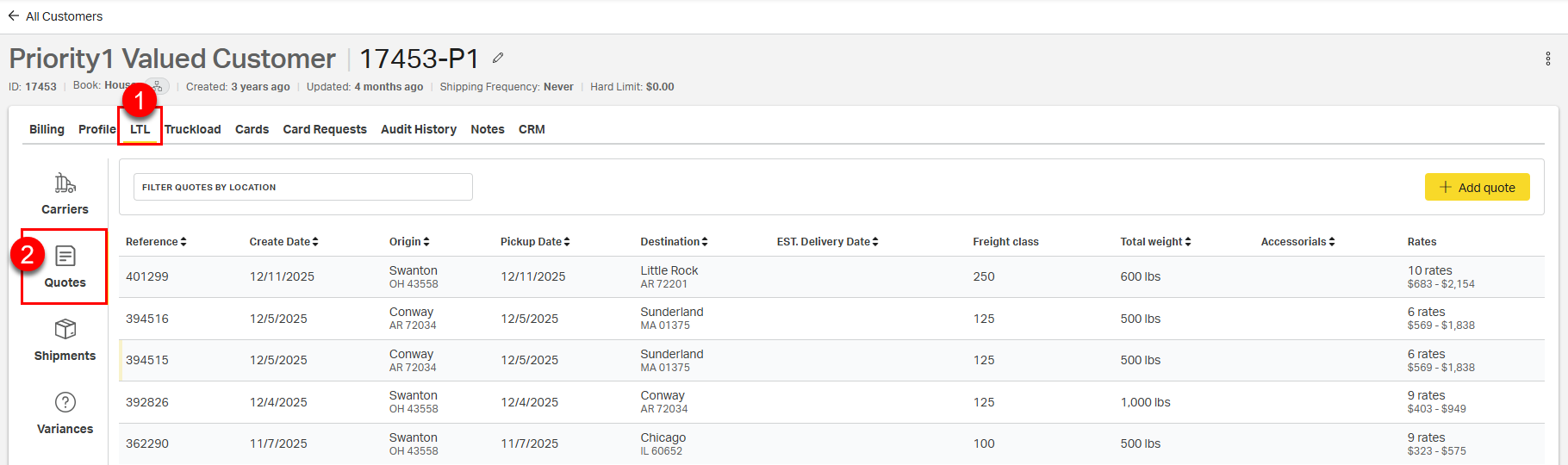
To locate previously run LTL quotes, open the customer account, then
- select LTL,
- select Quotes.