Looking Up LTL Shipments
How to Look Up an LTL Shipment
There are 3 main ways to find an individual LTL shipment and its details in Cabo.
Option 1: From the Omni Search Bar
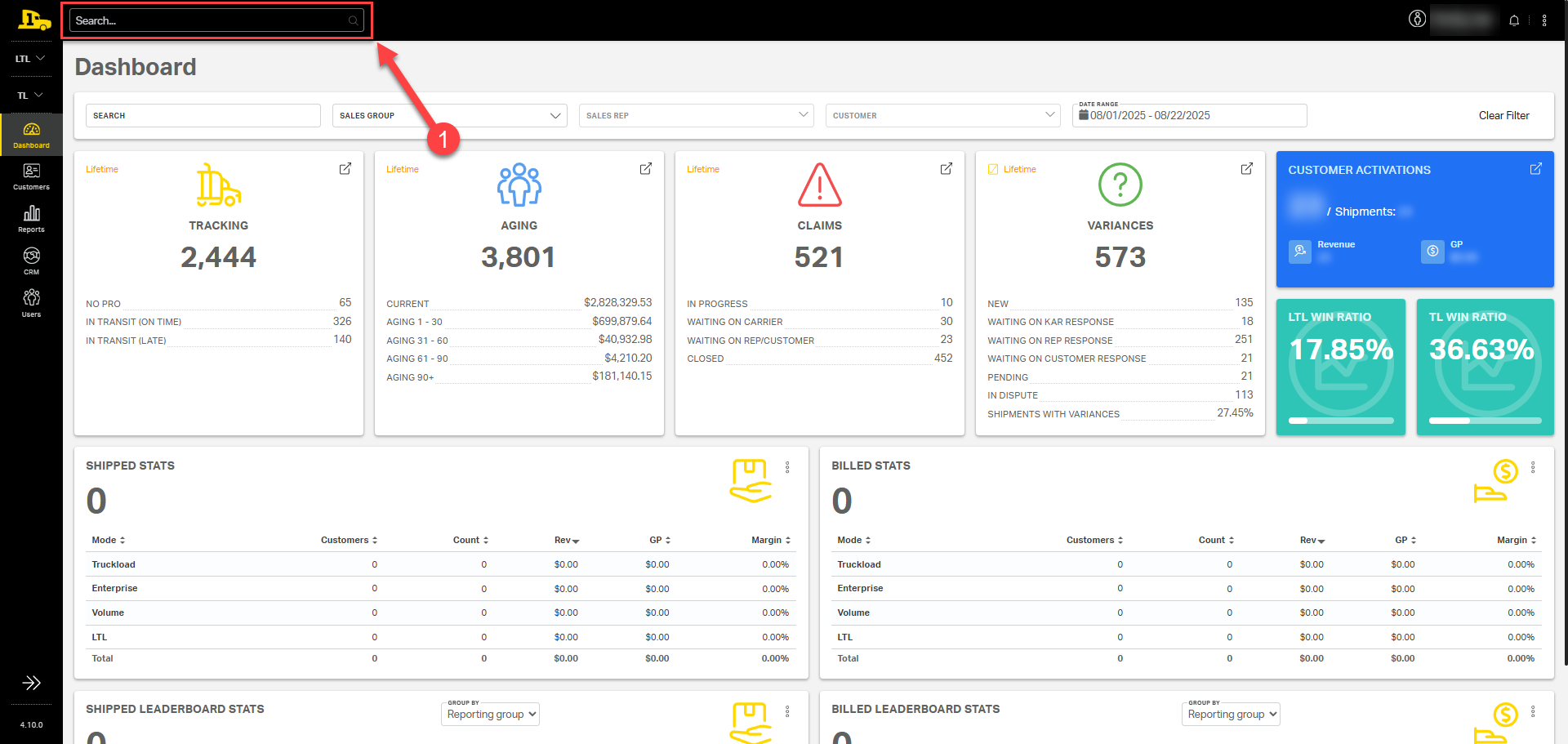
1. Omni Search: Enter one of the shipment's reference numbers (BOL, PRO, SO, etc.) into the search bar at the top and press Enter.
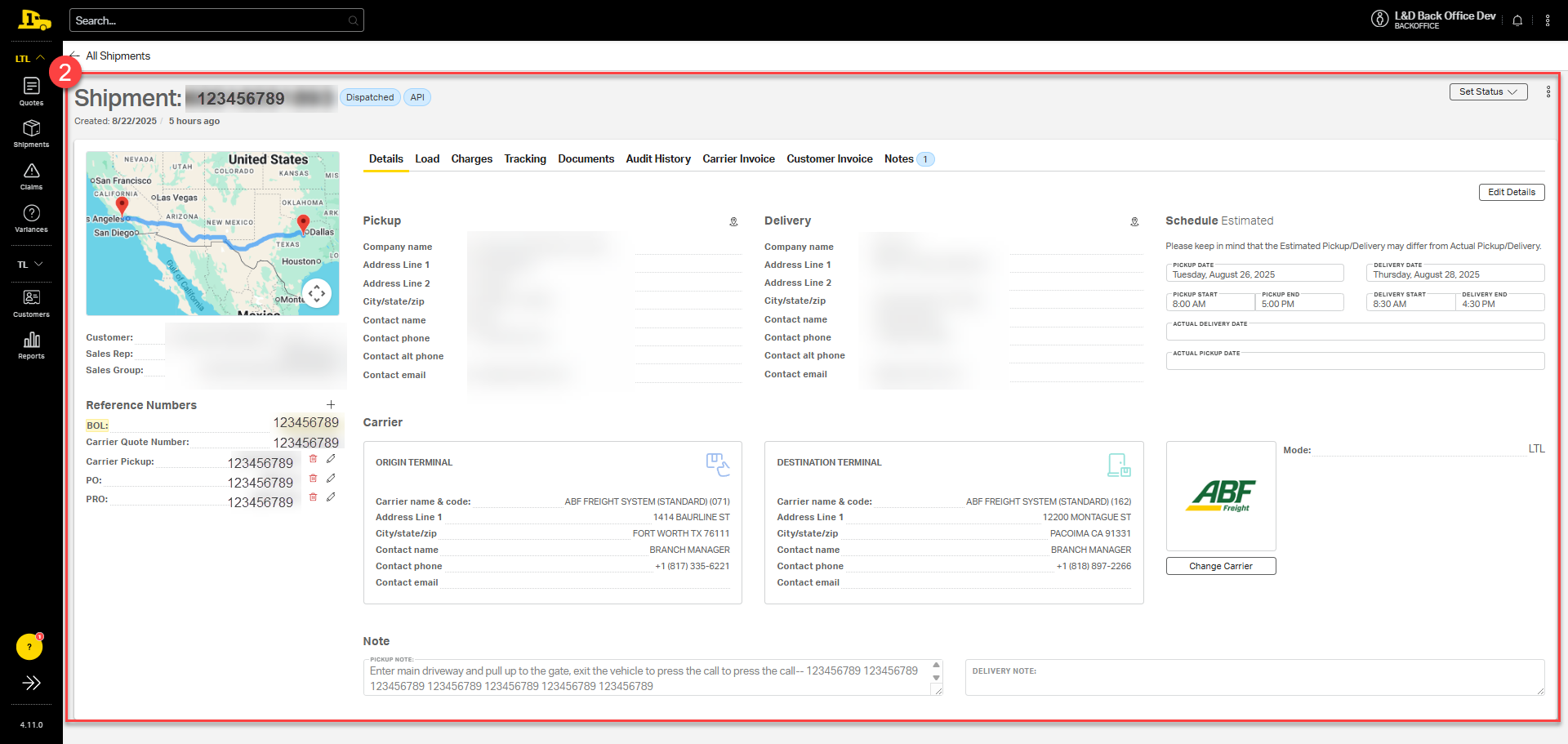
2. When a reference number matches a single shipment, Cabo automatically navigates to the specific shipment page.
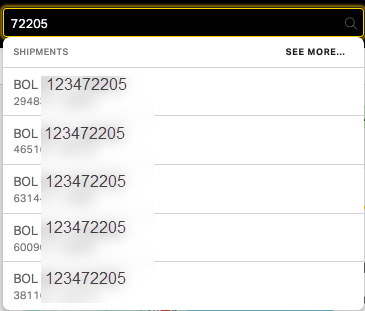
When a reference number matches multiple shipments, Cabo displays up to five options. User can then select the appropriate shipment from the dropdown.
Option 2: From the Shipments Tab
1. From the main dashboard, under LTL, select Shipments on the left-hand side menu.
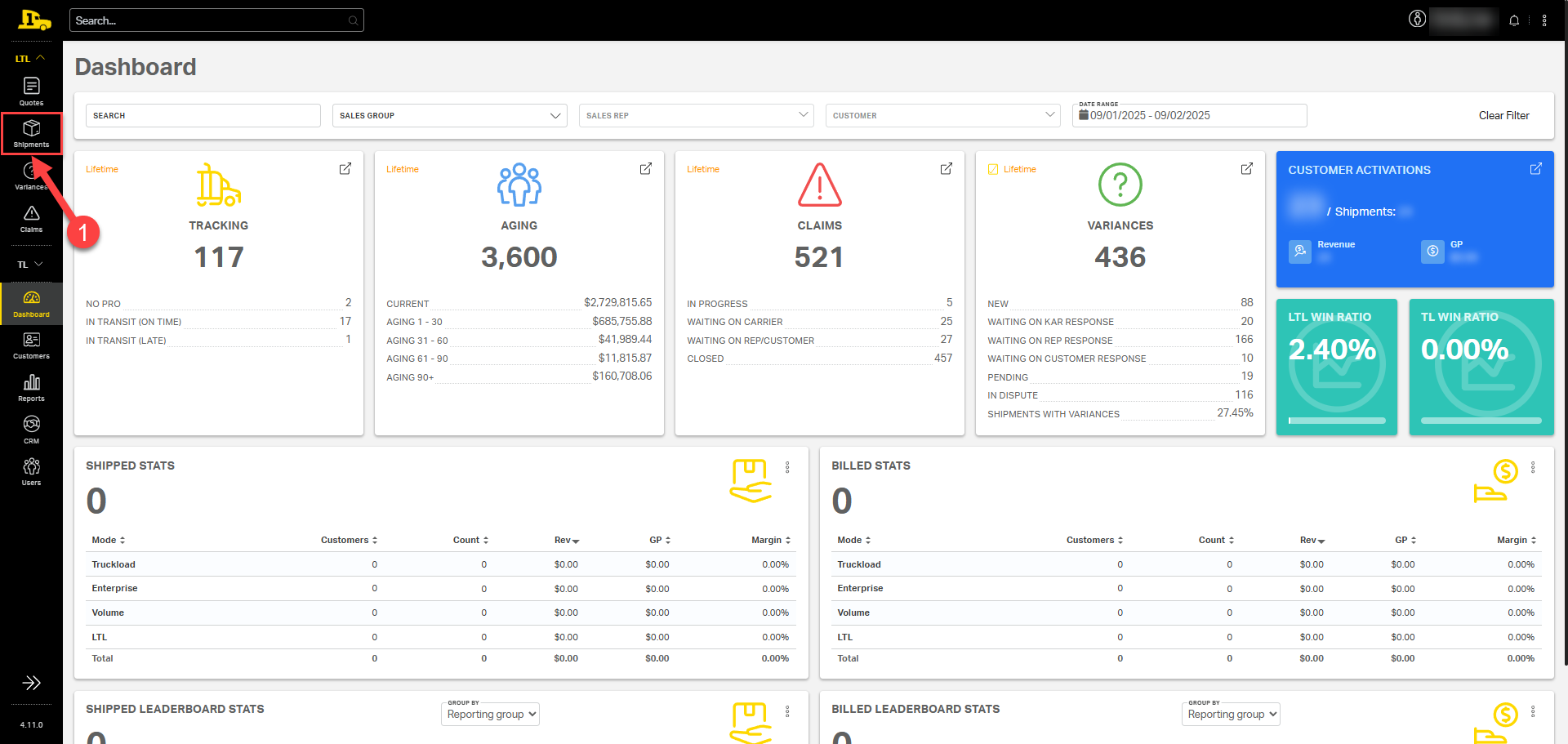
2. Select the appropriate tab at the top of the shipments page:
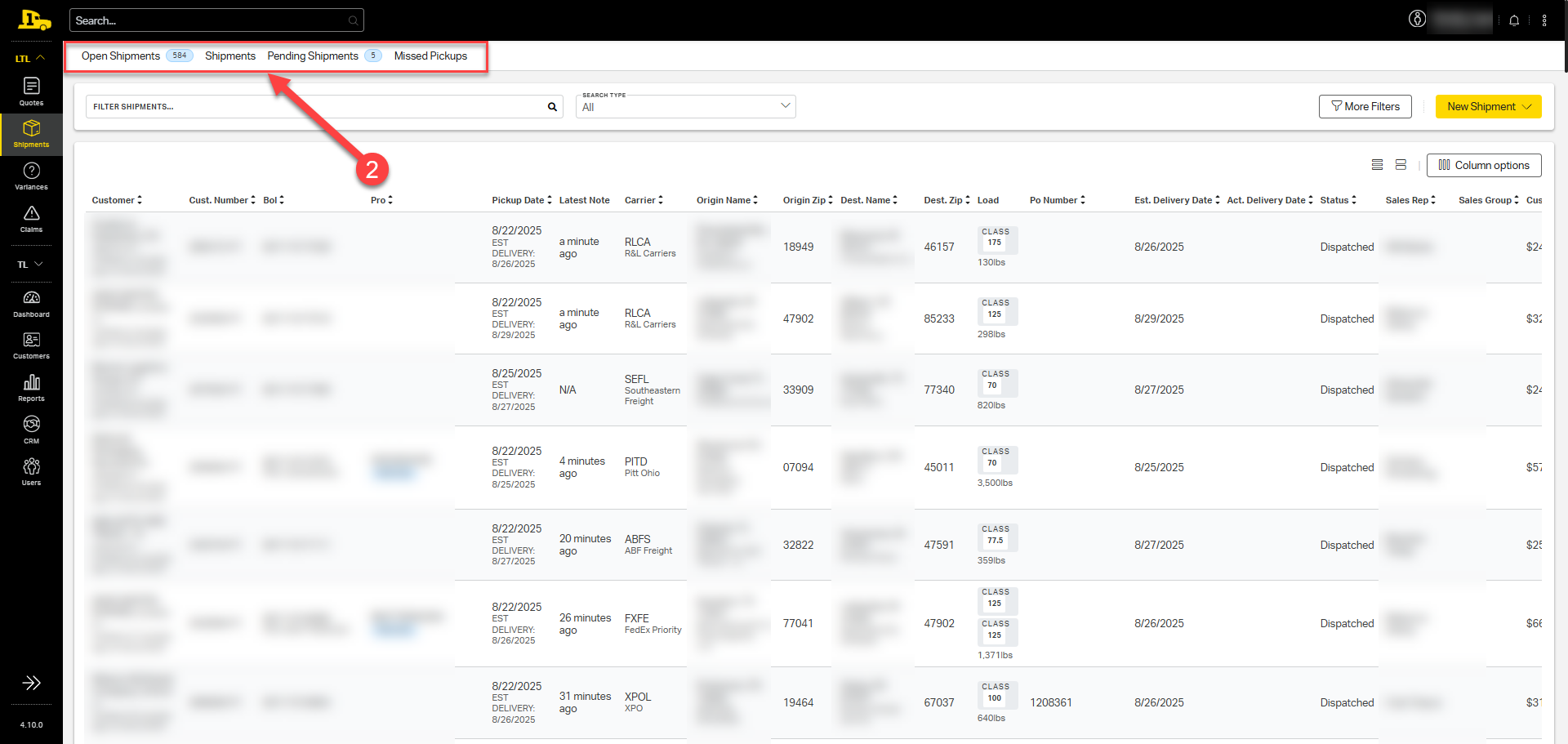
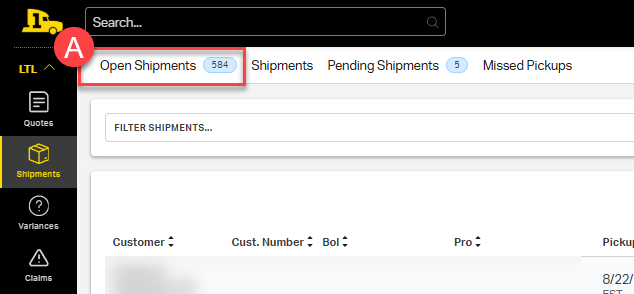
A) The Open Shipments tab will display all shipments that have been dispatched or are in transit, but have not been delivered.
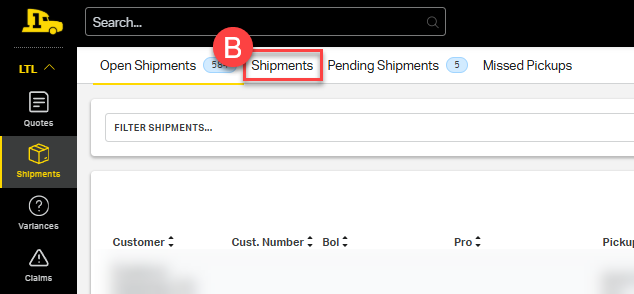
B) The Shipments tab will display all shipments, including those already delivered.
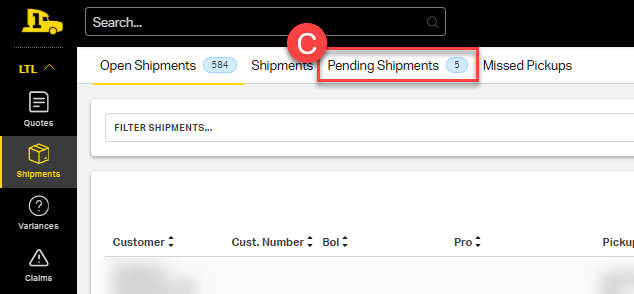
C) The Pending Shipments tab will only appear if there are shipments in Pending Approval status. This means the shipment hasn't been dispatched and requires additional steps before it can be tendered to the carrier.
- If a shipment is in Pending Approval status, either:
- 1) the customer selected Dispatch to book the shipment, and there was an error that didn't surface to the customer, but kept the carrier from successfully receiving the tender.
- 2) the customer has the Auto Tender Shipments setting turned off, which requires that all of their shipments be approved before being dispatched.
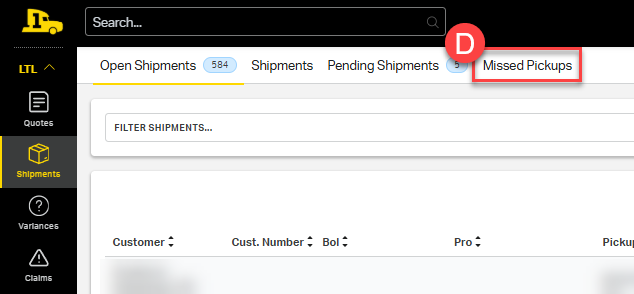
D) The Missed Pickups tab will display shipments with past pickup dates that don't have a PRO number (carrier tracking number). Use the filter at the top select your date range.
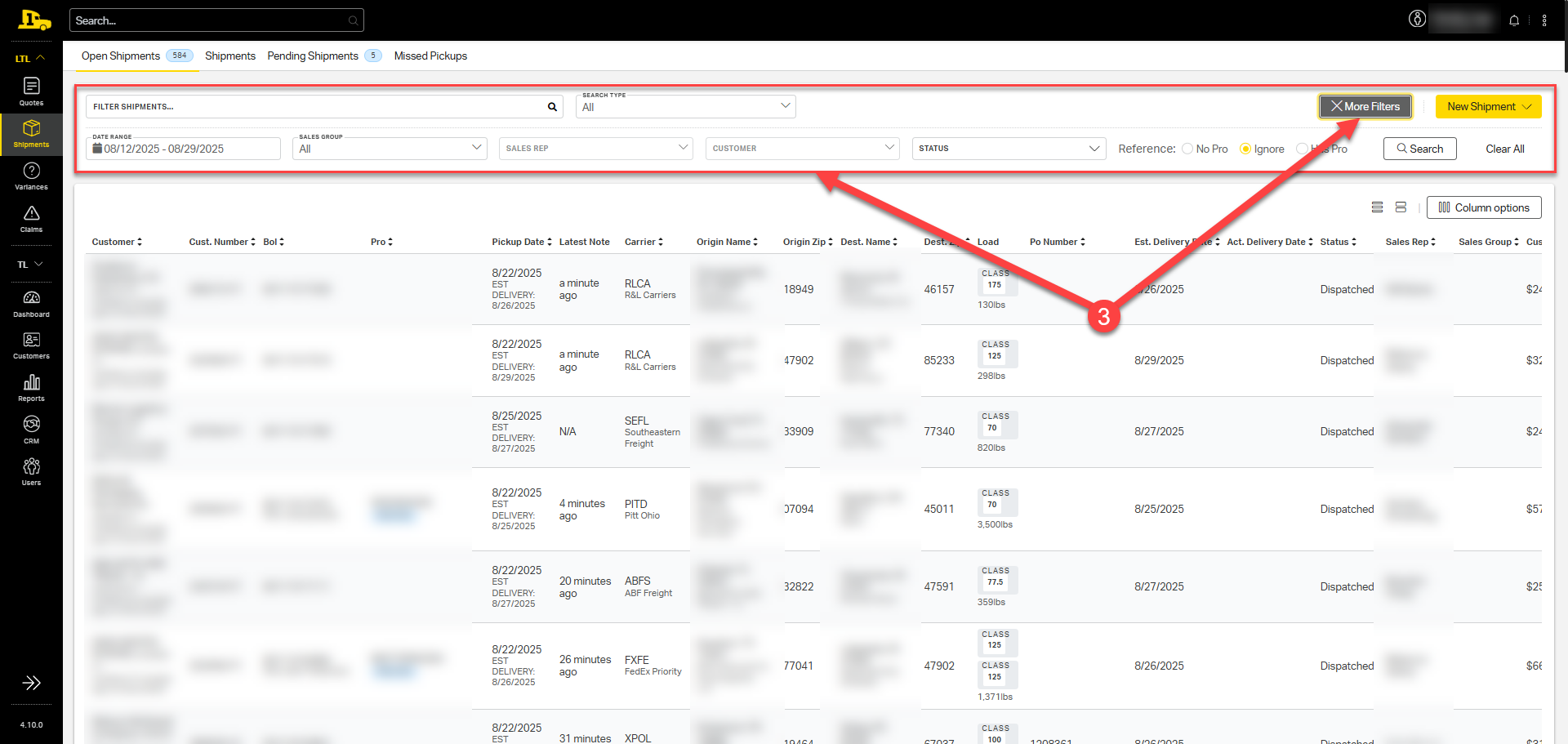
3. Select More Filters at the top to filter by date range, status, whether or not the shipment has a PRO number, and more.
Option 3: From the Customer's Profile
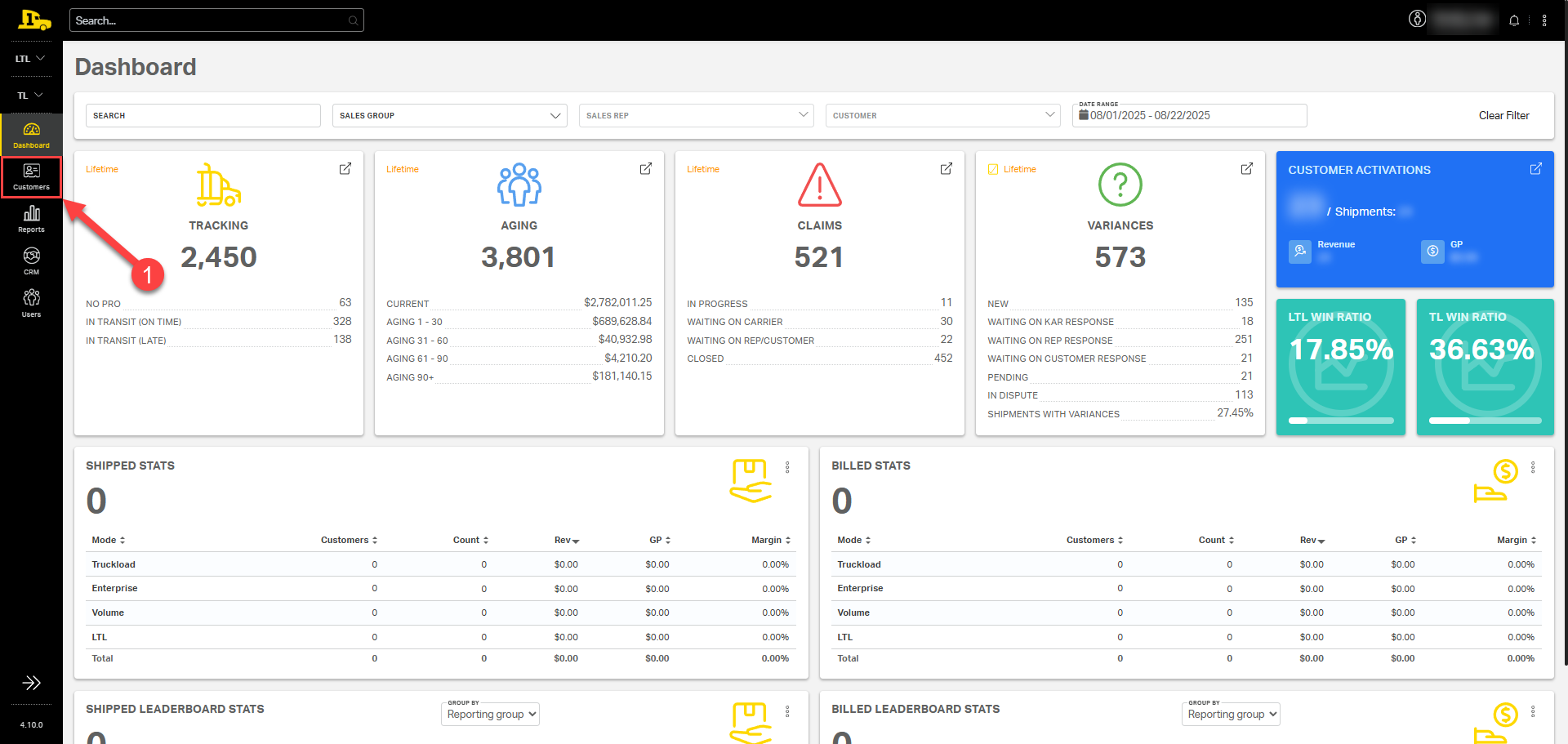
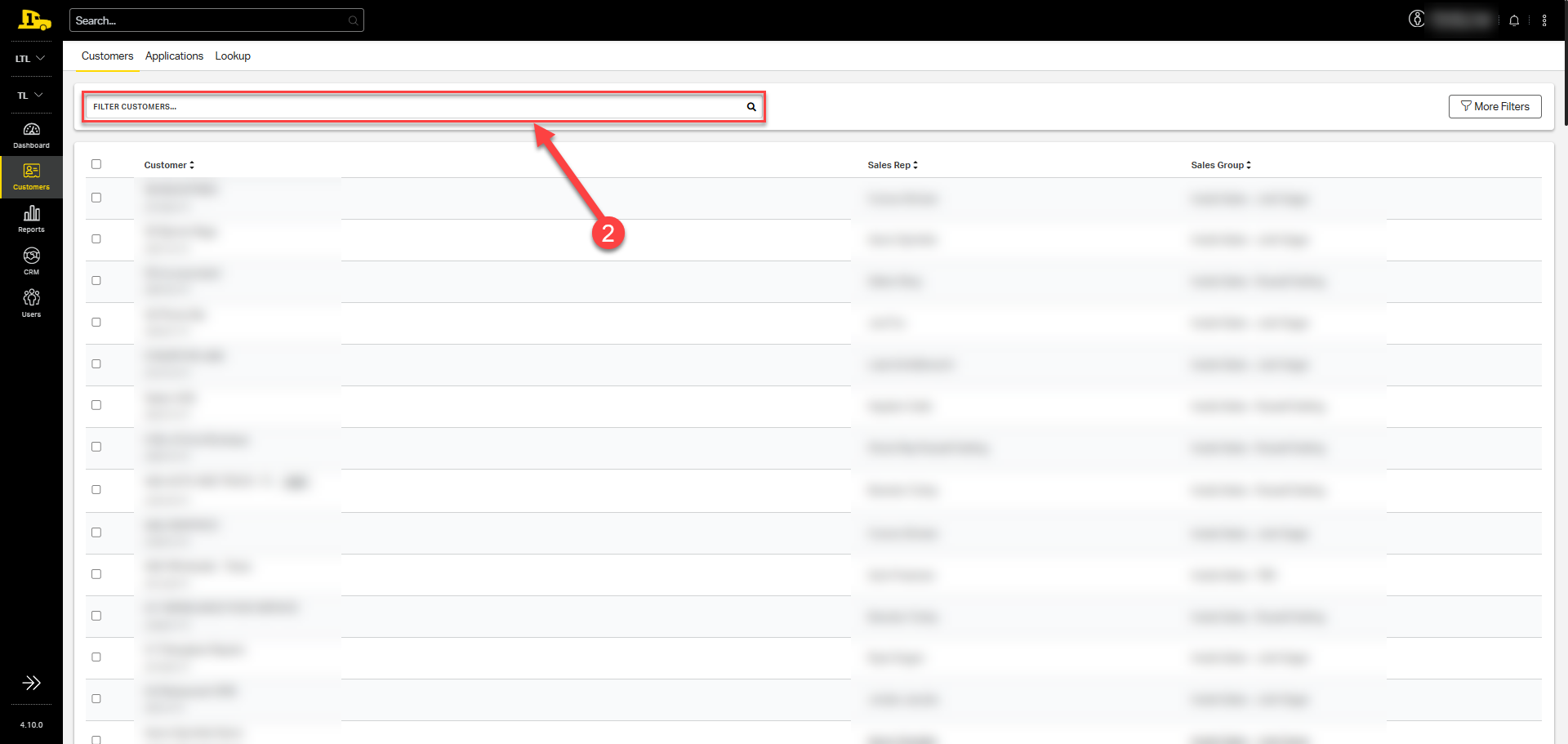
1. From the main dashboard, select Customers on the left-hand side menu.
2. Enter the customer's name into the top search bar, press Enter, then select their name from the populated list.
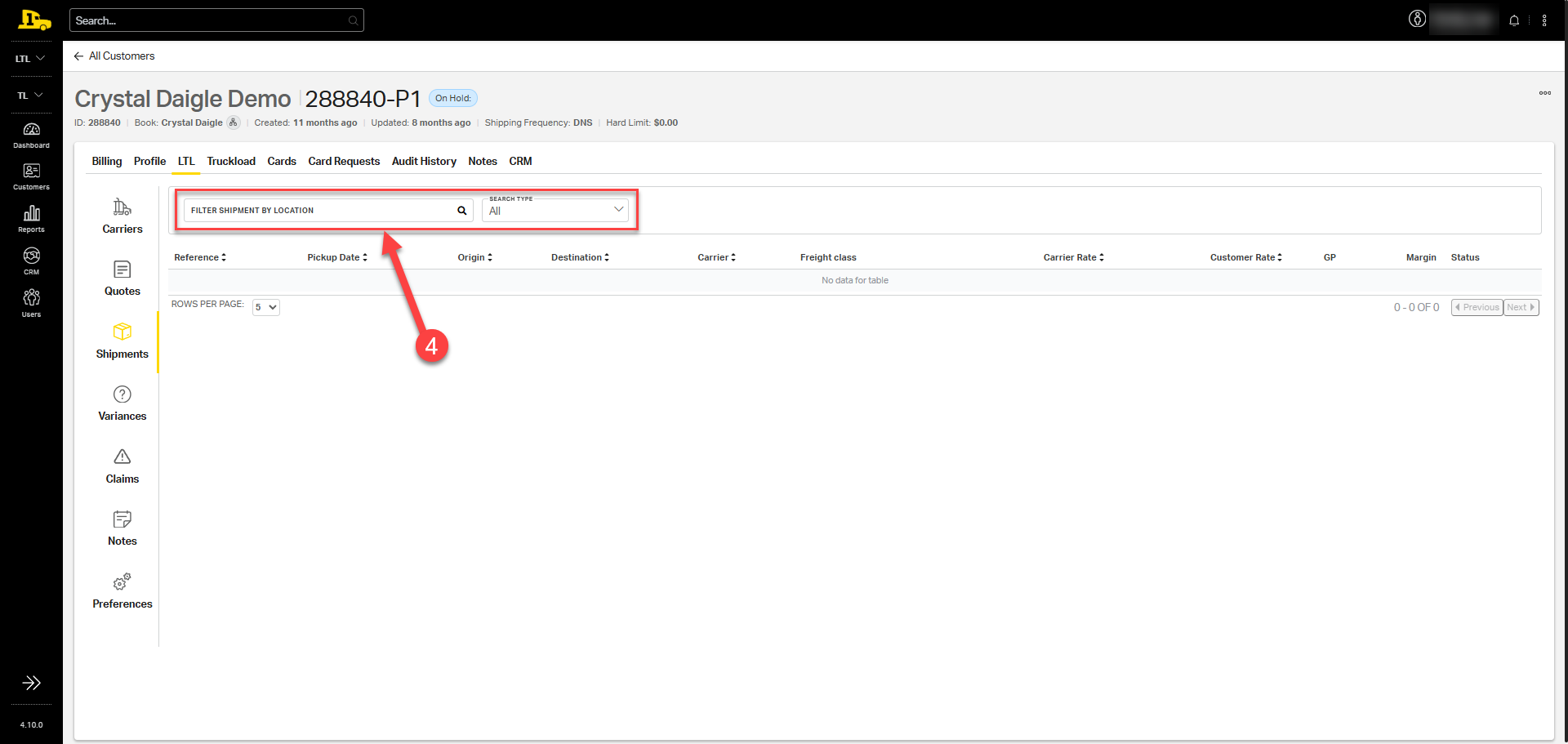
3. From here, select LTL>Shipments
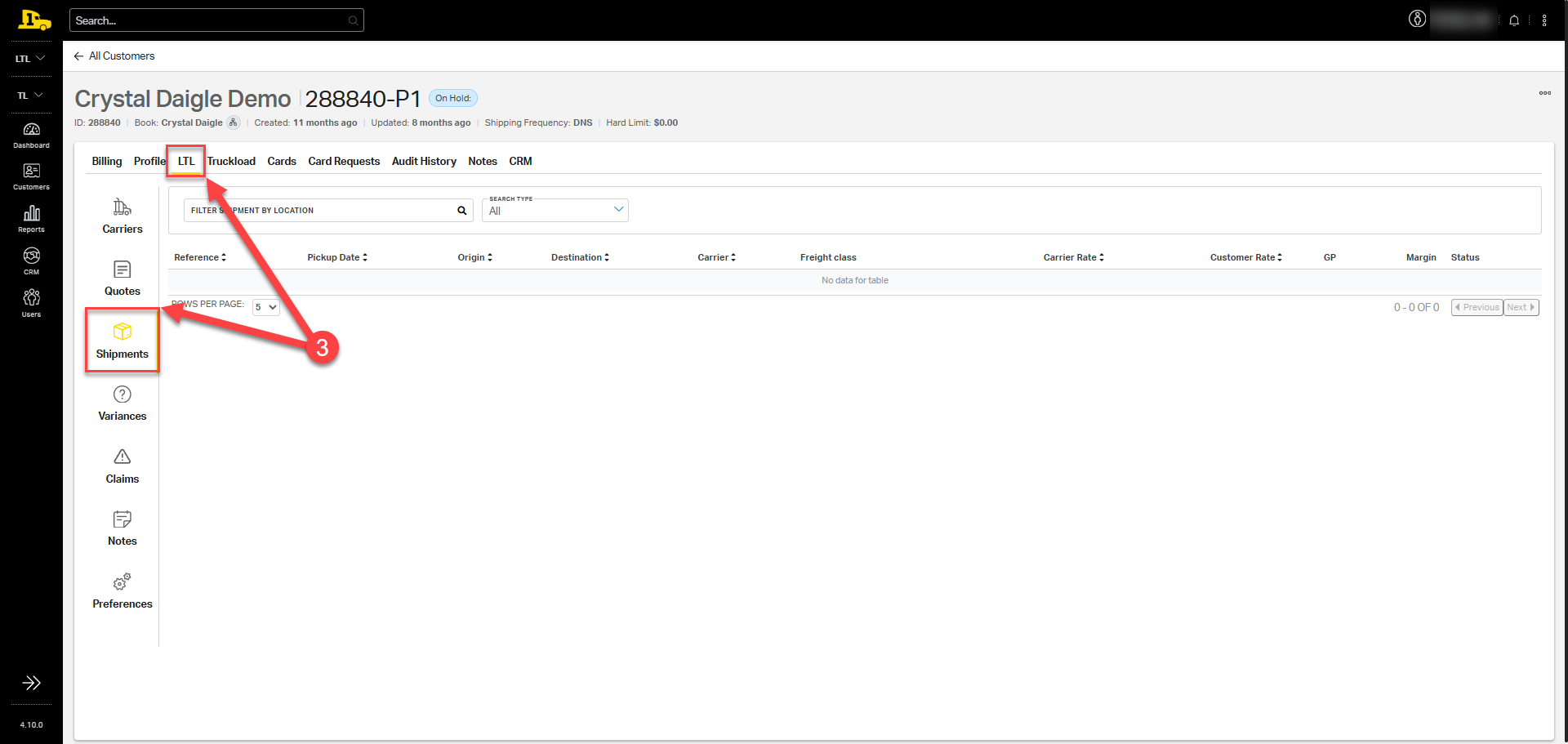
4. Under the Shipments section, all recent LTL shipments will populate. Search by location at the top to narrow down results.