
Ad Hoc Reporting
The Ad Hoc Report Builder in Cabo empowers users to create fully customized reports, delivering the exact data they need when they need it. Unlike prebuilt reports, Ad Hoc Report builder offers complete control over data selection, filtering, and delivery frequency.
Ad Hoc Reporting is an ideal tool for users who want to go beyond standard reports and explore specific trends, monitor operational metrics, or troubleshoot performance issues in real time.
Core Components of the Ad Hoc Report Builder
The Cabo Report Builder focuses on three main components: Filtering, Column Options, and Scheduling.
Filtering
Filtering refines data by specific criteria, such as customer name, carrier, date range, or shipment status, so the report only includes details important to the user.
Dynamic Date Ranges
Cabo supports both fixed and dynamic date ranges. Dynamic ranges automatically update when the report is re-run or scheduled, saving time and ensuring results always reflect the most current data.
Example Date Ranges:
- “7,0” → Last 7 Days
- Returns data from 7 days ago through today.
- Example: If today is Thursday, this range includes data from last Thursday through today.
- “WTD” → Week-to-Date
- Returns data from Sunday through today (based on the current week).
- Example: If today is Thursday, WTD includes Sunday, Monday, Tuesday, Wednesday, and Thursday.
- Specific Dates (e.g., 9/1/2025–9/30/2025)
- Returns data only within that fixed range.
Dynamic filtering is especially useful for recurring reports (like weekly shipment summaries or monthly audits) that need updated data each time they run.
Column Options
Column Options allow users to customize a report layout by adding, removing, or rearranging data fields. This gives users the flexibility to highlight exactly what they want to analyze.
Common columns include the following:
- Shipment Status
- Customer Charges
- Variance Amount
- Carrier Name
- Pickup/Delivery Dates
- Total Weight and Number of Units
⚠️ Note: Ad Hoc reports cannot break down a shipment by individual items or invoices, but they can display total shipment-level metrics such as total weight and unit count.
Summary vs. Detail Reports
The key difference between Summary Reports and Detail Reports is how the data is displayed.
Summary Report
- Purpose: Provides a high-level view by grouping data into totals, averages, or counts.
- Requirement: Must be grouped by at least one column (such as Customer, Carrier, or Status).
- Result: Aggregated data instead of individual records.
- Examples:
- Total shipments per customer
- Average delivery time by carrier
- Total revenue per mode
Detail Report
- Purpose: Displays each shipment as a separate line item, providing shipment-level granularity for in-depth analysis.
- Requirement: No grouping applied.
- Result: A full list of individual shipments or transactions with all selected columns.
In short:
- Summary = rolled-up view (grouped data)
- Detail = line-level view (every record)
Building a New Report
Create a new personalized report in a few short steps.
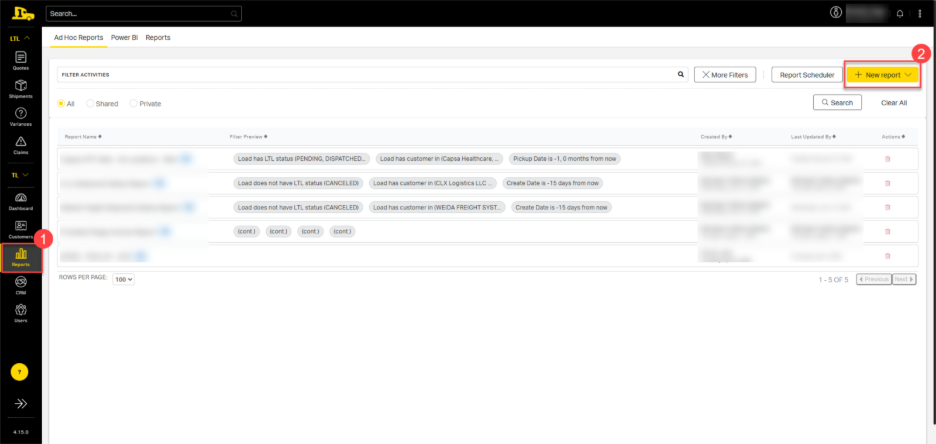
1. Begin by selecting Reports.
2. Then New Report.
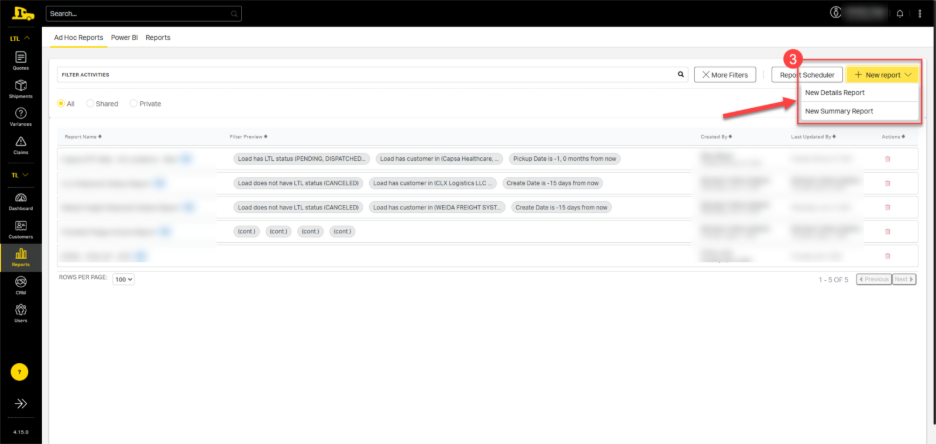
3. From the dropdown, choose between creating a Details Report or Summary Report.
4. From the New Report page, select Add Filter to create custom filtering options. Add as many filters as needed.
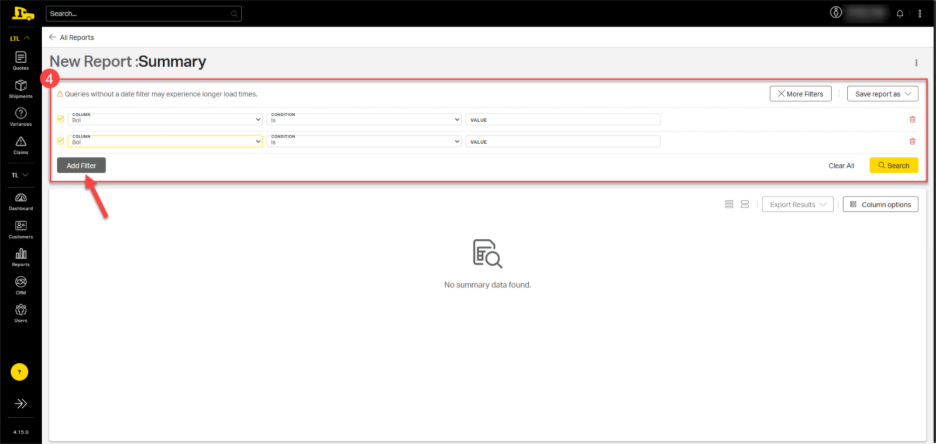
⚠️ Note: Selecting only LTL statuses will exclude truckload (TL) shipments from the report. To include both LTL and TL data, ensure filters include the appropriate statuses for each.
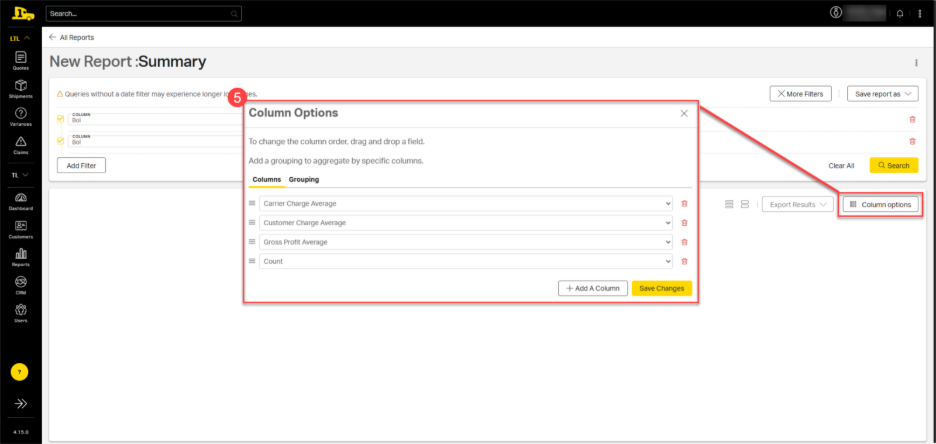
5. Select Column Options to customize the report display *.
*If creating a Summary report, choose grouping(s) under the Grouping tab in the Column Options pop up.
💡 Tip: For accurate filtering, first add the column to your report, review the returned values (e.g., LTL status), then apply filters to exclude any you don’t need, such as “cancelled.”
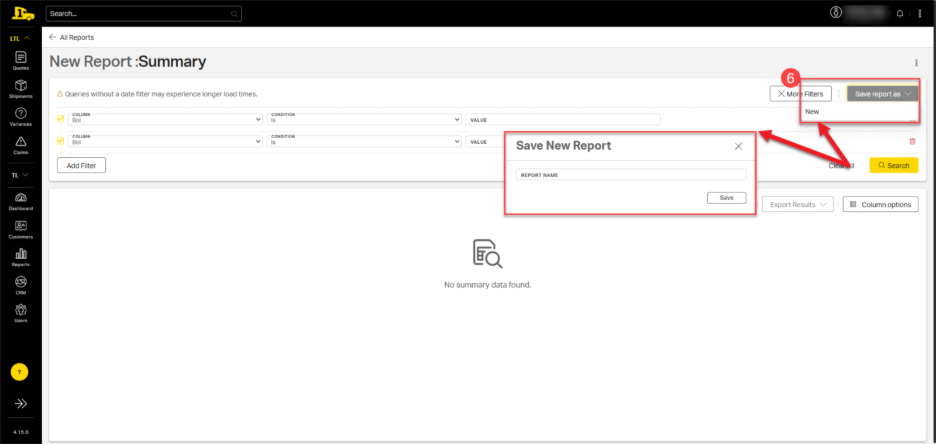
6. After configuring all filters, save the report by selecting Save report as, then New. Enter the name of the report in the textbox and Save.
💡Tip: You can reuse the same report structure for different customers by saving it under a new name. For example, save a report as “Report ABC.” Change the customer in the report while keeping all filters intact; then save the report again as “Report XYZ.” This is a quick way to build similar reports for multiple customers.
Report Scheduling
Scheduling automates report generation and delivery. Users can set reports to run at regular intervals (e.g., daily, weekly, monthly, etc.) and share the reports automatically with key stakeholders via email.
Examples:
- Schedule a weekly operations summary to review recent shipping trends.
- Send a monthly revenue summary to leadership.
- Automate carrier performance tracking to monitor service consistency.
Scheduling reports ensures teams receive timely, accurate insights without the need to manually rebuild or rerun reports.
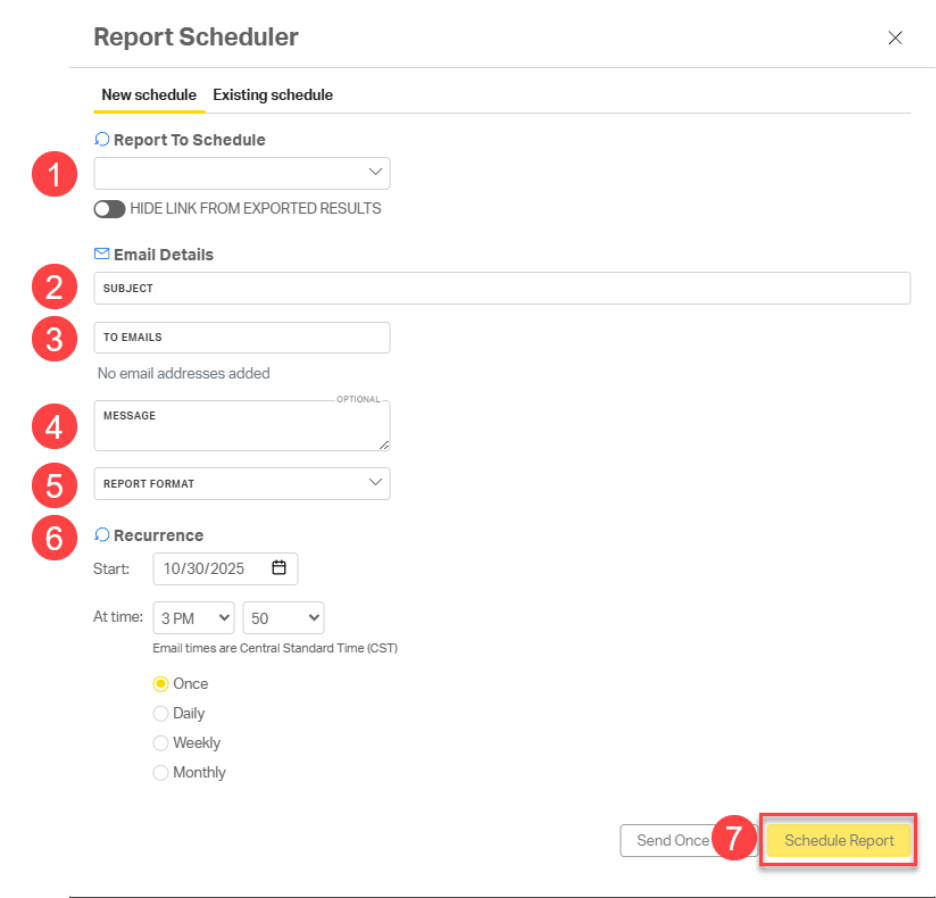
Setting Up a Scheduled Report
1. Select the Reports tab from the main menu.
2. Then select Report Scheduler.
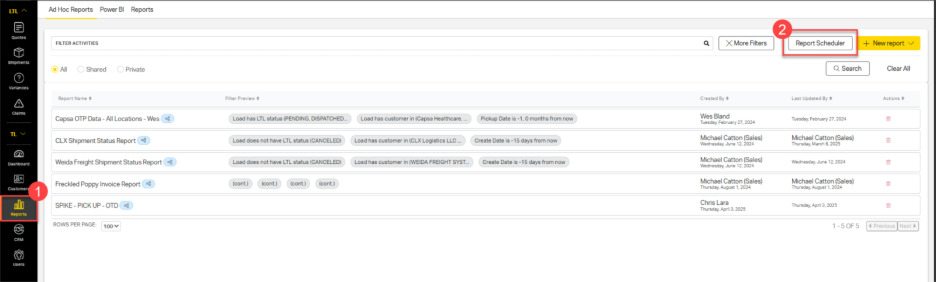
3.From the Report Scheduler popup, choose to create a new report schedule or edit an existing report schedule.
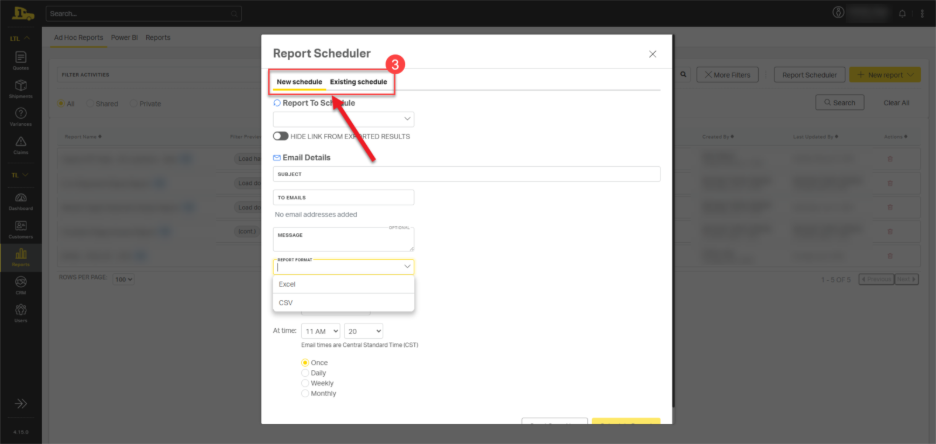
To create a new report schedule:
- Select the appropriate report from the dropdown options.
- Enter the email subject line for the scheduled report in the Subject textbox. (ex: "Daily Shipment Report for ABC Company").
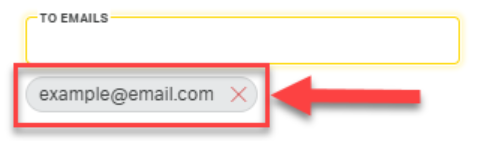
- In the To Emails textbox, type each recipient’s email address and press Enter after each one. When entered correctly, the email will appear as a pill-shaped tag below the input box.
- Compose (or paste) the message to accompany the attached report in the Message textbox (ex: "Please see attached report of all open shipments.")
- Select the report format from the dropdown, either Excel or CSV.
- Configure the start date, time, and frequency of the scheduled report.
- Select Schedule Report.
Example Use Cases
While the Ad Hoc tool is completely customizable, here are some common use cases inspired by existing premade reports. These can serve as a starting point for building custom versions:
Use Case Report | What It Shows | How to Build It in Ad Hoc |
| Missed LTL Pickups | Shipments that were scheduled but never picked up. | Filter by Shipment Status = Not Picked Up and Mode = LTL. |
| In Transit Shipments | Shipments that are currently in transit. | Filter by Shipment Status = In Transit and include columns like Carrier, Pickup Date, and Expected Delivery. |
| Shipped but Not Billed | Shipments that have been shipped but not yet invoiced. | Filter by Shipment Status = Shipped and Invoice Status = Pending. |
| Least Cost Comparison | Potential savings achieved by consistently selecting the lowest available rate. | Include Quoted Rate, Billed Rate, and a calculated Variance column. |
| Expiring Customers | Customers who have not shipped in the last 180 days. | Filter by Last Shipment Date ≥ 180 days ago to identify inactive customers. Seasonal customers can be “locked” to prevent reassignment. |
| Month-over-Month / Year-over-Year Trends | Shipment or revenue changes over time. | Group by Month or Year and use the MoM/YoY prebuilt report as a reference for structure. |
These examples illustrate the insights Ad Hoc reporting can provide, while filters, columns, and schedules can be customized to align with departmental objectives.
Common Terminology
Term | Definition |
| Ad Hoc Report | A fully customizable report built by the user to analyze specific data sets, available as needed. |
| Dynamic Date Range | A flexible filter that updates automatically when re-run (e.g., “last 7 days”). |
| Summary Report | A grouped view that rolls up totals or averages. |
| Detail Report | A line-level view of each record without aggregation. |
| Grouping | Combining data by a specific field (like Customer or Carrier) to summarize results. |
| Least Cost | The lowest available carrier rate for a shipment. |
| Variance | The difference between the quoted rate and the billed rate. |
| Expiring Customers | Accounts with no shipment activity for a set period (typically 180 days). |
| Scheduled Report | A report automatically run and delivered on a recurring basis. |
Need help or have suggestions?
If you experience issues or have recommendations for improving reports, contact Support@priority1.com.