
Getting Started with Cabo
Welcome to Cabo
Cabo is Priority1’s homegrown, all-in-one transportation management system (TMS). You will use Cabo as your central platform for managing quotes, shipments, invoices, and customer relationships across both LTL and Truckload shipping. Whether you’re new to Cabo or just need a quick refresher, this guide will help you navigate the layout, key tabs, and tools you’ll use frequently.
Main Navigation Overview
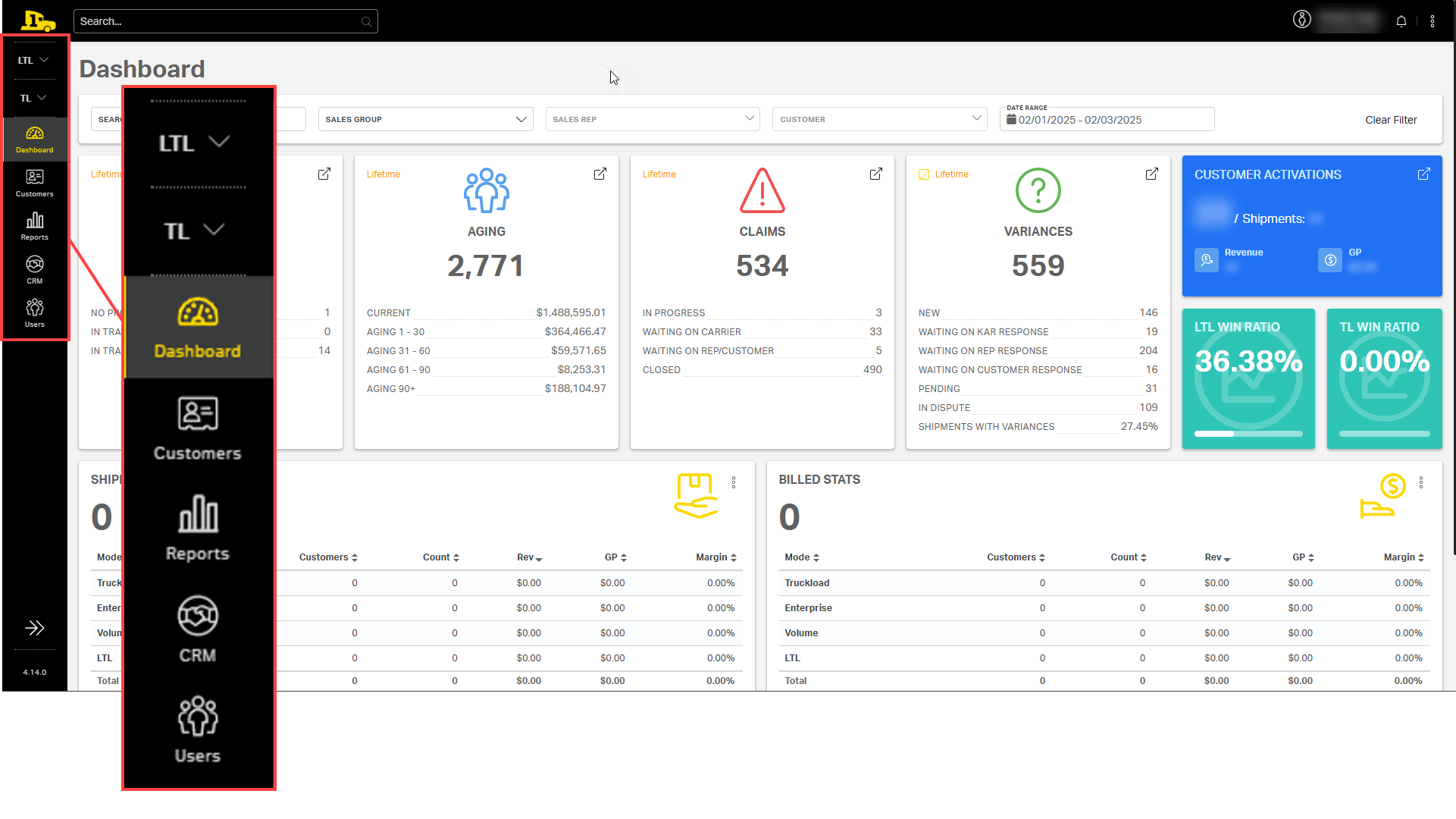
Cabo’s navigation menu, always available on the left-hand side of your screen, is organized by mode and function.
At the top are two main dropdowns: LTL and TL.
- The LTL dropdown includes less than truckload (LTL) tabs.
- The TL dropdown includes truckload (TL or FTL) tabs.
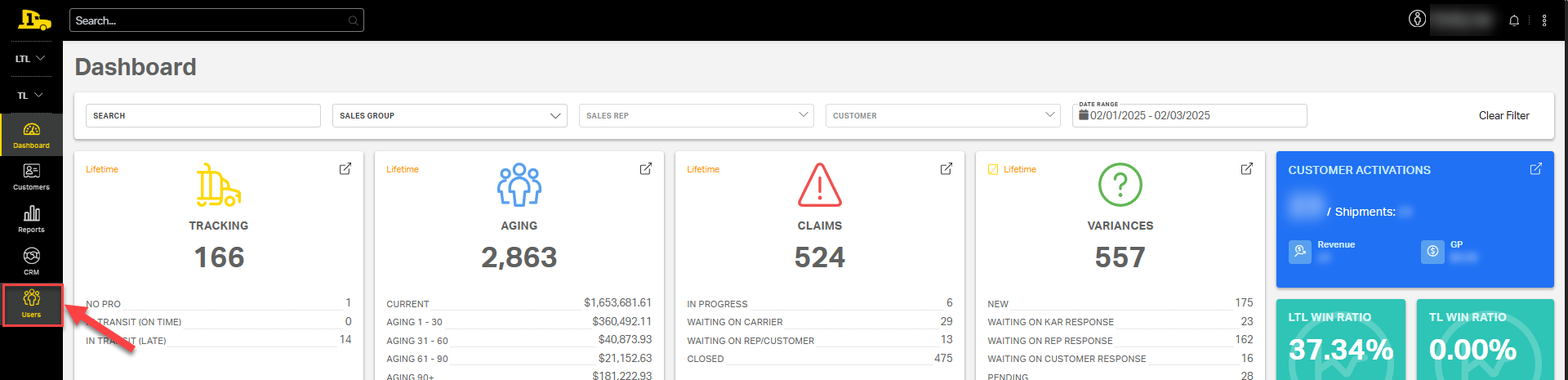
Below these two dropdowns are tabs for your Dashboard, Customers, Reports, CRM, and Users.
Quick Actions Menu
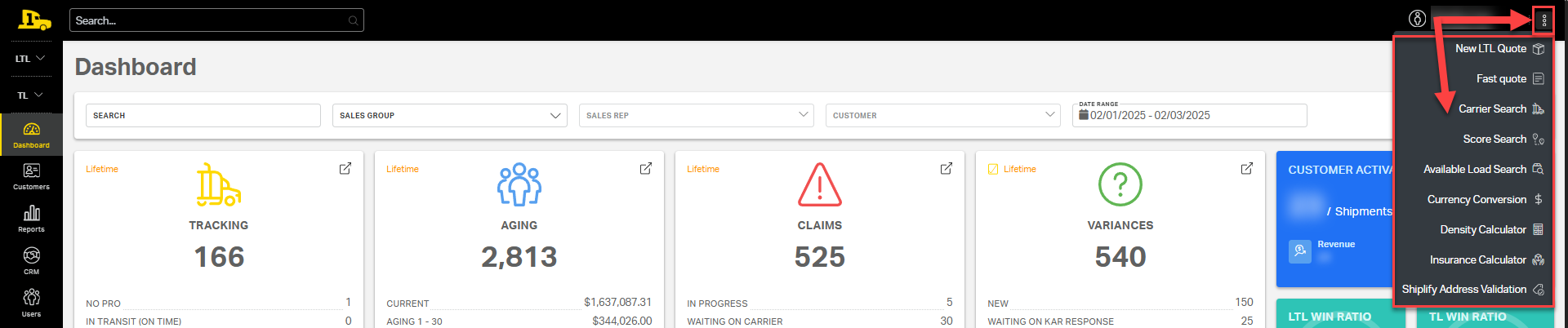
The Quick Actions Menu, found under the kebab in the top-right corner of the screen, gives you fast access to commonly used tools and shortcuts in Cabo. These options are designed to help you save time by jumping straight into key actions without navigating through multiple tabs.
Quick Actions Menu
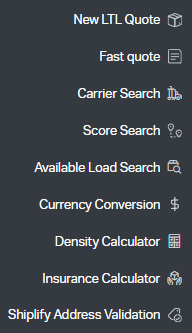
Selecting the kebab menu will open several Quick Action options:
- New LTL Quote: Start a new LTL quote from any page in Cabo. This shortcut opens the LTL quoting tool so you can quickly build and run a shipment quote.
- Fast Quote: Use the streamlined quoting tool for quick truckload rate estimates. This is ideal when you need to get a quick rate for reference without building a full load.
- Carrier Search: Search for carriers using their MC or DOT number to view contact details, status, safety rating, insurance coverage, and more.
- Score Search: Access scorecards by lane and transportation mode to evaluate current carrier capacity and the difficulty level to cover that lane.
- Available Load Search: Find open or available loads in the system to match with equipment or lane needs. This tool can also be used to identify partial load opportunities and maximize trailer utilization.
- Currency Conversion: Quickly convert US Dollars (USD) to Canadian Dollars (CAD), or vice versa.
- Density Calculator: Calculate freight density by entering weight and dimensions, then use the density calculation to determine the correct freight class before quoting or booking.
- Insurance Calculator: Estimate shipment insurance costs for the customer based on declared value and various margin percentages.
- Shiplify Address Validation: Validate customer addresses and any needed accessorials before quoting or booking to avoid delivery delays and billing errors. This feature checks addresses against the Shiplify database for accuracy.
LTL
The LTL dropdown is used for managing Less Than Truckload shipping.
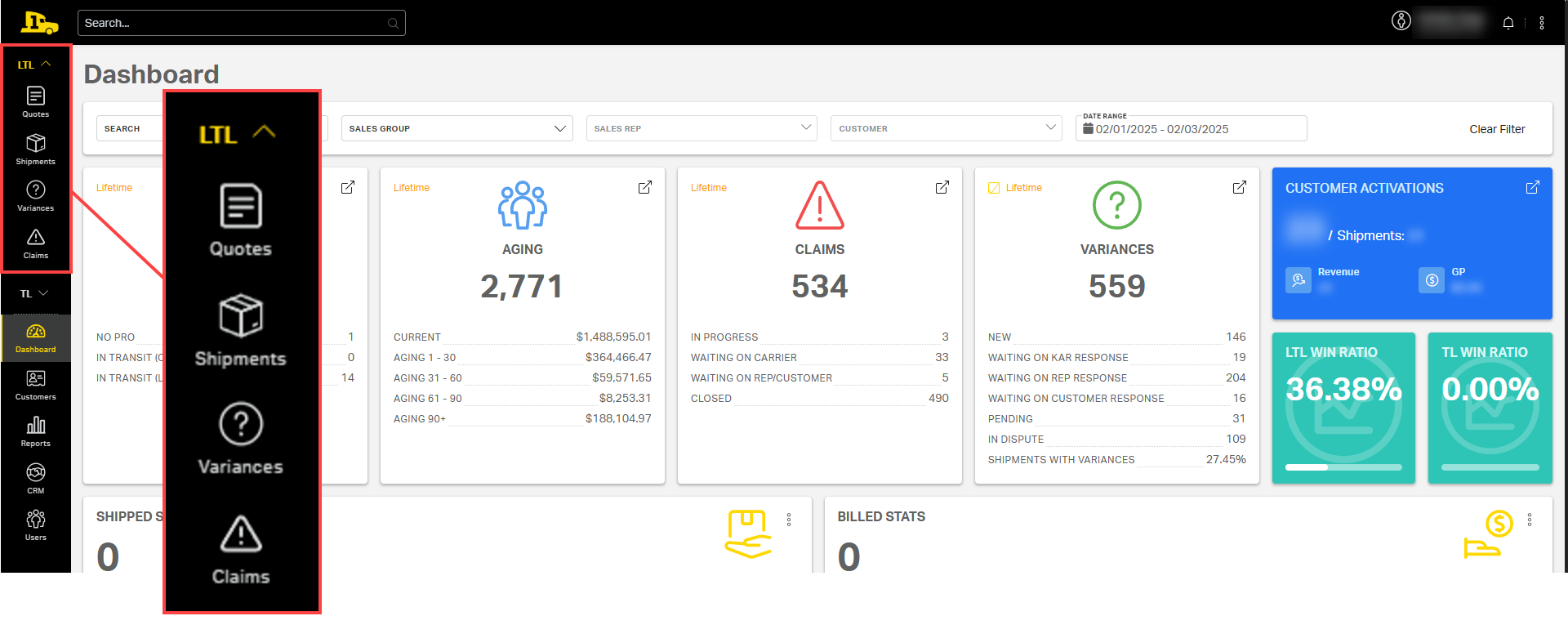
Under the LTL dropdown are several tabs:
- Quotes: Create and review customer quotes.
- Shipments: View and track LTL shipments.
- Claims: Submit and manage LTL freight claims.
- Variances: Review discrepancies between quoted and billed amounts.
Learn more about LTL Management in Cabo.
TL
The TL dropdown is used for managing Full Truckload shipping.
Under the TL dropdown are several tabs:
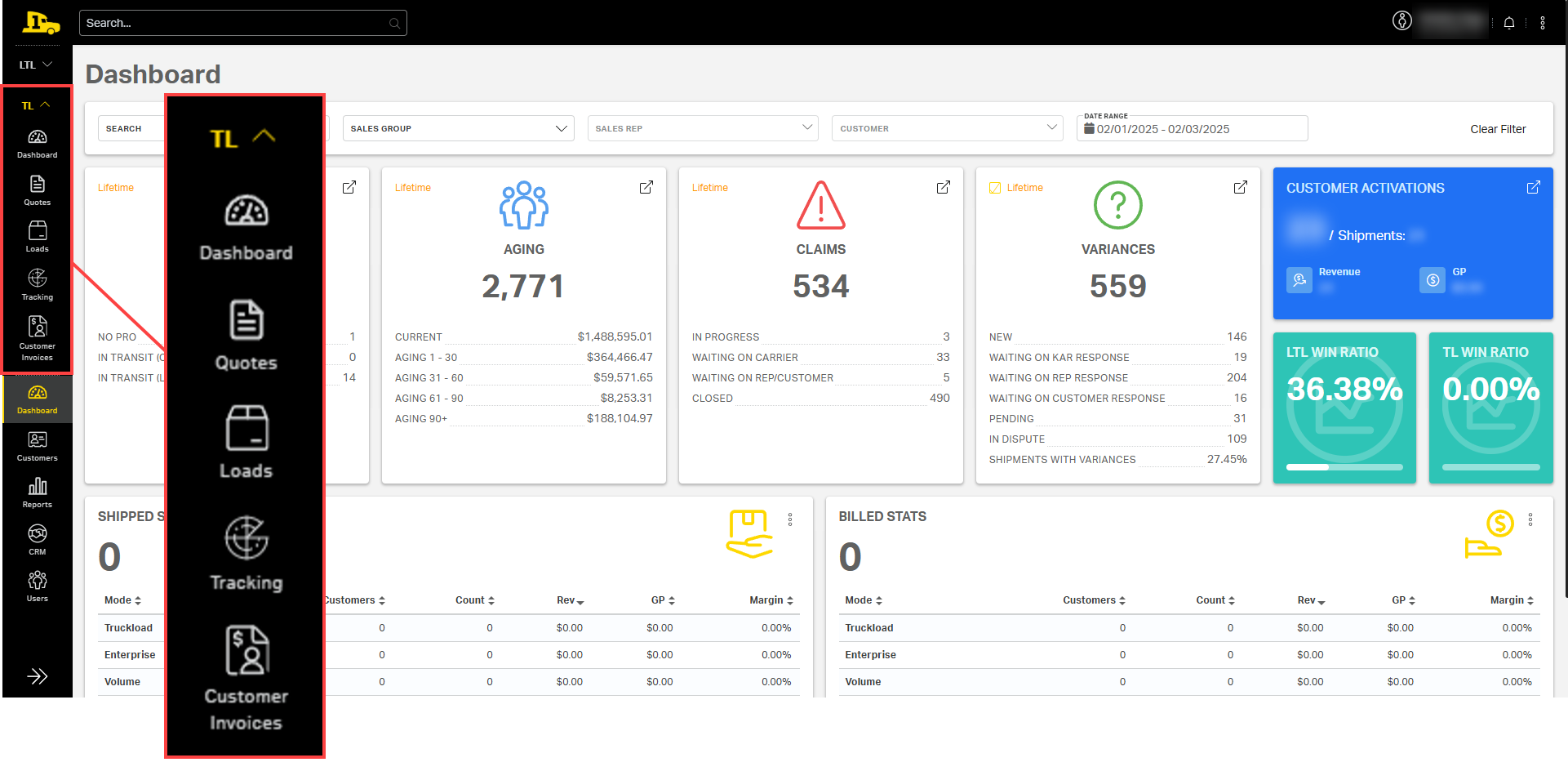
- Dashboard: View a high-level overview of load activity.
- Quotes: Generate and compare Truckload quotes.
- Loads: Build, book and manage active and historical loads.
- Tracking: Monitor real-time load status and carrier updates.
- Customer Invoices: View and manage customer billing for TL.
Dashboard
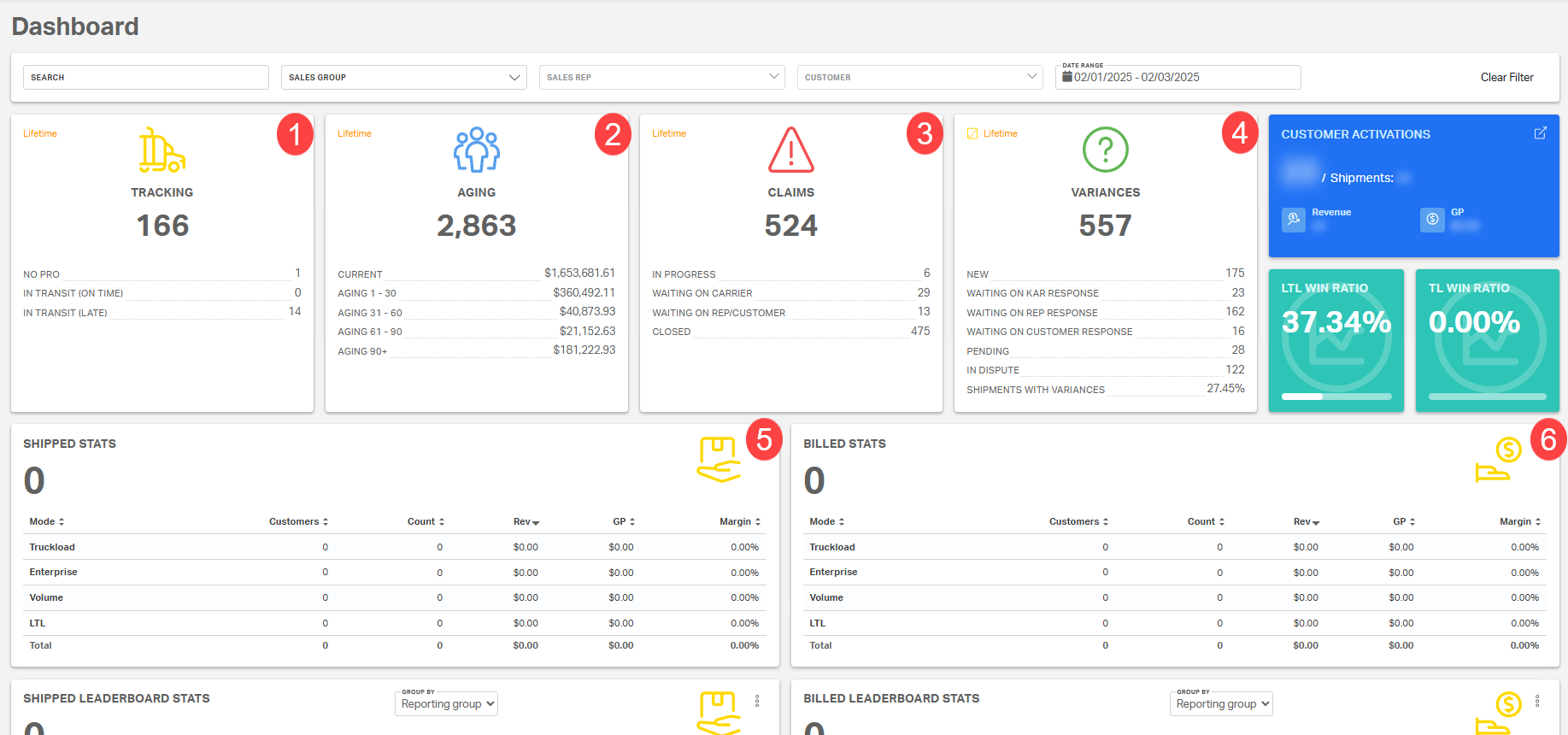
The sales dashboard is your central landing page in Cabo, displaying key metrics and recent activity to give you a snapshot of performance across all transportation modes. Access your sales dashboard by selecting the Priority1 truck logo OR the Dashboard tab.

At a glance, you can:
- Monitor overall shipment statuses.
- Track open invoice amounts.
- Review claim updates.
- Review variance updates.
- View key stats for shipped freight, broken down by transportation mode.
- View key stats for billed freight, broken down by transportation mode.
Customers
Search, view, and manage customer profiles under the Customers tab. Each customer profile includes contact information, addresses, preferences, and account-level activity.
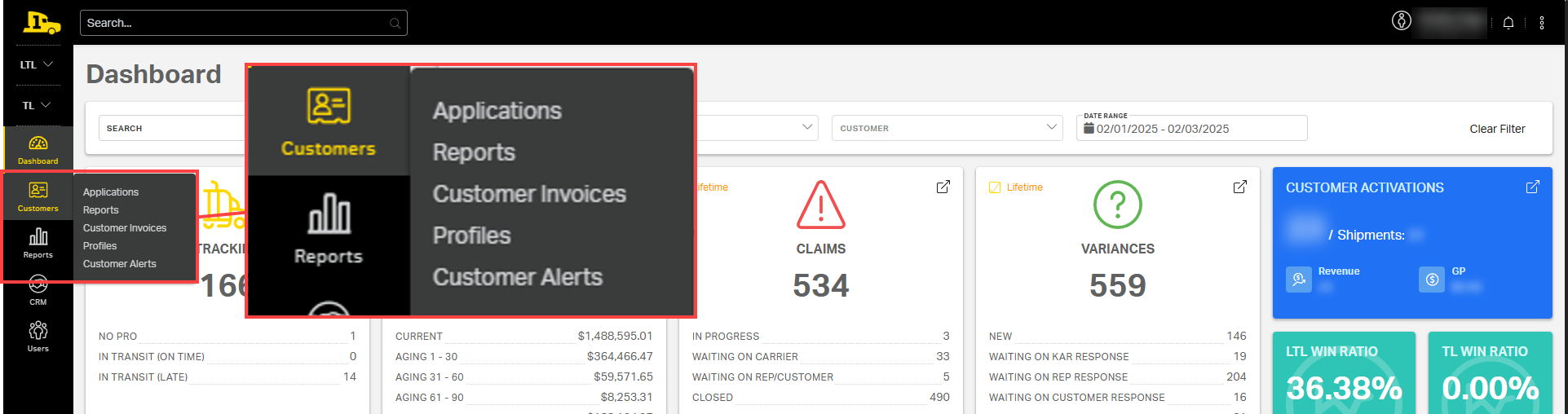
The Customers tab includes several subsections:
- Applications: View and manage customer credit applications and approval statuses. This section helps ensure new customers are properly set up for billing and invoicing.
- Reports: View key customer account details including aging, credit limit, activation date, and last shipment date. Use this section to monitor customer account health and credit activity.
- Customer Invoices: View and download (individually or in bulk) invoices tied to customer shipments. This section provides invoice details, payment status, and links to corresponding shipments.
- Profiles: Set up custom carrier profiles that only activate carriers you specify
- Customer Alerts: Review and manage alerts tied to customer accounts. These may include credit holds, billing issues, or other notifications that require attention before booking or invoicing.
Reports
Generate custom reports to track performance metrics, identify trends, and review historical data across customers, shipments, and billing under the Reports tab.
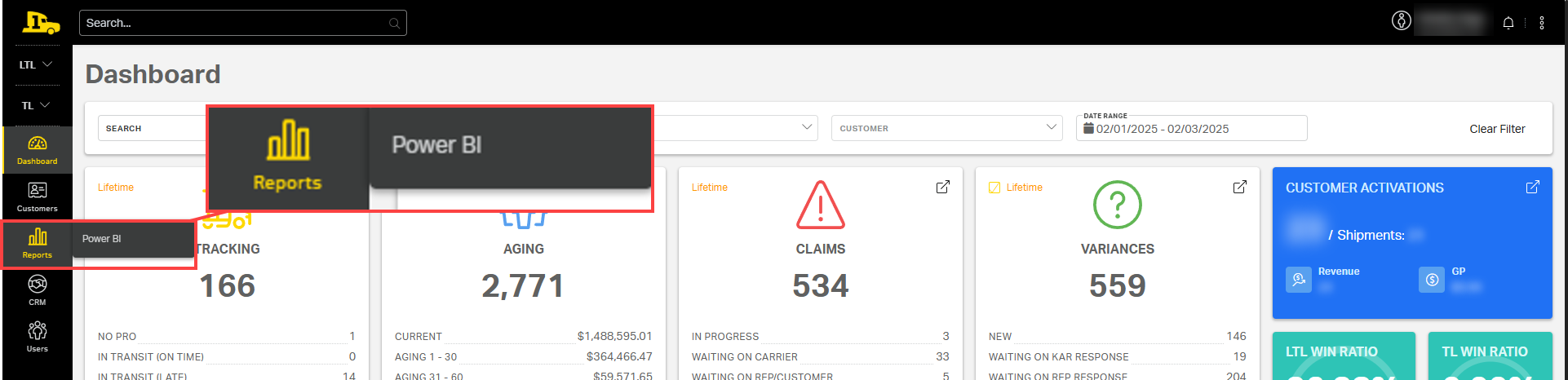
The Reports tab includes one main subsection:
- PowerBI: Access interactive dashboards and visual reports that provide deeper insights into company performance. PowerBI integrates with Cabo data to help you analyze shipment trends, financial metrics, and customer activity in real time.
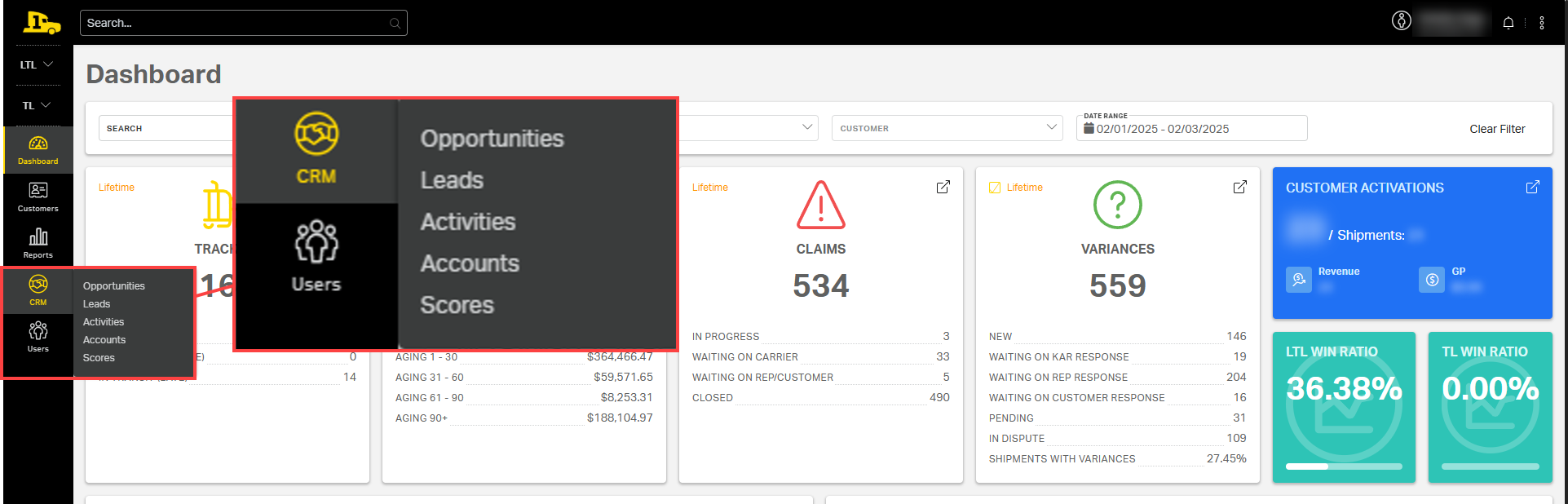
CRM
Use Cabo's customer relationship management (CRM) tool to track sales activity, manage pipelines, and log customer interactions to ensure follow-up and visibility across your accounts.
The CRM tab includes several subsections:
- Opportunities: View and manage active sales opportunities. Track progress through each stage of the sales pipeline, update statuses, and monitor potential revenue to stay organized and focused on closing deals.
- Leads: Capture and manage new business prospects. Log details about potential customers, track outreach efforts, and convert qualified leads into active opportunities within Cabo.
- Activities: Record all customer interactions, including calls, emails, and meetings. These entries create a clear history of communication and support consistent follow-up practices with customers and prospects.
- Accounts: Access detailed profiles of existing customers. Review account information, associated contacts, shipment history, and financial data to support relationship management and growth.
- Scores: Evaluate account health and potential using Cabo’s scoring system. Scores help prioritize outreach by highlighting high-value opportunities or customers who may need additional support.
Users
Manage internal user access and permissions under Users. Create new Cabo users, update roles, or deactivate accounts as needed.
Helpful Time Savers
Cabo includes several tools designed to make your workflow more efficient:
- Omni Search Bar: The fastest way to look up a single shipment and check its status.
- Address Book: Save commonly used addresses under a customer's account to streamline the quoting and booking process.
- Customer Profile Preferences: Set up user logins and key contacts for each customer account to align with customer needs.
Next Steps
Now that you’re familiar with Cabo’s layout, explore additional training resources for deeper learning:
Need Help?
For additional guidance, visit the Help Center.