
Booking an LTL Shipment
Booking an LTL shipment in Cabo is a three-step process broken into three separate pages in Cabo:
- Pickup & Delivery – Enter addresses, shipping and receiving hours, and contact information for both the shipper and receiver.
- Items & Liability – Review and confirm the commodity details for the shipment, and add any missing information not included in the original quote. The Items & Liability page also includes the carrier’s liability for the load with an option to purchase third-party freight insurance, if needed.
- Review & Ship – Add reference numbers and set up tracking notifications; then review all the shipment details before tendering the shipment (i.e., sending the booking details to the carrier).
Details Header
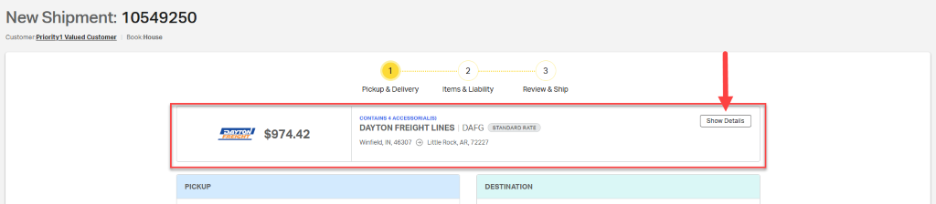
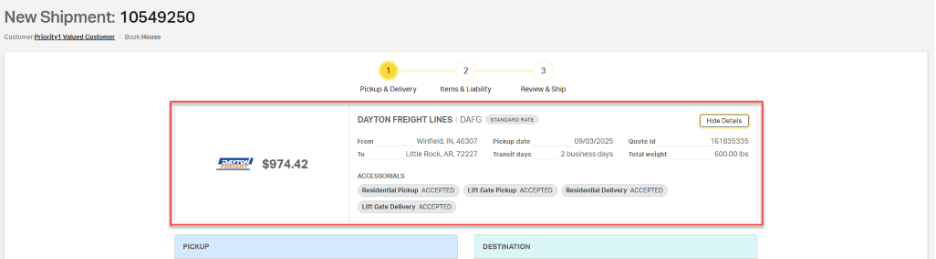
A Details header is anchored to the top of all three booking pages. Users can quickly identify the carrier, the quoted amount, and basic shipping details like pickup and delivery locations. Users can expand the Details header by selecting the Show Details option.
Page 1: Pickup & Delivery
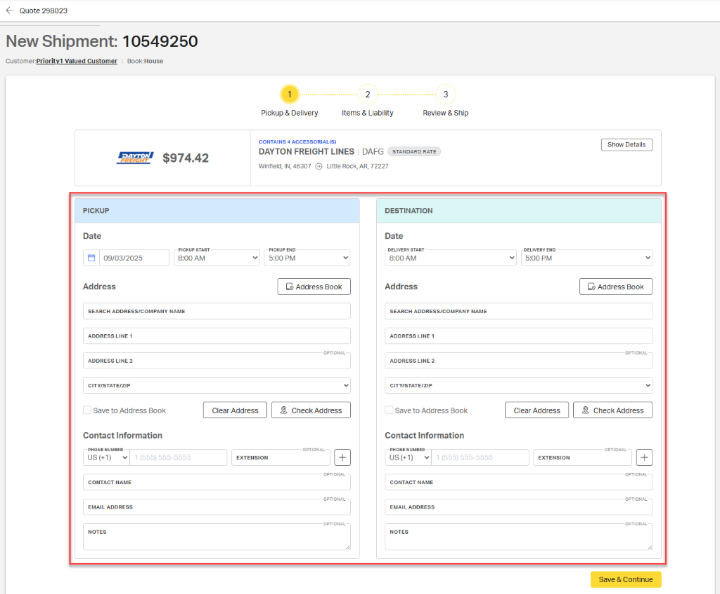
Below the Details header, two identical forms are displayed: one for entering pickup information and the other for entering delivery details.
Note: The Pickup Date automatically populates based on the date specified in the quote. This date can be edited, however, the new date must not go beyond the quote’s expiration date.
Address
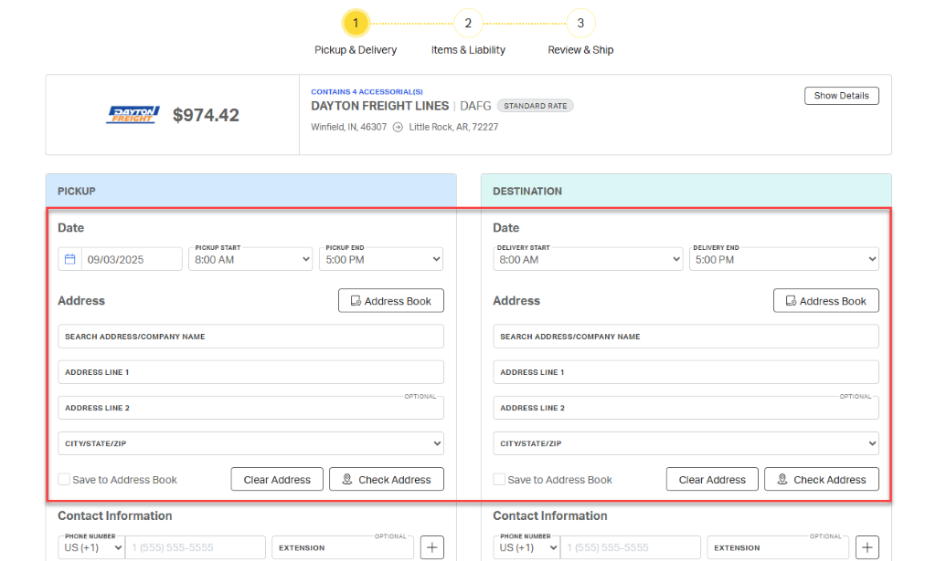
The following address information is required for both the pickup and destination Address forms:
- Shipping and receiving hours
- Company name
- Full address
Address Book
Use the Address Book to select an address from previously saved location information. Options in the address book will be filitered to match the zip/postal code provided on the quote form.
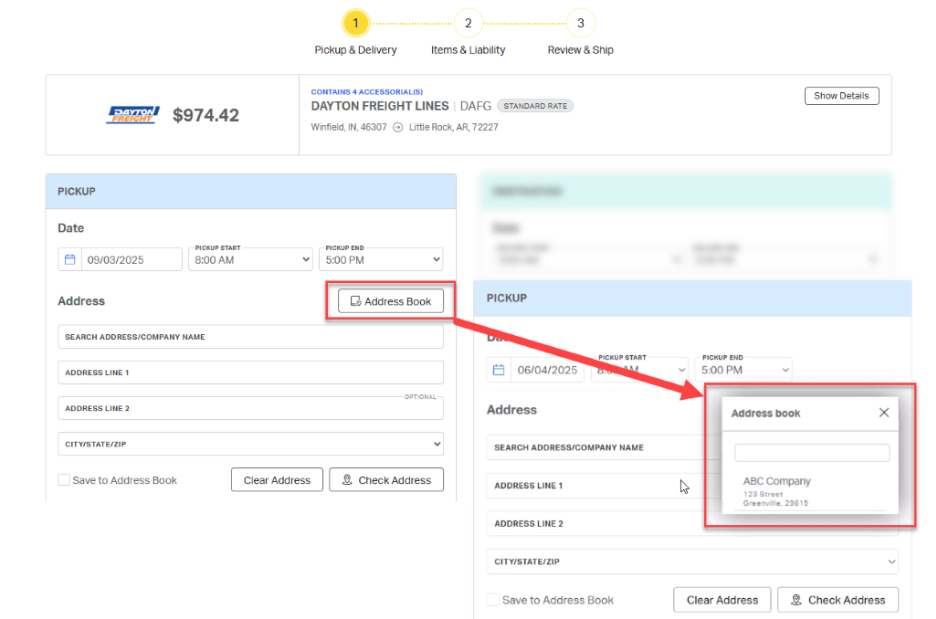
ℹ️ If the Address Book was used to populate the quote form, the corresponding information will also populate on the Pickup and Delivery page.
To save a manually entered address from the Pickup & Delivery booking page, select Save to Address Book.
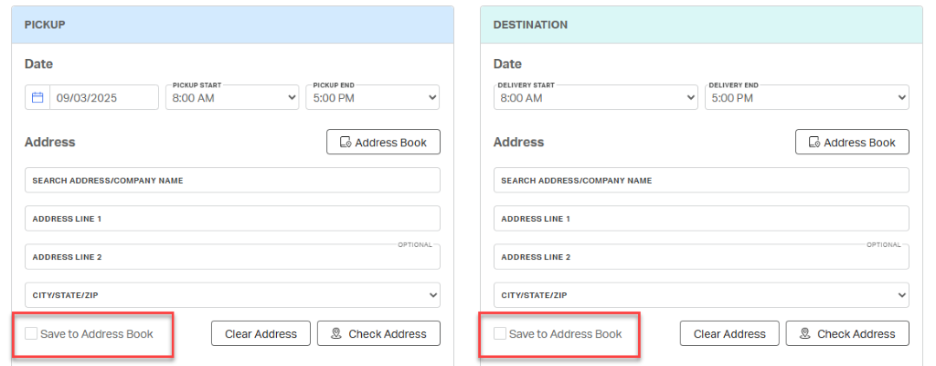
ℹ️ Users can save details for each address, including shipping and receiving hours, accessorials, contact info, and notes. For more information on using the Address Book feature, click here.
Check Address
Once the address has been entered into the form, select Check Address to view the address on Google maps. 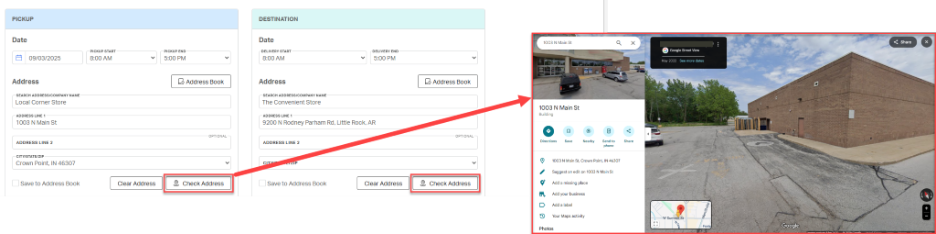
This feature provides a final opportunity to check for necessary accessorials, such as limited access, residential, or liftgate pickup or delivery, before completing the booking.
Contact Information
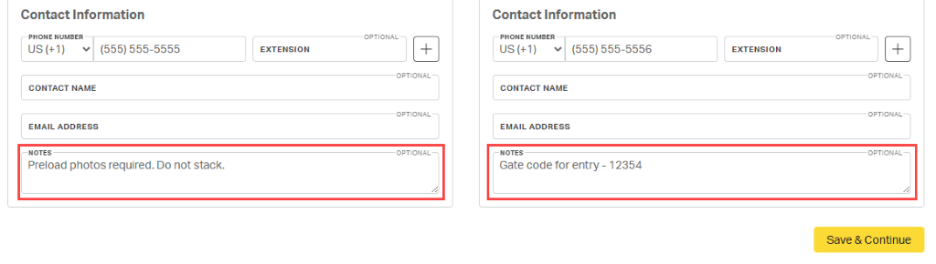
Phone number is required for both the pickup and destination locations. Other contact details, such as contact name, email address, and notes, are optional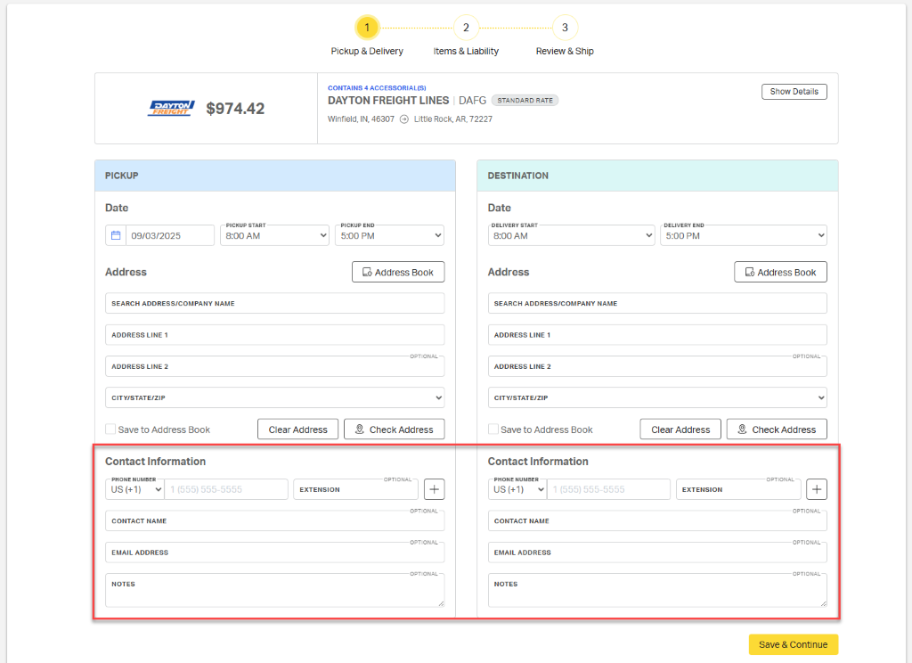
ℹ️ Notes added to the Pickup & Delivery page under Contact Information will be included on the BOL and visible to the driver.
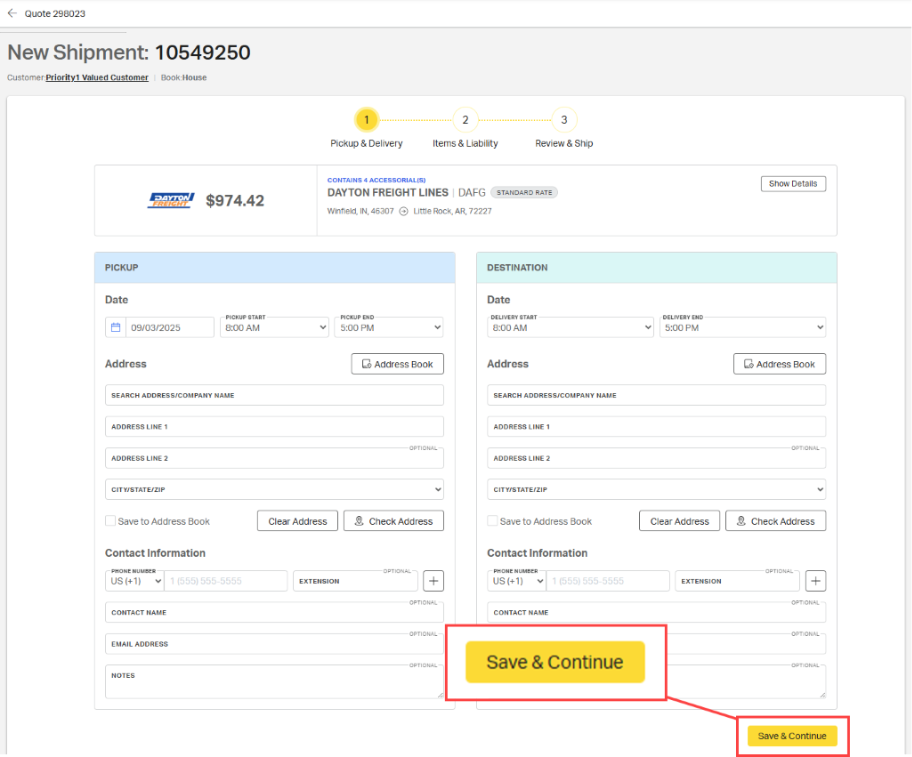
After completing both forms, click Save and Continue.
Page 2: Items & Liability
On the Items & Liability page, review and confirm the shipment details, including Items and Liability & Insurance.
Items
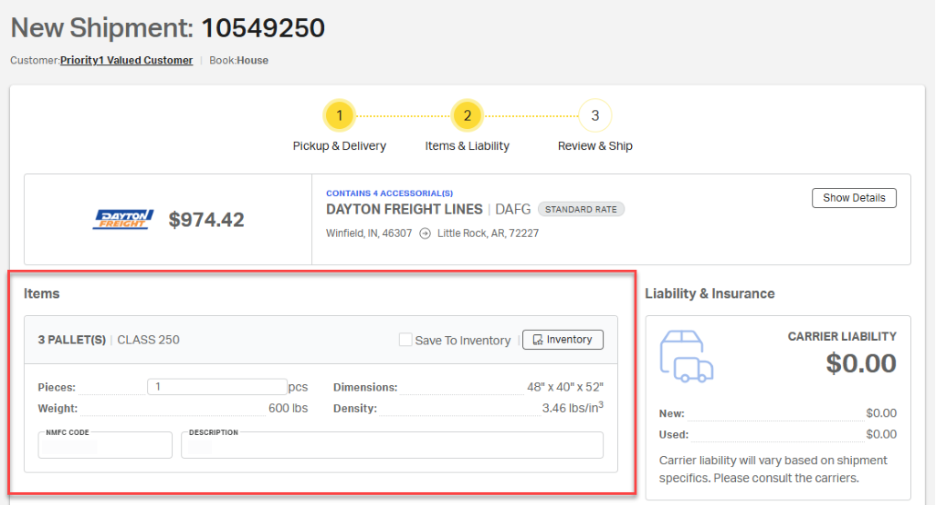
On the Items form, pallet count, class, weight, and dimensions are pre-filled from the initial quote and cannot be modified.
NMFC Code and Description
If the NMFC code and item description were included in the quote, they will appear in the Items form and can be edited. If not, enter the appropriate NMFC code, including the subclass for density-based commodities, and description manually.
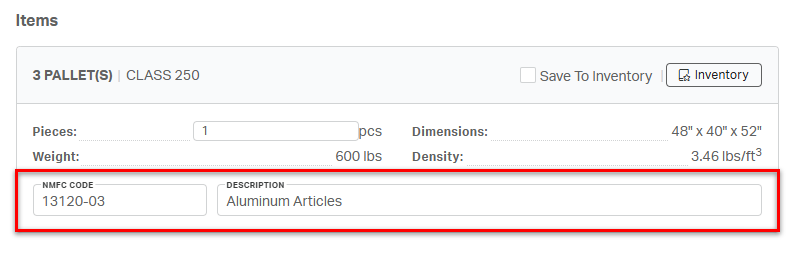
⚠️ While not required for booking, including the correct NMFC code on a shipment prevents unexpected reclassification charges from the carrier on the final invoice.
Inventory
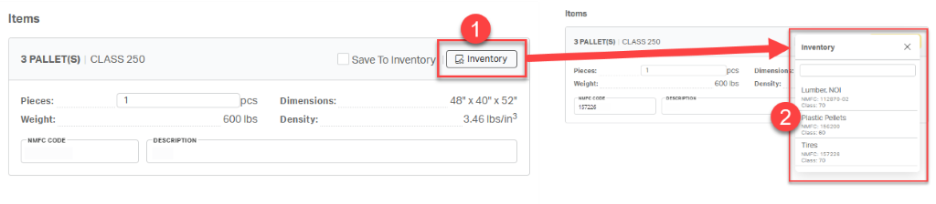
If the items being shipped are saved in the customer's inventory:
- Select Inventory to view saved items.
- Select the appropriate items from the Inventory pop up.
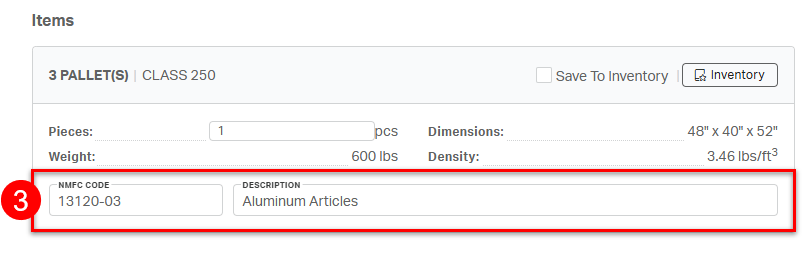
- The NMFC code and description from the selected item will automatically populate the form.
To save manually entered items from this form for future use, select Save to Inventory. 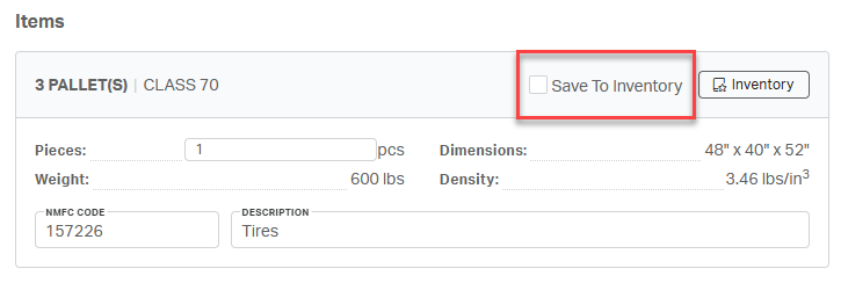
Piece Count
Users also have the option to include a piece count, which specifies the total number of items included on the handling unit (e.g., pallet, crate, skid).
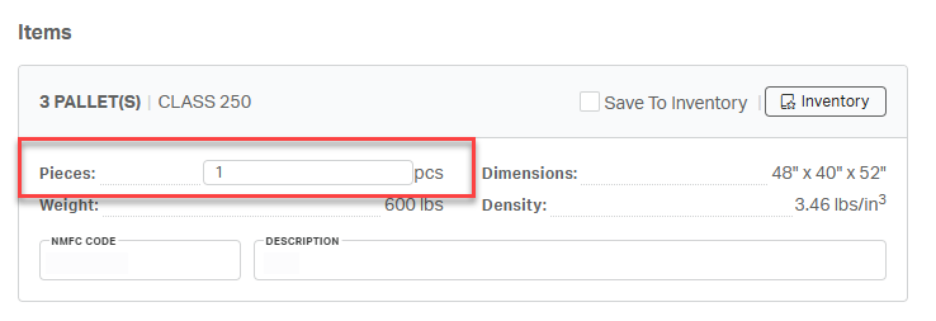
⚠️ The number of pieces is not always the same as the number of handling units. The chart below breaks down several shipping examples to illustrate the difference between pieces and handling units.
When filing a claim for loss, the number of pieces documented at the time of shipment plays a significant role in the claim evaluation process. The recorded piece count serves as official documentation of what was transferred from the shipper to the carrier.
Accurate piece counts can significantly impact the outcome of a claim. Consider the following scenario, based on the machinery example in the table above:
This example highlights the importance of ensuring that all items are correctly documented as individual pieces when preparing a shipment. Misrepresentation or oversight in the piece count can result in denied claims, even when a loss has occurred.
Liability and Insurance
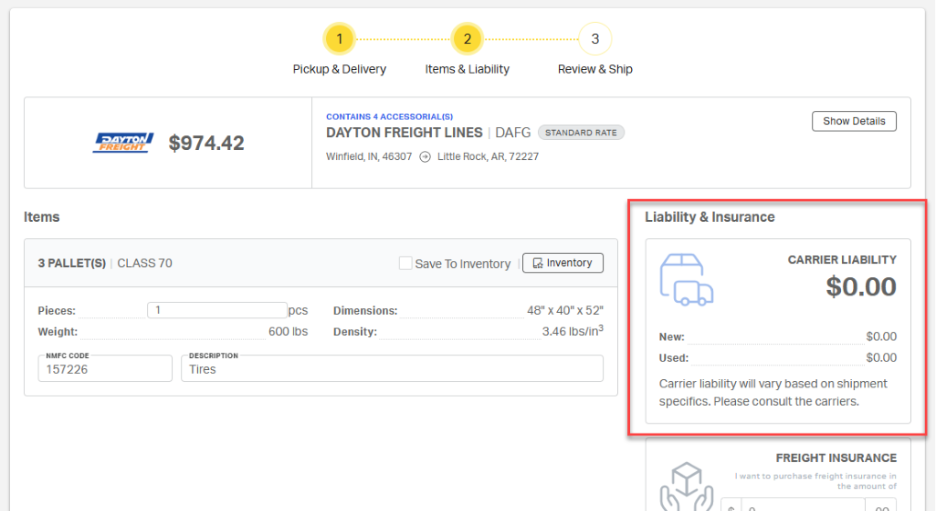
Carrier liability for LTL shipments varies based on shipment details and the carrier transporting the shipment. The dollar amount listed under Carrier Liability is the coverage provided by the carrier in the event of loss or damage:
- New – the maximum amount paid by the carrier on a claim if the items being shipped are new/unused.
- Used – the maximum amount paid by the carrier on a claim if the items being shipped are not new.
Freight Insurance
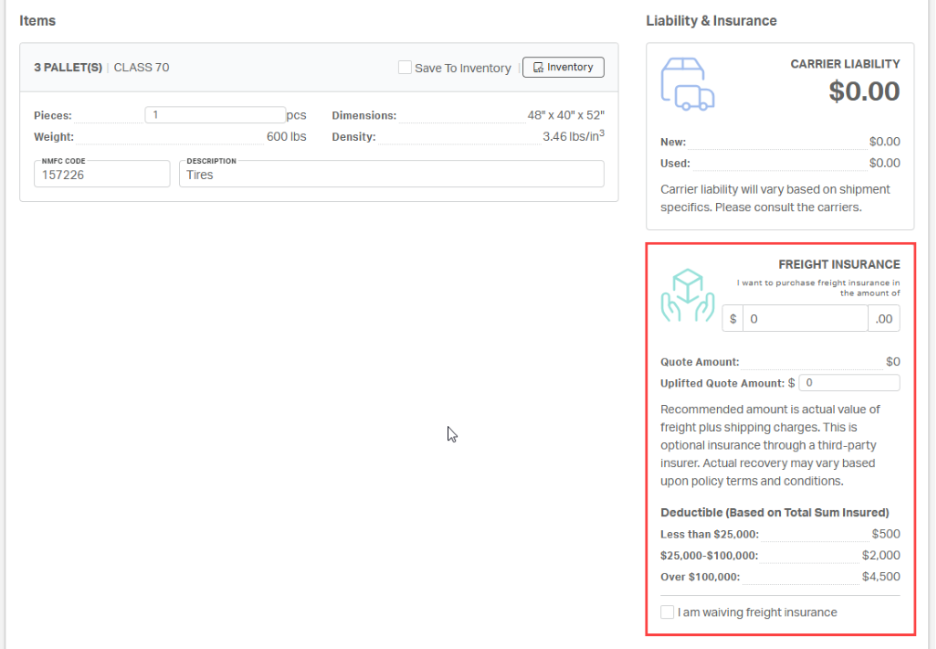
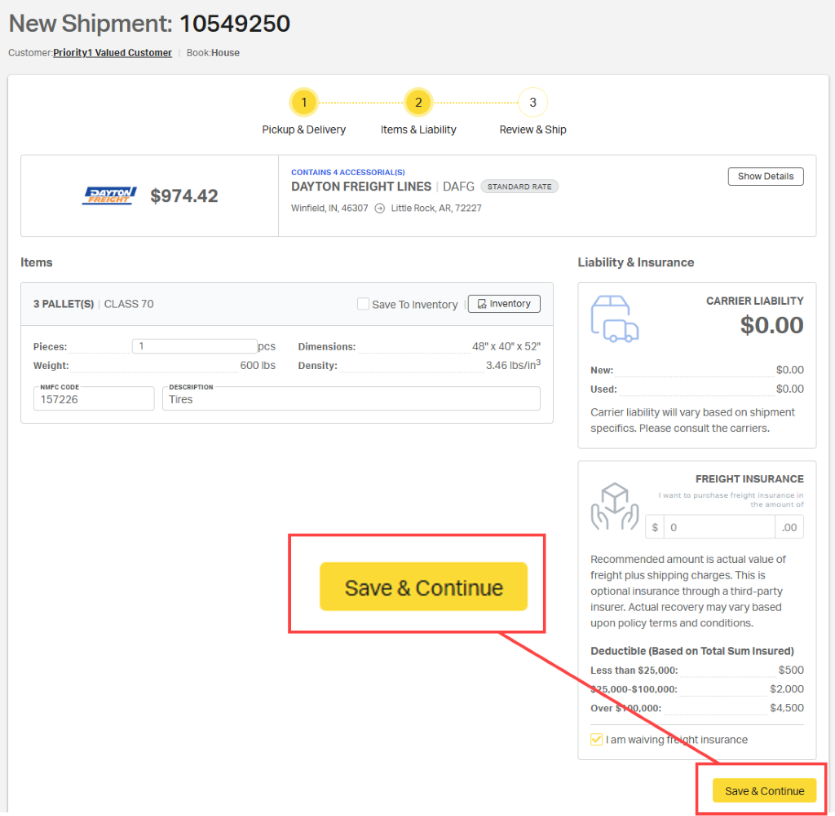
When the carrier liability amount is not enough to cover the full value of the shipment, third-party freight insurance can be purchased directly in Cabo during step 2 of the booking process. The Freight Insurance section of step 2 is required. Users cannot move to step 3 of the booking process until freight insurance has been purchased or waived.
Adding third-party insurance:
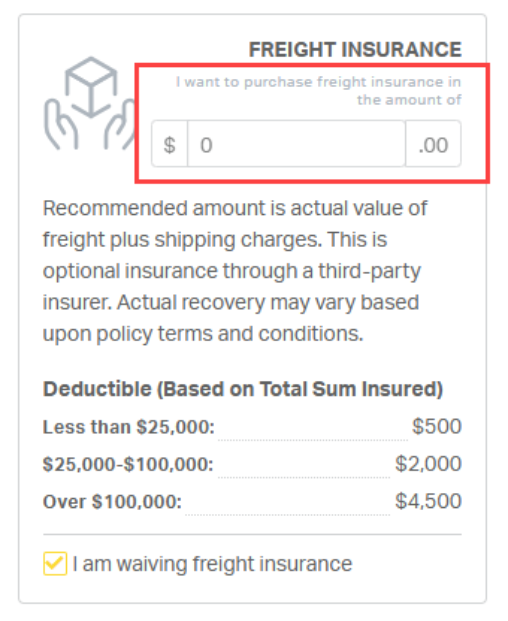
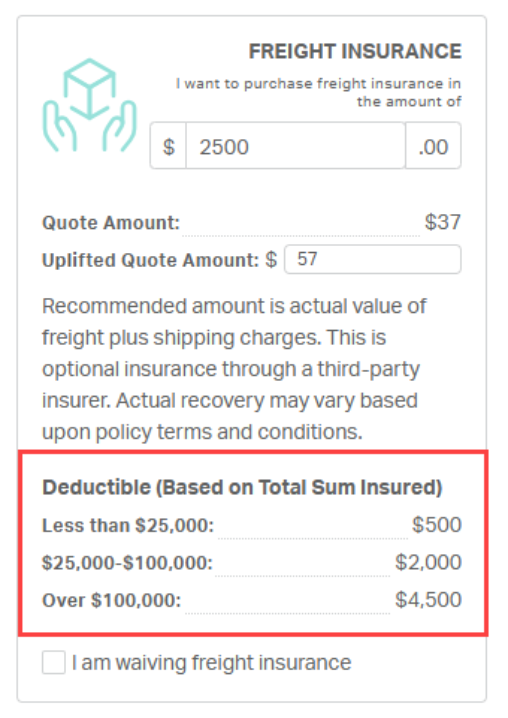
Enter the total value of the shipment into the “I want to purchase freight insurance in the amount of” field. Be sure to enter the total value, not the difference between the value and the carrier's liability. Insurance coverage cannot be combined when filing a claim.
Cabo will automatically populate the Quote Amount and Uplifted Quote Amount.
- Quote Amount cannot be edited. This is the cost to Priority1.
- Uplifted Quote Amount is the amount that will be charged to the customer for insurance. This number can be edited by a Priority1 rep to increase or decrease margin on freight insurance.
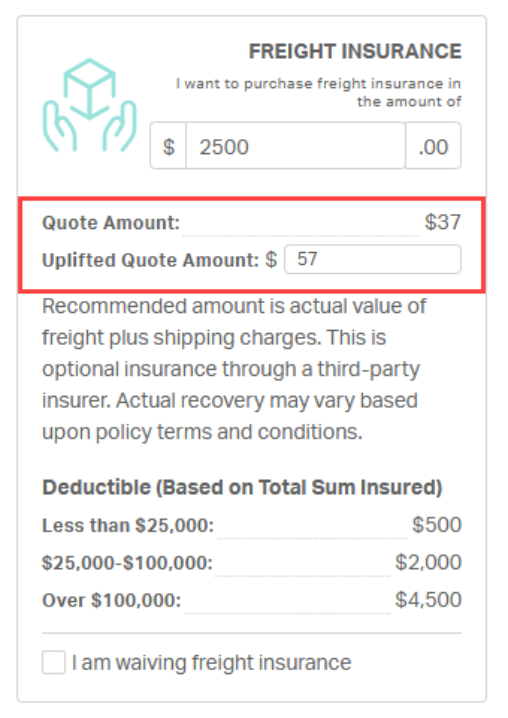
ℹ️The Uplifted Quote Amount is based on the insurance margin and insurance uplift minimum settings in customer preferences. For more information on insurance margin and uplift, click here.
Deductible rates are standard on all shipments covered by third-party freight insurance.
To waive freight insurance and rely on carrier liability, select “I am waiving freight insurance” at the bottom of the Freight Insurance form.
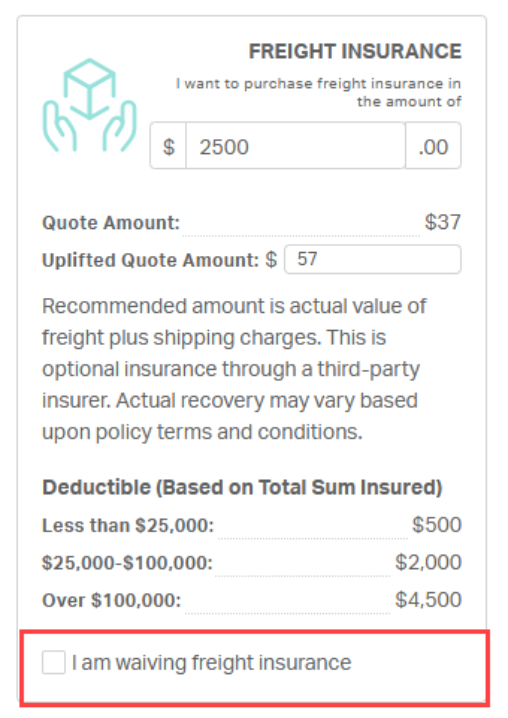
⚠️Reminder: The Freight Insurance section is required. Users cannot move to the next page until Freight Insurance has been purchased or waived.
After completing the Items and Liability & Insurance forms, click Save & Continue.
Page 3: Review & Ship
The final step of the booking process, Review & Ship, allows users to
- Add reference numbers.
- Configure tracking notifications.
- Complete a final review before tendering the shipment.
Reference Numbers
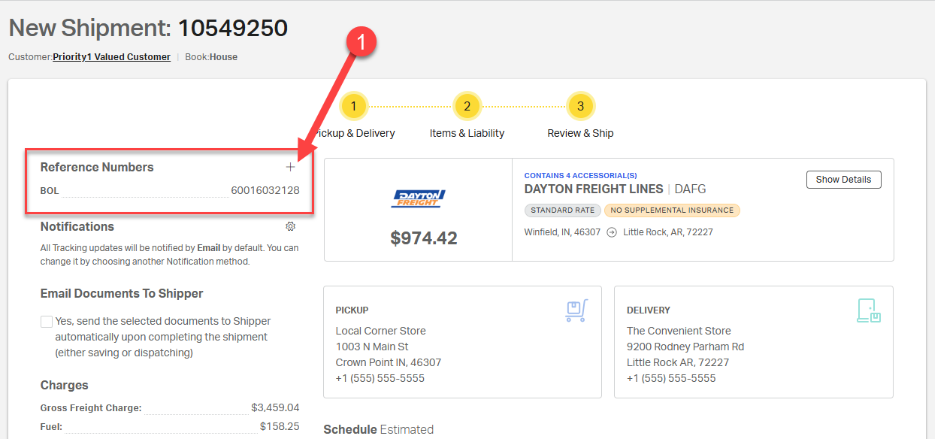
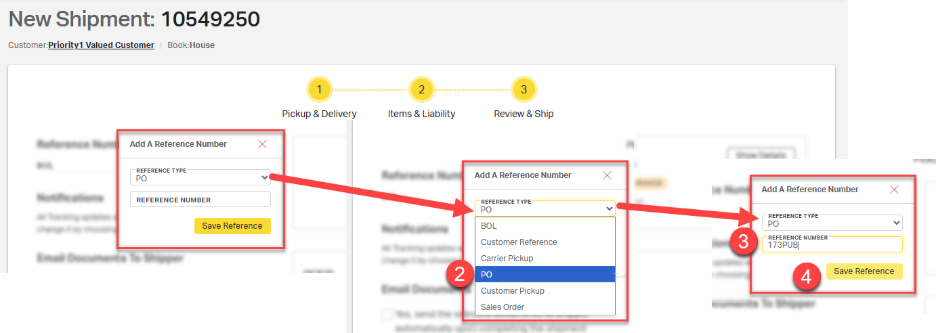
A BOL number is automatically generated and included on the Review & Ship page. To add additional reference numbers, such as a purchase order (PO) or sales order (SO), follow these steps:
Select + next to Reference Numbers.
In the resulting Add a Reference Number pop-up,
- select the Reference Type from the dropdown,
- enter the Reference Number,
- select Save Reference.
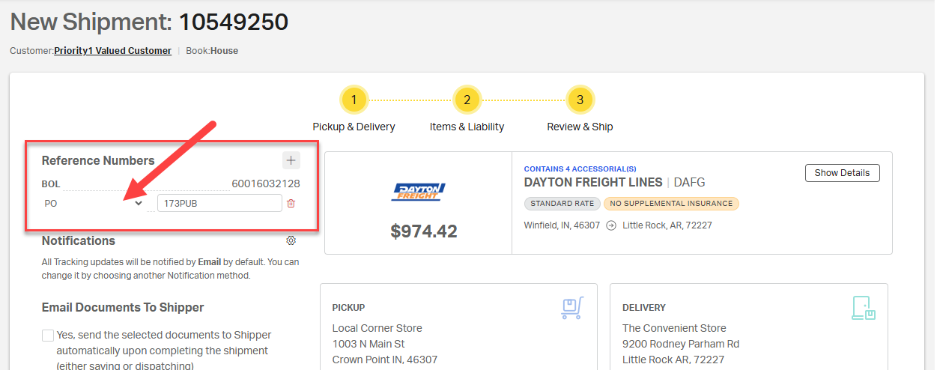
The reference number will now be listed below the BOL number.
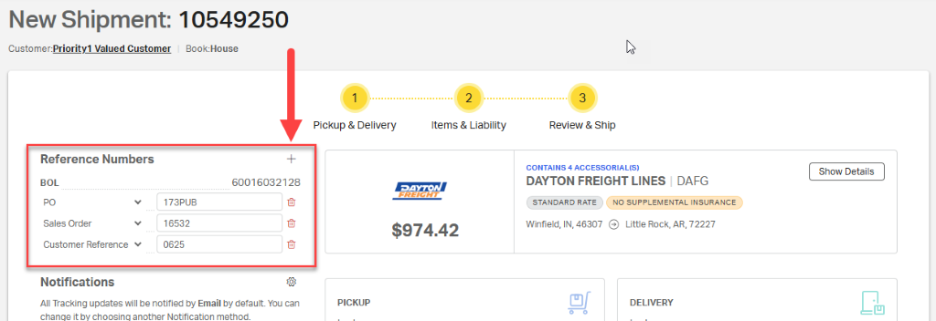
Users may enter multiple reference numbers by selecting + again and filling out the form for the next reference code.
ℹ️ The Reference Number field will accept numbers, letters, and basic symbols (i.e., - _ & #).
Notifications
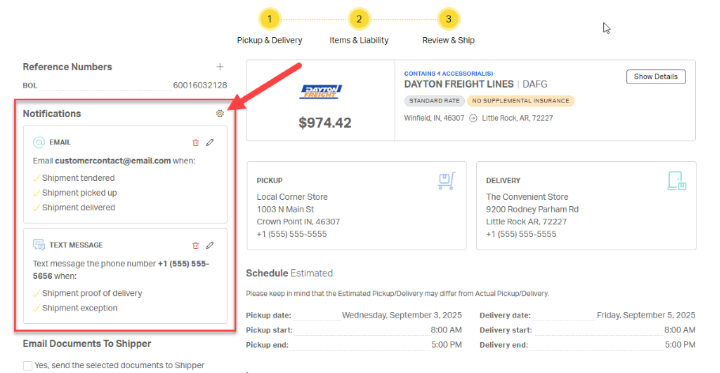
Notifications can be configured to send real-time tracking updates to specific contacts designated by the customer, ensuring the right people stay informed throughout the shipment lifecycle.
Click the gear (⚙️) to the right of the Notifications header to open the Configure Notification Method popup window.
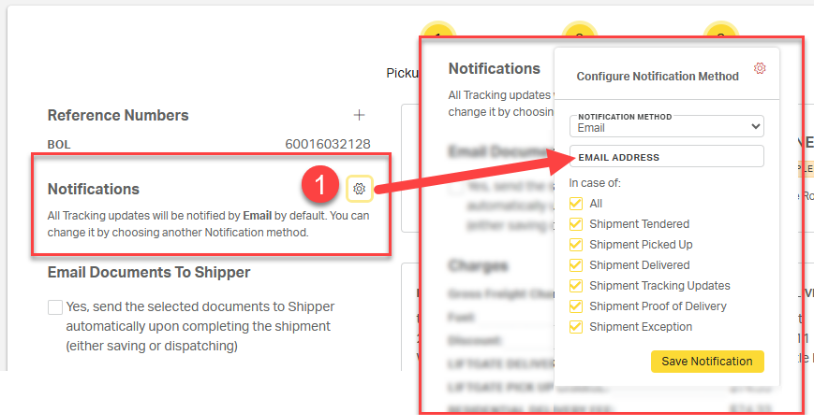
Choose the appropriate Notification Method from the dropdown. Users have three options:
- Web – Notifications are added to the Notifications icon (🔔) next to the user name in the Cabo header bar. Note that this option is only available for the user booking with shipment.
- Email – Notifications are emailed to the contact in the resulting email address field.
- Text message – Notifications are sent via SMS text message to the contact in the resulting phone number field.

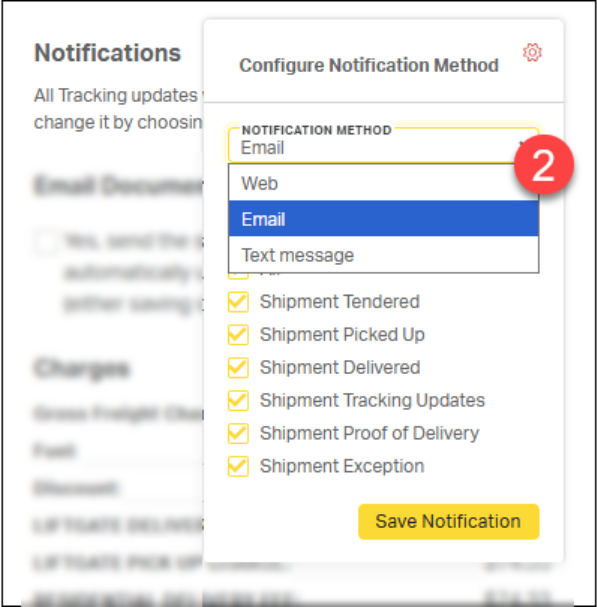
For notifications via email or text message, enter the contact's email or phone number in the resulting field.
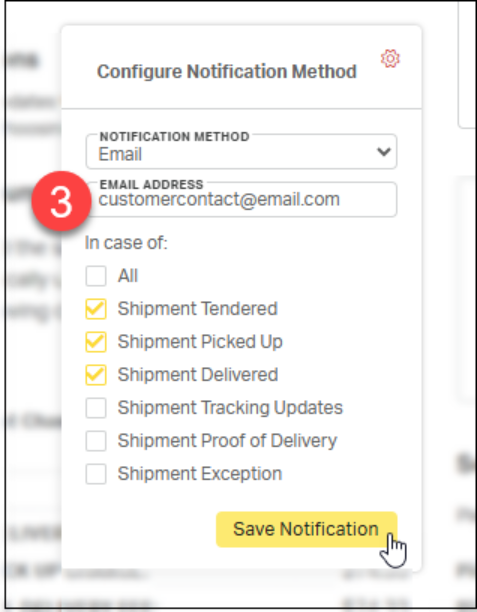
Select one or more of the following notification types:
- All – When selected, the recipient will receive all of the alert types listed.
- Shipment Tendered – Notifies the recipient that the booking process is complete and shipment information has been sent to the carrier.
- Shipment Picked Up – Notifies that the shipment has been picked up from the shipper and is now in the carrier’s possession.
- Shipment Delivered – Notifies the recipient that the shipment has been delivered to the consignee.
- Shipment Tracking Updates – Notifies the recipient each time a tracking update is sent to Cabo from the carrier. These notifications include pickup, delivery, and any time the shipment is scanned at a terminal during transit.
- Shipment Proof of Delivery – Sends a copy of the Proof of Delivery document to the notification recipient.
- Shipment Exception – Alerts the recipient if the shipment encounters an issue, such as a delay, damage, or refusal at delivery.
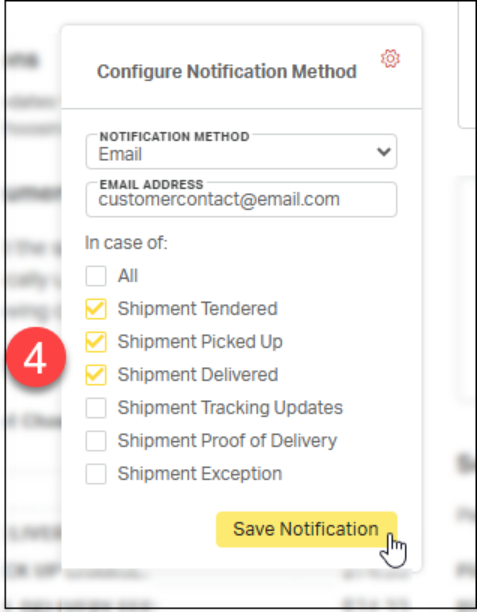
After choosing the appropriate notifications, select Save Notification.
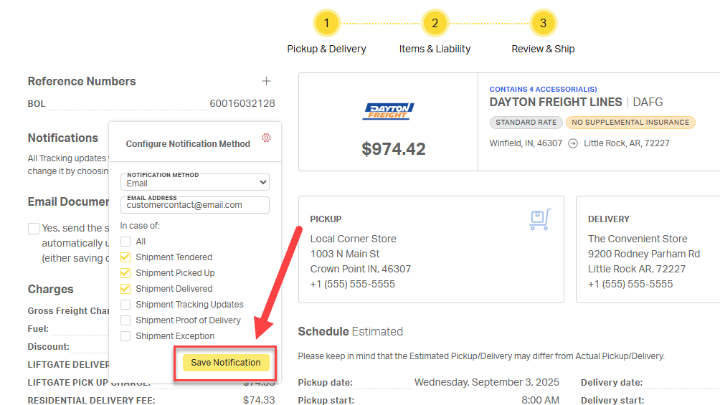
Users can add additional contacts for notifications by selecting the gear⚙️ again and filling out the form for the additional recipient(s).
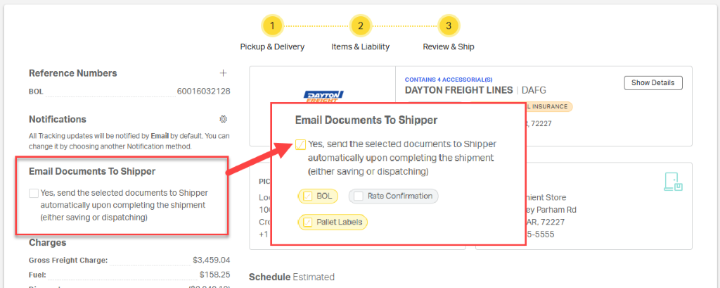
Email Documents to Shipper
Cabo will automatically send useful documents, including the BOL, rate confirmation, or pallet labels, directly to the shipper. To enable this feature, check the box labeled Email Documents to Shipper; then select the appropriate options.
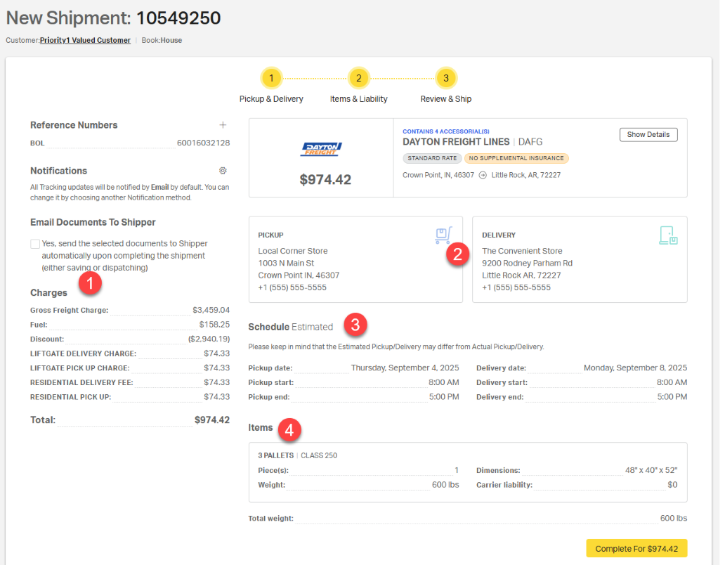
The remainder of the Review & Ship page contains shipment details for final review:
- Charges - Itemized shipment costs, including basic charges, accessorial fees, and discounts.
- Pickup and Delivery - Full addresses and contact phone numbers for the shipper and consignee.
- Schedule Estimated - Estimated pickup and delivery dates with shipping and receiving hours.
- Items - Details including handling units, class, piece count, weight, dimensions, and carrier liability.
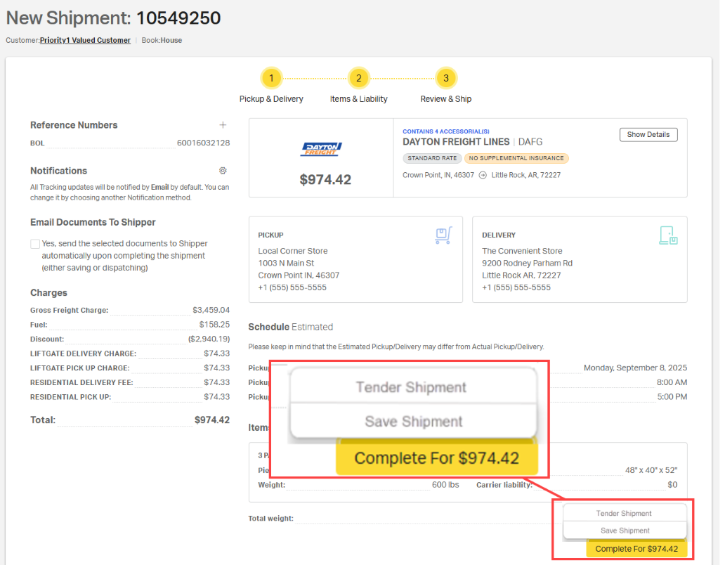
After reviewing these details, click the Complete button. Two options will be presented:
- Tender Shipment - Select this option to complete the booking process.
- Save Shipment for Later - Select this option to save progress for easy booking later. When this option is chosen, the shipment is placed in pending status, all of the shipping documents are created, and a shipment details page is generated. Users can use the shipment details page to add and edit reference codes and tracking notifications, dispatch the shipment to the carrier, and verify details.
Once the shipment has been tendered, Cabo will open the Shipment page. For more information on using the Shipment page, click here.